The best graphics settings for World of Warcraft: Forever keep Render Scale at 100%, set Secondary Lighting to Good, drop Compute Effects and Shadow Quality one step below their highest level, and leave textures, view distance and water detail high, because those cost very little. If you still need frames after that, lower Render Scale a few percent at a time: it is the single biggest lever in the menu.
Forever’s upgraded lighting and environments are the reason the old “everything on max” habit no longer works. A handful of new options do most of the heavy lifting, and the rest barely move your frame rate. Below are our settings for most PCs, a low-end setup, a high-end setup, what each new option does, and fixes for stutter and crashes. Blizzard facts come from its new player’s starter guide, its GPU requirements post and its development notes, checked November 6.
Where to Find the Graphics Settings
Press Escape to open the Game Menu, then choose Options. Blizzard’s starter guide says that is where you adjust graphics, audio, controls and other display settings. The Advanced section holds the finer options, including the Bloom Intensity slider Blizzard added in the October 15 build.
Two choices made before you ever reach the menu also change how the game looks:
- Experience Preset. The first time you log in, Forever asks you to pick Classic or Enhanced. Enhanced turns on HD character models and other modern features; Classic uses SD models and the original layout. You only see that screen once, but every setting it changes can be changed later under Game Menu > Options.
- HD or SD models. You choose per character, and Blizzard says you can switch later in Options or at a Barbershop. It changes appearance only, never abilities.
Best Graphics Settings for Most PCs
These settings suit a mid-range gaming PC at 1080p or 1440p. Start here, then follow the low-end or high-end notes below if your frame rate is far off what you want.
| Setting | Our pick | Why |
|---|---|---|
| Render Scale | 100% | The biggest lever; lower it last |
| Secondary Lighting | Good | The heaviest new option; High costs a lot for little |
| Compute Effects | One step below max | Drives the new fog and mist; first to drop if you struggle |
| Shadow Quality | Good or High | The top levels cost far more than they show |
| SSAO | Good | Keeps corners and inns from looking flat |
| Liquid Detail | High | The new water costs almost nothing |
| Texture Resolution | High | Cheap if your graphics card has the memory |
| View Distance | High | The fog hides the far edge, so it costs little |
| Environment Detail and Ground Clutter | High | Cheap, and the world looks bare without them |
| Spell Density | Essential, for raids and battlegrounds | Cuts the glare of a busy fight |
| Frame rate cap | Your monitor’s refresh rate | A steady number feels smoother than a jumping one |
The rule behind every line is the same: in Forever, the highest level of a heavy setting is almost always out of proportion to what it adds. One level below the top looks nearly identical and saves a lot of performance.
What the New Lighting Options Do
- Secondary Lighting is the light thrown by torches, lanterns and other sources beyond the sun and moon. It is new in Forever and the most expensive setting in the menu. Good keeps most of the effect; below that, lit streets start to look dim. If your frame rate drops when you move through towns, lower this first.
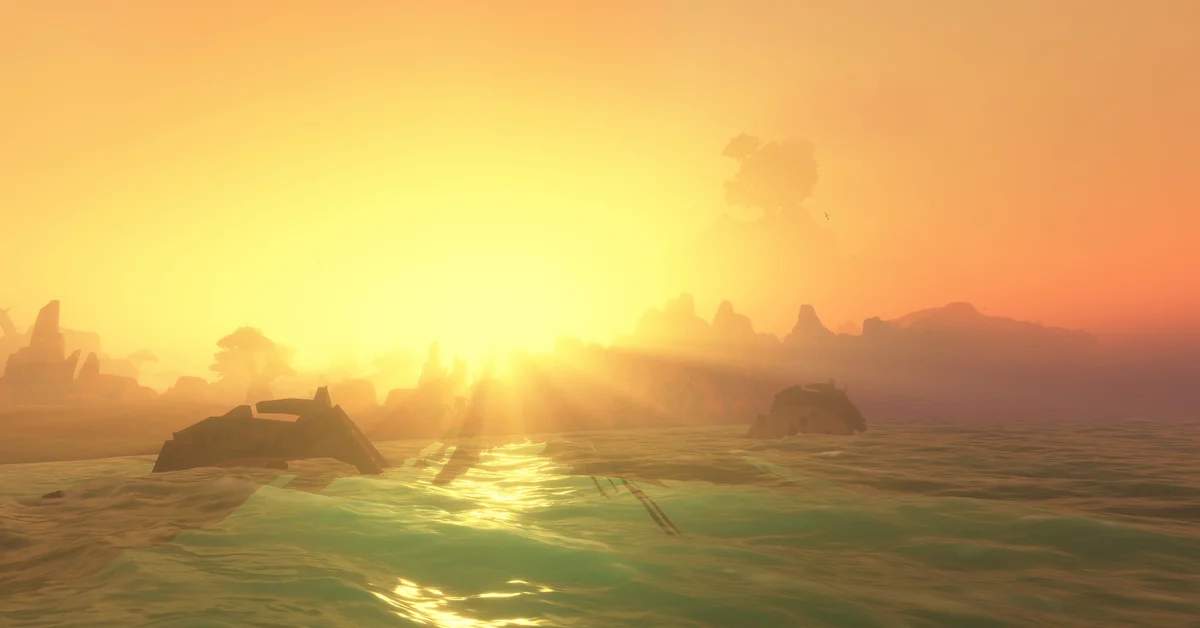
- Compute Effects runs the new volumetric fog, mist and dust that make places such as Ashenvale and Darkshore look so different. Lower it if the frame rate dips in foggy zones.
- Shadow Quality sets how sharp and how far shadows are drawn. Blizzard fixed a bug in the October 15 build that made fog extra bright at lower shadow settings, so dropping shadows no longer washes out the scene.
- SSAO darkens corners and creases where light would not reach. With it off, interiors look flat.
- Bloom Intensity is now a slider in the Advanced section. Turn it down if bright skies and spell glows feel washed out.
Ray traced shadows are not in the menu right now. Blizzard removed the option during the beta and said it “will be re-added to the game in a future update, after the functionality is fixed.”
Low-End PCs and Laptops
Check the hardware floor first. Blizzard’s GPU requirements post sets a hard architecture cutoff: AMD’s Graphics Core Next 1 cards (2012), NVIDIA’s Maxwell cards (2014) and Intel’s Skylake graphics (2015), or newer. The oldest cards it names as compatible, such as the Radeon HD 7850, the GeForce GTX 750 Ti and GTX 900 series, and Intel HD Graphics 530, can run the game’s new effects, but Blizzard adds that they are “still well below the minimum requirements for the game,” so expect to run them at the bottom of every slider. Our GPU requirements story lists the cards Blizzard ruled out entirely.
On an older or integrated GPU:
- Set Secondary Lighting, Compute Effects, Shadow Quality and SSAO to their lowest levels.
- Keep Texture Resolution on High if your card has the memory for it; sharp textures do more for the picture than any lighting option.
- Lower Render Scale to between 75% and 90%. The image softens, but the frame rate climbs.
- Keep View Distance reasonably high. The fog hides distant scenery anyway, and pop-in looks worse than a few lost frames.
- Set Spell Density to Essential so busy fights do not tank the frame rate.
Forever runs on Windows and Mac, and the same order of cuts applies on a Mac laptop.
High-End PCs
A strong card can run nearly everything high, but we still keep Secondary Lighting and Compute Effects one step below their maximum, since the top level of each costs a large share of your frame rate for a change that is hard to see. Leave Render Scale at 100%, put Shadows on High, and spend the headroom on a high, steady frame rate cap. If you want extra grass, the long-standing /console groundEffectDensity command (followed by a number) pushes ground clutter beyond the slider, at a cost in performance.
Fixing Stutter, Frame Drops and Crashes
- Update your drivers. Blizzard’s return-to-Azeroth advice is to update your operating system and graphics drivers and check the system requirements before anything else.
- Cap the frame rate. If your counter jumps between very high and very low numbers, a fixed cap at your monitor’s refresh rate smooths it out.
- Lower Secondary Lighting before the whole preset. Dropping the overall quality slider often does less than lowering this one option.
- Change settings from character select. If the game struggles as you enter the world, open Options from the character select screen’s menu and lower the heavy settings before logging in.
- Crashing with Error 134? Our Error 134 fix walks through that crash step by step.
Want the interface to look as clean as the world? Our best addons guide covers the addons that work in Forever, and every Forever guide we have is on our World of Warcraft hub.
Frequently Asked Questions
What is the most demanding graphics setting in WoW Forever? Secondary Lighting, the new option for light from torches, lanterns and other secondary sources. Compute Effects, which runs the volumetric fog, is close behind.
Should I use Render Scale below 100%? Only after lowering Secondary Lighting, Compute Effects and shadows. Render Scale gives the most frames of any single setting, but it also softens the whole image.
Where are the graphics settings? Press Escape, choose Options, then open the graphics settings. Finer options, such as the Bloom Intensity slider, sit in the Advanced section.
Does WoW Forever have ray tracing? Not at the moment. Blizzard removed the Ray Traced Shadows option during the beta and says it will return in a future update once it works properly.
Can I switch between HD and SD models? Yes. Blizzard says you can change it later in Options or at a Barbershop, and the choice only affects appearance.
What graphics card do I need? Your GPU must be an AMD Graphics Core Next 1, NVIDIA Maxwell or Intel Skylake design or newer, per Blizzard’s requirements post. Older cards on that line, such as the GTX 750 Ti and Radeon HD 7850, are compatible but sit well below the game’s minimum requirements, so a newer card is the comfortable choice.