
If you can’t take a selfie in GTA 6, you’re most likely in the wrong camera: Photo Studio, the photo mode on the pause menu, has no selfie option. Selfies come from the Camera app on Jason and Lucia’s phone, where the on-screen controls list Selfie on R3, a click of the right stick.
We opened the Camera app on our PS5 copy of Grand Theft Auto VI, and the screenshots in this guide are from our own PS5 recording. Below is why the selfie is hiding, how to get to it, and every camera control.
Why You Can’t Take a Selfie
There are two cameras in GTA 6, and only one of them lists a selfie:
- Photo Studio is the full photo mode. You open it from the pause menu, and it freezes the scene so you can move the camera around. Its tabs (Camera, Effects, Lighting, Vehicle and Overlays) have no selfie option. Our photo mode guide covers each tab.
- The phone’s Camera app is the quick camera, and it’s the one with Selfie in its controls.
So if you’ve been hunting through Photo Studio for a selfie switch, that’s why you haven’t found one. If you’re already in the phone camera and nothing flips, make sure you’re clicking the right stick in rather than pushing it, since Selfie is R3.
How to Take a Selfie in GTA 6
- Press Up on the D-pad to take out the phone.
- Open the Camera app, the icon with a camera on it. On our phone it sat at the start of the second row.
- Click the right stick (R3) for Selfie.
- Press R2 to take the photo.
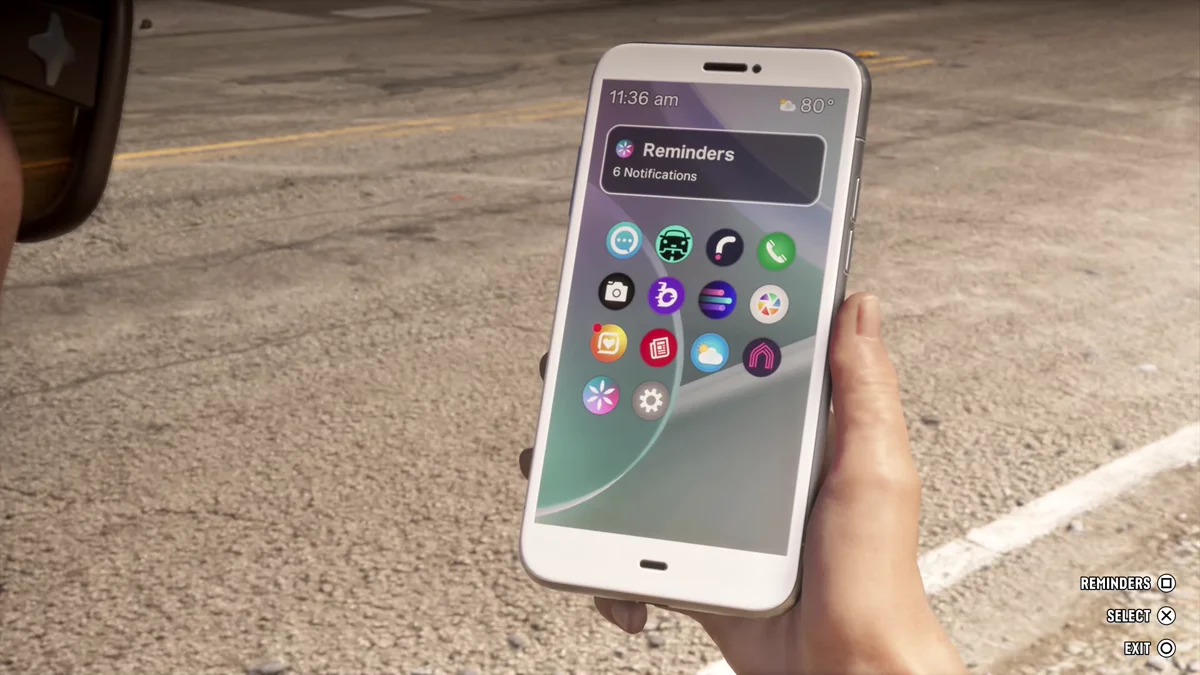
We didn’t switch to Selfie on this visit, so we can’t show you the view it gives yet.
Every Phone Camera Control
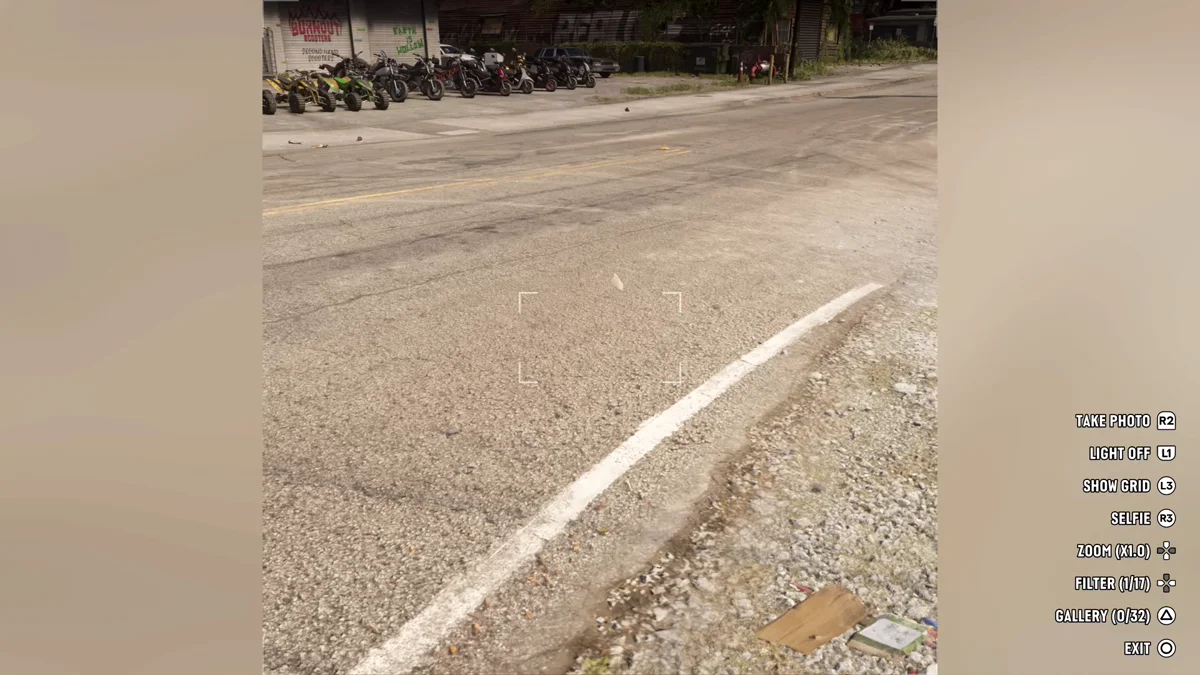
The Camera app lists its controls down the right side of the screen:
| Action | PS5 |
|---|---|
| Take photo | R2 |
| Light off | L1 |
| Show grid | L3 |
| Selfie | R3 |
| Zoom (starts at X1.0) | Up and Down on the D-pad |
| Filter (1 of 17) | Left and Right on the D-pad |
| Gallery | Triangle |
| Exit | Circle |
The Gallery counter read 0/32 before we took any photos with it, and the filter count starts at 1 of 17. The frame itself is tall, like a real phone screen, rather than the full width of your TV.
When to Use Photo Studio Instead
The phone camera is for a quick shot without stopping the action. For a posed shot of Jason or Lucia’s face, Photo Studio can still get you close: press Options, then Square, and move the camera around in front of your character with the scene frozen. It isn’t a selfie in the phone sense, but it gives you more control over lighting and focus. Our guide to every phone app covers what else the phone can do.
Frequently Asked Questions
Why can’t I take a selfie in GTA 6?
Photo Studio, the pause-menu photo mode, has no selfie option. Use the Camera app on the phone instead, where Selfie is on R3.
How do you take a selfie in GTA 6?
Press Up on the D-pad, open the Camera app, click the right stick (R3) for Selfie, and press R2 to take the photo.
Is there a selfie mode in GTA 6?
Yes, on the phone. The Camera app lists Selfie on R3 among its controls.
How do you change the filter on the GTA 6 phone camera?
Press Left or Right on the D-pad. The counter starts at 1 of 17.