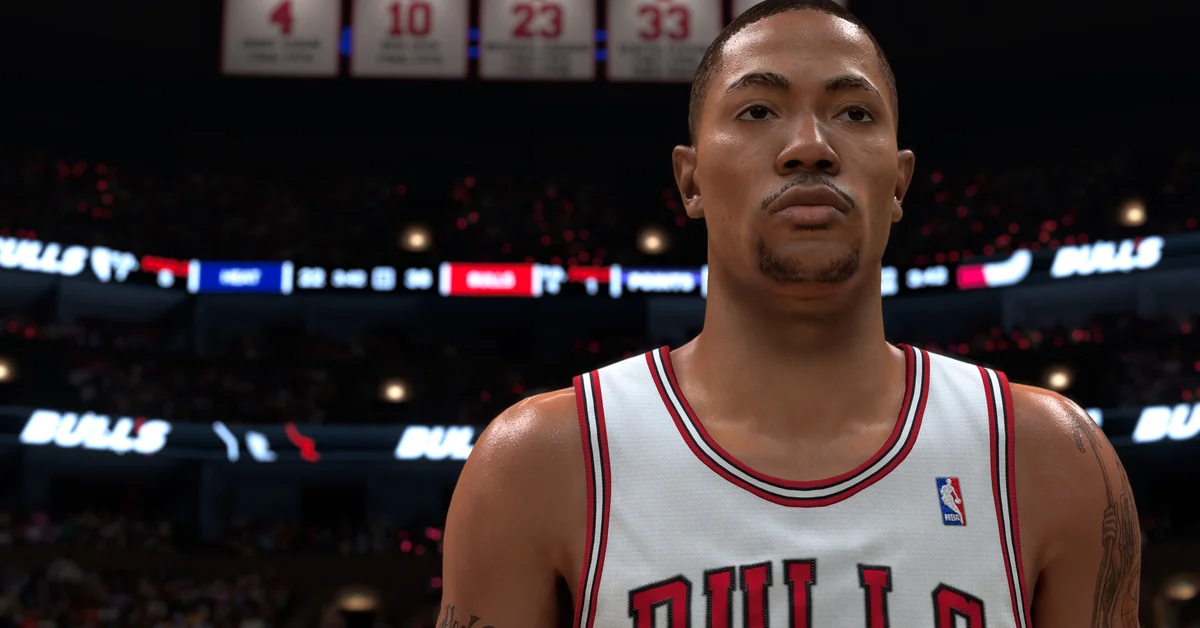
To turn off the shot meter in NBA 2K27, pause a game, go to the Options/Quit tab, select Customize HUD, open Shot Meter Shots, and switch Visibility for Shots off. The same Customize HUD menu also sits under Features on the main menu, and it keeps separate visibility settings for jump shots, layups and free throws, so you can hide the jump-shot meter and leave the others on.
Below we walk through the exact steps on every platform, how to make the change stick across modes, which meters are worth hiding, and what you gain (and lose) by shooting without one. If you want the full shooting setup around it, our best shooting settings guide covers the visual cue and timing slider side.
How to Turn Off the Shot Meter Step by Step
The menu path is the same on every version of NBA 2K27. Only the pause button changes.
| Platform | Pause button |
|---|---|
| PlayStation 5 | Options |
| Xbox Series X and S | Menu |
| Nintendo Switch 2 | + |
| PC (controller) | Start or Menu on your pad |
- Start any game (Play Now, a MyCAREER game, a Rec or Park game) and press the pause button from the table.
- Move to the Options/Quit tab along the top of the pause menu.
- Select Customize HUD. This is where 2K keeps the shot meter settings this year, not in Controller Settings.
- Open Shot Meter Shots.
- Switch Visibility for Shots off. That hides the meter on jump shots.
- Check the layup and free-throw visibility settings on the same screen and set each one the way you want (see below).
- Back out and resume. The change applies immediately.
The Shot Meter Shots screen is also where you change the meter’s graphic, size, color and position if you would rather keep it but make it less distracting.
Setting It Once for Every Mode
Changing the meter from a pause menu reliably affects the mode you are in. To set your default before you ever tip off, go to Features on the main menu and open Customize HUD there, then repeat the same Shot Meter Shots steps.
Some player guides report the meter still showing up in a mode where it was never switched off. If that happens, pause and set it again from that mode’s own Options/Quit tab. It is worth a quick check the first time you load MyCAREER, The City and MyTEAM, since a meter you did not expect can throw off a rhythm you have already drilled.
Which Meters to Turn Off
Hiding the meter is not all or nothing. The three visibility settings do different jobs:
- Shots (jump shots): off. This is the one that matters, and the one the competitive community turns off almost universally. It is where the meter-off bonus lives (next section).
- Layups: your call. In NBA 2K26, gameplay director Mike Wang said turning the meter off for layups also gave a slightly larger green window. 2K has not restated that for 2K27 in anything we could find, so treat it as likely rather than confirmed. Dunks run on this year’s Dynamic Dunk Meter, which works differently, and our dunking guide covers it.
- Free throws: your call, and most players leave it on. Free throws are uncontested, and 2K has not said whether the meter-off bonus applies at the line. 2K27 also expanded Rhythm Shooting to the free-throw line, per 2K’s gameplay notes, so Pro Stick shooters can use the meter’s tempo guide there to drill the same rhythm they use in games.
Why Meter Off Is Worth It in 2K27
NBA 2K27 still rewards shooting without the meter. When asked in August whether the meter-off boost carried over from last year, Mike Wang replied on X: “Yes. same 10% boost.”
What that 10 percent means in practice is worth understanding. One widely shared community test of around 1,600 jump shots found the meter-off advantage showed up almost entirely on slightly late releases, not on shots that were already perfectly timed. In other words, going meterless does not make you green more often, it makes a late release much cheaper. That is exactly the kind of miss that creeps in online, where latency nudges your timing.
There is one real trade-off. 2K’s official gameplay notes say the 2K27 meter now carries a tick mark synced to your Pro Stick movement, a live guide to hitting the ideal Tempo on Rhythm Shooting. Hide the meter and you lose that guide. If you are still learning Rhythm Shooting, keep the meter on in practice until your tempo is consistent, then switch it off for games that count.
What to Change Alongside It
Turning the meter off works best with a few supporting settings:
- Shot Feedback on All Shots. 2K reworked the feedback overlay this year to tell you whether your Timing was early or late and whether your Tempo was too fast or slow. With no meter, that readout is how you diagnose misses.
- A fixed Shot Timing Visual Cue. Pick Push or Release in Controller Settings and stop changing it. Our shooting settings guide explains the difference.
- Watch your custom jumper’s release speed. Mike Wang has said that on custom jumpers, a Very Quick release shrinks the green window by 10 percent and Quick by 5 percent, while Slow and Very Slow give a tiny boost. Our best animations guide covers jumper choices.
- Take good shots. The September 17 gameplay update strengthened contests, and no setting rescues a heavily contested pull-up.
Frequently Asked Questions
Where is the shot meter setting in NBA 2K27? It is under Customize HUD, not Controller Settings. Reach it from the Options/Quit tab of any pause menu or from Features on the main menu, then open Shot Meter Shots.
Does turning off the shot meter help in NBA 2K27? Yes. Mike Wang confirmed the same 10 percent meter-off boost as last year, and community testing suggests it mostly forgives slightly late releases.
Can I turn off the meter for jump shots but keep it for free throws? Yes. Shots, layups and free throws each have their own visibility setting inside Shot Meter Shots.
Why did my shot meter come back? Usually because it was never switched off in the mode you are playing. Pause, open Options/Quit, and switch it off again from Customize HUD, or set it once from Features on the main menu.
Should beginners turn off the shot meter? Not right away. Learn your jumper’s timing with the meter and the tempo tick mark on, then switch it off once your Shot Feedback shows you landing near the release point consistently.