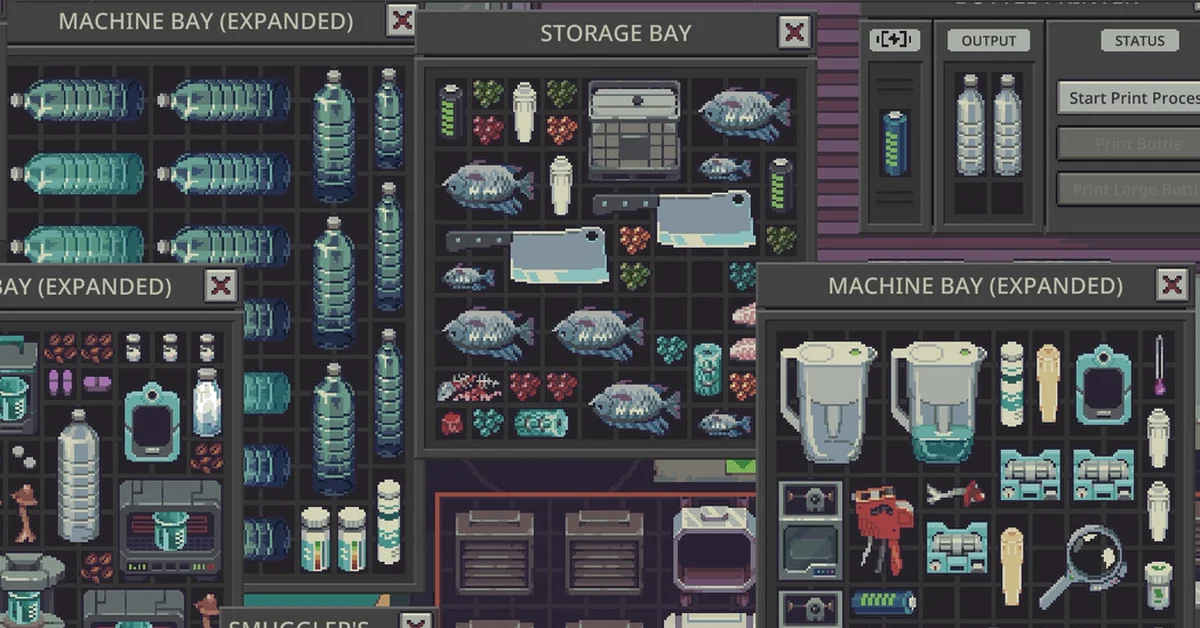
To rotate an item in Probably Stolen, pick it up with the left mouse button and, while you are still holding it, scroll the mouse wheel up or down to turn it. Click the middle mouse button (press the wheel down) to flip it, then let go once it fits the gap you want.
Rotation only works on an item you are dragging, which is why scrolling over an item that sits in a grid does nothing. Below are the controls, the sorting setting that can turn items for you, the other inventory shortcuts worth learning, and what to do when something still will not fit.
How to Rotate and Flip an Item
Questing Goose Studio added these controls in Update 049, the build that turned the playtest into the demo: “Dragged items can now be rotated and flipped using mouse wheel up, mouse wheel down, and middle click.” Step by step:
- Pick the item up. Click and hold it with the left mouse button.
- Turn it. Keep holding and scroll the mouse wheel up or down until it faces the way you need.
- Flip it with a middle click if you need the mirror image instead.
- Drop it. Move it over the free cells and release the left button.
| Action | Control |
|---|---|
| Pick up | Hold the left mouse button |
| Rotate | Scroll the mouse wheel up or down while holding |
| Flip | Middle click while holding |
| Place | Release the left button over free cells |
Most items in Probably Stolen are not square, so the same Storage Bay can hold far more once you stop placing everything the way it arrived. Water bottles are the classic case, as the official screenshot at the top shows: lay a row of them on their side and stand the next row up, and a bay that looked full has room again.
Why an Item Will Not Rotate
- You are not holding it. Scrolling only turns an item while it is attached to your cursor. Pick it up first, then scroll before you release.
- There is no wheel to scroll. A trackpad, a mouse without a middle button or a Steam Deck needs those inputs mapped somewhere. Our Steam Deck guide suggests putting scroll up, scroll down and middle click on buttons you can reach.
- The item is square. A square item turns, but it takes the same space either way, so it can look as if nothing happened.
Let Sorting Turn Items for You
Right-click any grid inventory and a menu opens with sorting options, another Update 049 addition. Sorting packs a messy bay in one go, and it can also rotate items as it packs them.
That second part is the Auto-rotate while sorting setting. Patch 1.0.0.5 made it “off by default for new players,” so if your sorts leave every item facing the way it was, that setting is why. Switch it on if you want sorting to turn items as it packs them, or leave it off and do the turning yourself with the wheel.
Inventory Shortcuts Worth Knowing
These all come from the developer’s patch notes and save a lot of dragging once your shop fills up:
- Move several items at once. Drag across a grid to draw a bright white selection box, then move everything inside it together. Hold Shift while dragging to place them precisely in a different inventory.
- Drop straight into a storage tab. Dragging an item onto a Storage Bay tab moves it into that tab, and items dropped or quick-moved onto a tabbed bay go to the tab you have open, per patch 1.0.0.12.
- Bin it fast. Press Delete while hovering over an item you own and it goes to the trash bin.
- Close windows quickly. Double-click a container such as a Storage Bay to close it, or press Escape to close the most recent window. You can have up to 25 inventory windows open.
- Keep purchases tidy. The Move Bought Items to Inventory option, on by default, moves what you buy into your inventory for you.
- Equip tools by number. A Toolbox binds stored tools to keys 1 to 9, so they never need to sit loose in a bay.
When an Item Still Will Not Fit
Rotating solves most space problems, but a few placements are blocked on purpose:
- Containers you do not own. Your items cannot go inside a container that is not yours yet, such as one a seller has put on the counter.
- Machines inside an Animal Cage. Since the cage rework in Update 049, the only machines a cage takes are cage equipment such as the Vacuum Robot and the feed dispenser. Our rats guide covers what a cage setup needs.
- Bays inside smuggler’s bays. Patch 1.0.0.1 stopped the Hypertech Storage Bay being placed inside smuggler’s bays.
When a bay is genuinely full, the fix is more room. A Storage Bay Expansion Kit adds tabs without taking floor space, as our guide to upgrading the Storage Bay explains, and our shop upgrades guide covers the rest of Dr. Jackson’s storage. For contraband, a smuggler’s bay keeps stock out of sight during inspections, covered in our guide to selling contraband.
Inventory space is also why Junk piles up so fast. Our guide to what to do with Junk covers every way to clear it out. Every other guide is on our Probably Stolen hub.
Frequently Asked Questions
How do you rotate items in Probably Stolen? Pick the item up with the left mouse button and scroll the mouse wheel up or down while you are still holding it.
How do you flip an item? Middle-click while you are dragging it.
Why won’t my item rotate? It only turns while you are holding it. Pick it up first, then scroll before you let go.
Can sorting rotate items automatically? Yes, with the Auto-rotate while sorting setting. Patch 1.0.0.5 turned it off by default for new players.
How do you move several items at once? Drag across the grid to draw a selection box around them, then move them together. Hold Shift while dragging for precise placement in another inventory.