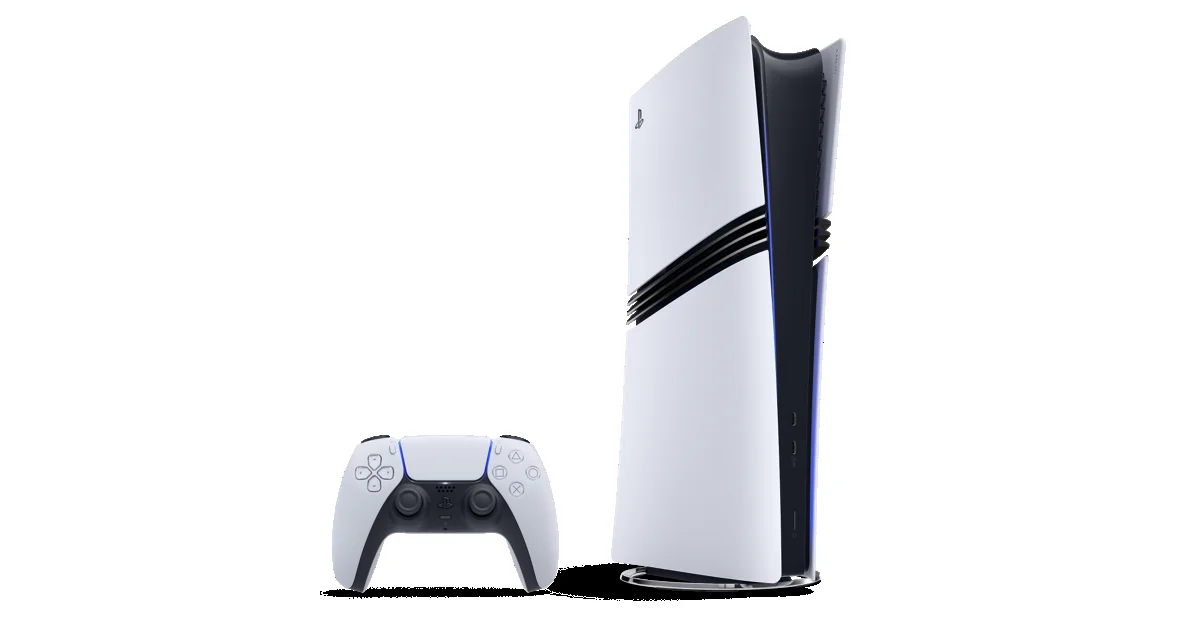
You clear the cache on PS5 in Safe Mode: turn the console fully off, hold the power button until the second beep, connect your controller with a USB cable and press the PS button, then select Clear Cache and Rebuild Database > Clear System Software Cache > OK. The same menu has Rebuild Database, which scans your storage and builds a new database of everything on the console.
PlayStation suggests clearing the cache for system feature issues or performance drops, and rebuilding the database for those issues or a game icon that stays on Home after you’ve deleted the game. Below are the exact steps from PlayStation’s Safe Mode guide, which problems each option is meant for, what to try first, and which Safe Mode options really do delete your data.
Where the Cache Option Is
There’s no Clear Cache button in the PS5’s normal Settings menu; PlayStation’s own instructions only put it in Safe Mode. Sony describes Safe Mode as a way to start the console “with only the most basic functions active,” and it’s where all of the PS5’s deeper repair options live, from the cache to a full reset.
That’s also why you need a cable. In Safe Mode, PlayStation says to connect the controller with a USB cable before you press the PS button, so keep the one that came with your PS5 handy. Our guide to pairing a PS5 controller covers the cable and the button combos.
Step 1: Start Your PS5 in Safe Mode
- Turn the console off by holding the power button for three seconds. The power indicator blinks for a few moments before it goes off. Don’t use Rest Mode: the console has to be fully off.
- Press and hold the power button again. You’ll hear one beep when you press it and a second one about seven seconds later. Let go after the second beep.
- Connect the controller with the USB cable and press the PS button.
The Safe Mode menu then lists every option. If it doesn’t start, PlayStation’s troubleshooting page points to the cables first: try a different USB, HDMI or power cable, one at a time, and try Safe Mode after each change. If that doesn’t work, hold the power button until the console beeps, unplug it for 20 minutes, plug it back in and try again.
Step 2: Clear the System Software Cache
- Select Clear Cache and Rebuild Database.
- Select Clear System Software Cache.
- Select OK to confirm.
- When it finishes, choose Restart PS5 if the console doesn’t restart on its own.
This is also PlayStation’s fix for a PS5 that keeps booting into Safe Mode: turn it off, unplug it for 20 minutes, plug it back in, and if it still starts in Safe Mode, clear the system software cache.
Step 3 (If Needed): Rebuild the Database
- Start in Safe Mode again, the same way.
- Select Clear Cache and Rebuild Database, then Rebuild Database.
- Confirm, and leave the console alone until it finishes.
Rebuild Database scans your storage and creates a new database of all the content on the system, so it can take a while on a console full of games. It’s the step PlayStation lists for several game errors, so it’s worth trying after the cache if a problem is tied to one game.
Which One to Use
| Problem | What PlayStation suggests |
|---|---|
| Menus or system features misbehaving, or performance drops | Clear System Software Cache |
| PS5 keeps starting in Safe Mode | Unplug for 20 minutes, then Clear System Software Cache |
| A game’s icon stays on Home after you delete it | Rebuild Database |
| A game won’t start (error CE-109573-5) | Restart, reinstall the game, then Rebuild Database |
| An error while playing a game (CE-107750-0) | Unplug for five minutes, update, reinstall the game, then Rebuild Database |
| A game update won’t install (CE-120706-6) | Restore licenses, restart, then Rebuild Database |
| A padlock on a game you own | Check the purchase and licenses, then Rebuild Database |
For a padlock on a game someone else in your home bought, the fix is usually a sharing setting, not Safe Mode; our guide to game sharing on PS5 explains it.
What It Deletes, and What It Doesn’t
PlayStation’s guide names the two Safe Mode options that wipe your console: Reset PS5, which “deletes all user data and restores the PS5 console to its original state,” and Reset PS5 (Reinstall System Software), which also removes the system software. Clear Cache and Rebuild Database isn’t one of them, and PlayStation’s description of it says nothing about removing games, saved data, screenshots or video clips.
Sony still warns that “some Safe Mode options will result in the loss of data” and tells you to back up to a USB drive or PS Plus cloud storage first. The reset options sit in the same menu as the cache, so read each option before you press X.
Every PS5 Safe Mode Option
| Option | What it does | Deletes your data? |
|---|---|---|
| Restart PS5 | Leaves Safe Mode and restarts normally | No |
| Change Video Output | Change Resolution or Change HDCP Mode, for blank screens | No |
| Repair Console Storage | For a PS5 that won’t start properly or has storage issues | No, per PlayStation |
| Update System Software | Updates by direct download or USB drive | No |
| Restore Default Settings | Factory settings, keeping games, apps, captures and saves | No, per PlayStation |
| Clear Cache and Rebuild Database | Clears the system software cache, or rebuilds the content database | Not listed as deleting data |
| Reset PS5 | Restores the console to its original state | Yes, all user data |
| Reset PS5 (Reinstall System Software) | Also removes the PS5 system software | Yes, all user data |
Try These First
Safe Mode is the heavier fix. PlayStation’s checklist for a game that won’t start puts these simpler steps ahead of it:
- Restart the console: press the PS button, select Power > Restart PS5.
- Update the system software and the game.
- Restore licenses: Settings > Users and Accounts > Other > Restore Licenses. PlayStation says this “won’t affect your data.”
- Delete the game and download it again, on a wired connection if you can.
Clearing the cache won’t move a stuck download, either. For Grand Theft Auto VI, PlayStation’s GTA VI support page says to pause and resume it from Downloads/Uploads, and if that fails, to cancel it, delete it and download the game again from your Game Library, after checking you’re signed in to the account that bought it and have enough free space. Our guides to downloading GTA 6 and its download size cover both, and our release day checklist has the rest of the launch-night fixes.
On PS4
The PS4’s Safe Mode has Rebuild Database but no separate cache option. For a PS4 stuck in Safe Mode, PlayStation’s advice is to turn it off, unplug it for 20 minutes and, if it still starts in Safe Mode, rebuild the database.
Frequently Asked Questions
How do you clear the cache on a PS5? Start the PS5 in Safe Mode, then select Clear Cache and Rebuild Database > Clear System Software Cache > OK.
Does clearing the cache on PS5 delete games or saves? PlayStation doesn’t list it among the options that delete data; those are the two Reset PS5 options. Back up your saves first anyway, as Sony advises before using Safe Mode.
What’s the difference between clearing the cache and rebuilding the database? Clearing the cache is PlayStation’s suggestion for system feature issues and performance drops. Rebuilding the database scans your storage and creates a new database of everything on the console, which PlayStation suggests for several game errors and leftover icons.
Can you clear the cache on PS5 without Safe Mode? PlayStation’s instructions only offer it in Safe Mode.
Why doesn’t my controller work in Safe Mode? Safe Mode needs the controller connected with a USB cable before you press the PS button.
How long does rebuilding the database take? It depends on how much is on your console, since it scans all of your storage. Leave the PS5 alone until it finishes.