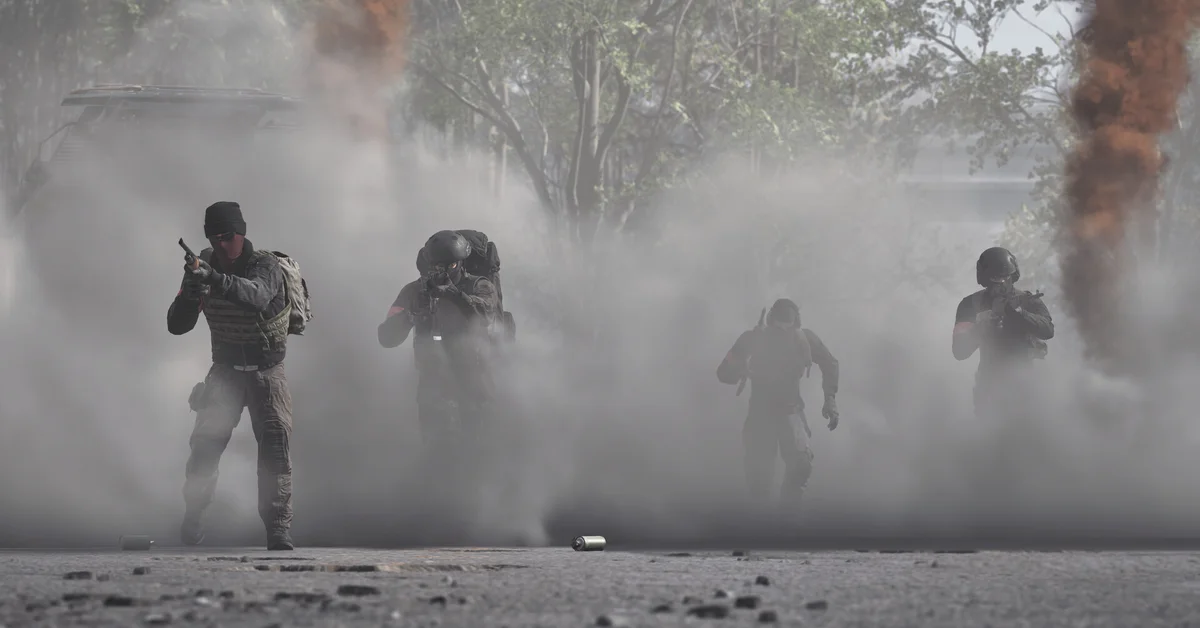
The NVIDIA Inspector warning in WARDOGS means the game found driver settings, made with NVIDIA Inspector or NVIDIA Profile Inspector, that BULKHEAD now treats as an unfair advantage, and it will not let you play until they are gone. To fix it, close WARDOGS, open Profile Inspector as administrator, select the profile you changed, click Defaults to restore it to NVIDIA’s default settings (do the same for the Global profile if you changed that one), then launch the game again.
The check arrived with Season 3, which launched on November 12, 2026. BULKHEAD’s Season 03 patch notes say that using NVIDIA Inspector “or any other 3rd party software” to remove smoke, remove grass, modify geometry, alter LOD bias or change textures “is now considered bannable.” Below we cover what triggers the warning, the reset in Profile Inspector and in the NVIDIA Control Panel, what to do if the warning stays, and the separate potato shadows rule.
What Triggers the Warning
The patch notes list five kinds of change that are now off limits when made with outside software:
- Removing smoke
- Removing grass
- Modifying geometry
- Altering LOD bias
- Changing textures
For NVIDIA Inspector specifically, BULKHEAD added a check at launch: “In Season 3, if you have one of these settings set by NVIDIA Inspector, you will be blocked from playing with a warning popup on launch politely asking you to close the game and change the settings.” The notes then add: “If you force a work around this warning to continue playing with unfair advantages, we consider that bannable.”
So BULKHEAD names two bannable things: using a third-party tool for those changes, and forcing a way past the warning. The notes do not quote the popup’s wording, and apart from LOD bias they do not name the exact Profile Inspector entries the game looks for. They also do not say whether the check reads only the game’s own profile or the Global profile too, which is why the steps below cover both.
Why the settings outlive the tool. NVIDIA Profile Inspector is a free tool from an independent developer, Orbmu2k, published on GitHub; it is not an NVIDIA app. Its developer describes it as editing the driver profile database used by the NVIDIA Control Panel, with access to many hidden settings the Control Panel does not show. Changes are written into that driver profile database, so they stay in place after you close the tool, until you restore them.
How to Fix It in NVIDIA Profile Inspector
These steps use the current 3.0 release of Profile Inspector, from its GitHub releases page. Older 2.x builds lay their buttons out differently, so update first if yours look nothing like this.
- Close WARDOGS completely, as the popup asks.
- Run Profile Inspector as administrator. Right-click nvidiaProfileInspector.exe and choose Run as administrator. Its developer says it must run elevated to write changes to the driver profile database.
- Find the profile you changed. Type the game’s profile name in the profile box and press Enter, or open the View Modified Profiles list, which shows every profile that holds changes.
- Click Defaults in the toolbar. Its tooltip reads “Restore profile to NVIDIA default settings.” Choose Yes when asked “Restore profile to NVIDIA driver defaults?”, and the tool confirms with “Profile successfully restored to driver defaults!”
- Check the Global profile. If you made changes there instead, click the Navigate to Global Profile button and restore it the same way. Restoring the Global profile undoes every global tweak, so if you only want the flagged ones gone, reset them one at a time with the button on each changed setting’s row (tooltip: “Reset setting to NVIDIA default value”).
- Launch WARDOGS again.
Restoring one profile only touches that profile, so tweaks you made for other games stay as they are. If you want to keep a copy of your old WARDOGS settings first, the tool’s Export button saves a profile to a .nip file.
How to Reset It in the NVIDIA Control Panel Instead
If you no longer have Profile Inspector, NVIDIA’s own Control Panel help gives the reset for a single program:
- Open the NVIDIA Control Panel and, under 3D Settings, select Manage 3D settings.
- Click the Program Settings tab.
- In the Select a Program to Customize list, pick WARDOGS.
- Click the Restore button next to that list.
For global changes, NVIDIA’s help says to click the Restore button in the bottom corner of the Global Settings tab on the same page. Because the Control Panel shows fewer settings than Profile Inspector, Profile Inspector is the tool to confirm the changed values are really gone if the warning comes back.
If the Warning Keeps Appearing
- Look for a second profile. If you once made your own profile for WARDOGS, it shows in View Modified Profiles. Restore it, or remove it with the Delete the current profile button.
- Do not work around it. BULKHEAD says forcing past the warning to keep those advantages is bannable.
- Ask Team17 if you never used Inspector. The patch notes do not cover a warning on a PC that never ran the tool, so contact Team17 Support with the details. For the WD-L launch codes and anti-cheat errors, our WARDOGS error codes guide has the official fixes.
The Potato Shadows Rule Is a Separate Check
Season 3 also cracks down on a low-end shadow setting, through a reset rather than the Inspector popup. Per the patch notes:
- Who sees it. WARDOGS only shows the “potato” shadow setting in its in-game menu if it detects, on boot, that your hardware is truly at minimum spec.
- Edited files get reset. From Season 3, the game forces that setting back on boot if it was changed outside the in-game settings, in your .ini files.
- Spoofing is bannable. Faking your system specs to keep the setting on higher-end hardware is now a bannable offense.
The minimum spec on the Steam store page is Windows 10 64-bit, an Intel Core i5-8600 or AMD Ryzen 5 3500, 16 GB of RAM and an NVIDIA GTX 1660 or AMD Radeon RX 590. If your settings looked different after the update for another reason, Season 3 also made Global Illumination an Overkill-only option: it starts on with that preset and can be switched off there, while every other preset hides it and keeps it off.
Our Season 3 patch notes rundown covers the rest of the update, our Season 3 end date guide covers how long the season runs, and every guide is on our WARDOGS hub.
Frequently Asked Questions
Will I be banned for getting the NVIDIA Inspector warning? The patch notes describe the popup as asking you to close the game and change the settings. They call two things bannable: using a third-party tool to remove smoke or grass, modify geometry, alter LOD bias or change textures, and forcing a way past the warning. Reset the settings and relaunch rather than working around it.
Is NVIDIA Profile Inspector banned in WARDOGS? The notes name the changes, not the app. They list removing smoke, removing grass, modifying geometry, altering LOD bias and changing textures, and say nothing about having the tool installed.
What is the difference between NVIDIA Inspector and NVIDIA Profile Inspector? BULKHEAD’s notes say NVIDIA Inspector. The tool that edits driver profiles today is NVIDIA Profile Inspector, from the same developer, Orbmu2k, and it is the one the steps above use.
Does the rule apply to AMD graphics cards? The launch check the notes describe is for settings set by NVIDIA Inspector. The ban rule itself covers “any other 3rd party software” used for the same changes.
Can I still lower my graphics settings in WARDOGS? The rules in the notes cover changes made outside the game: third-party tools and edited .ini files. The in-game settings menu is not part of them.
Will restoring the profile change my other games? No. Restoring a game’s profile in Profile Inspector only affects that profile. Restoring the Global profile does change the defaults for every game without its own setting.