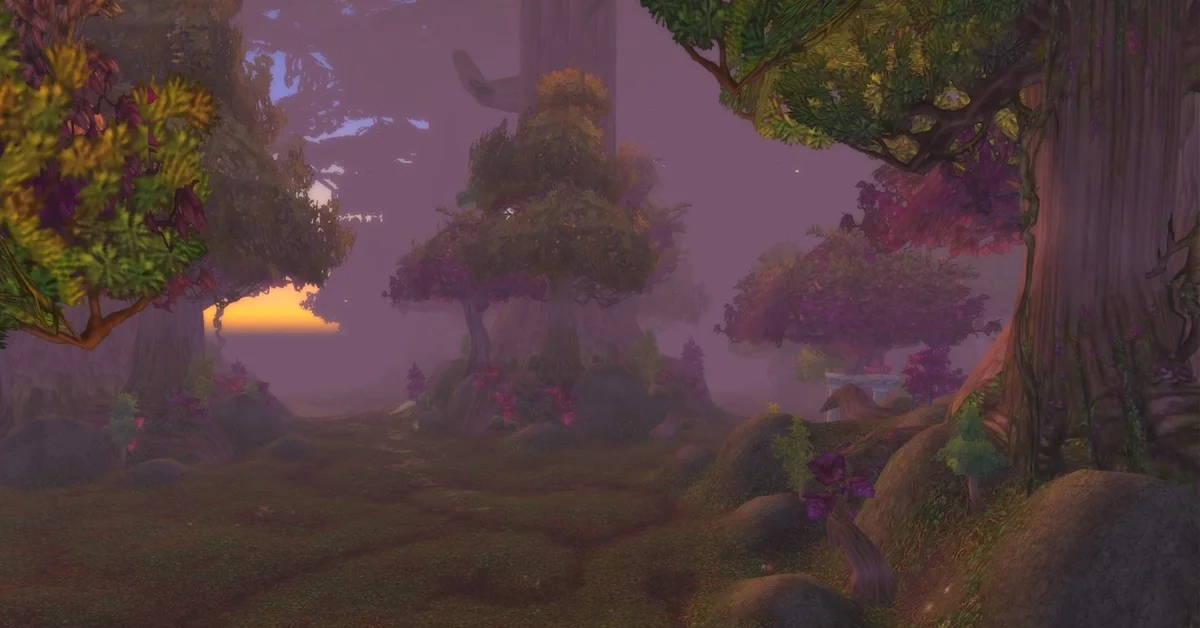
To move your UI in World of Warcraft: Forever, press Esc and click Edit Mode in the Game Menu. Every frame you can move lights up in blue: click one, drag it where you want it, then click Save and give the layout a name so it sticks.
We did it within the first few minutes on a new Night Elf Hunter in Shadowglen, moving our Player Frame from its default spot to the bottom right corner, saving the layout, and later moving it again to the top left. Everything below is what the HUD Edit Mode window showed us.
We recorded ourselves moving our UI in Edit Mode on PC for the video at the end of this guide. The screenshots in this guide come from the same recording.
How to Open Edit Mode
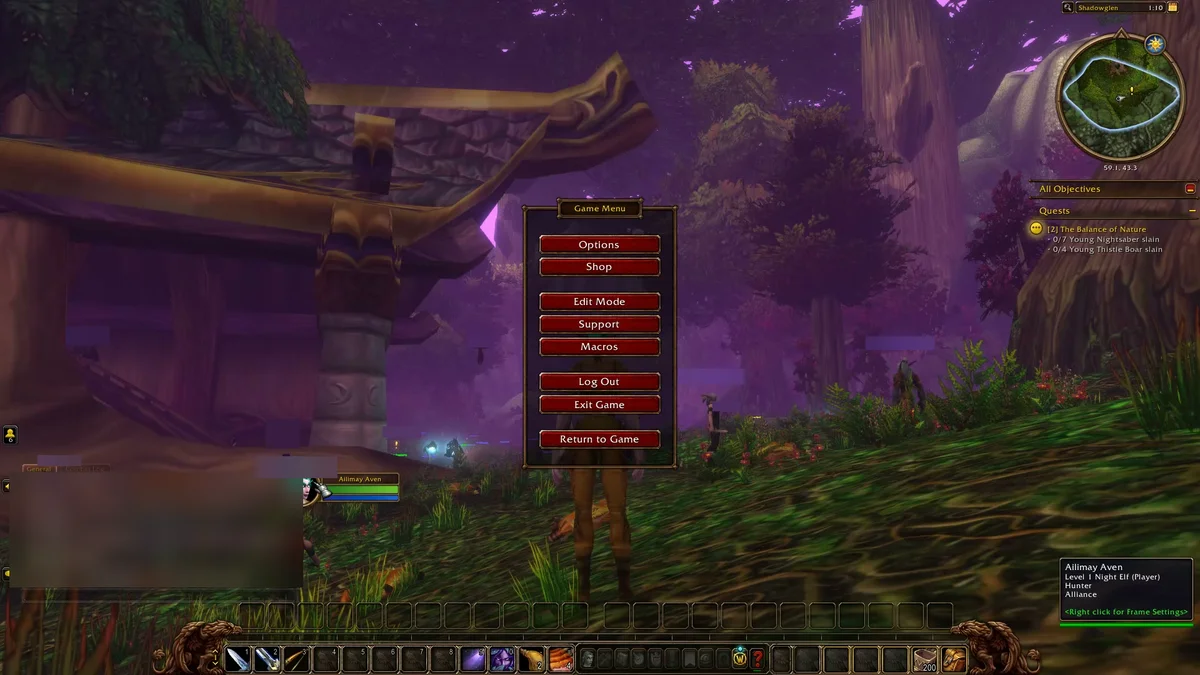
- Press Esc to open the Game Menu.
- Click Edit Mode. It sits between Shop and Support, under Options.
The HUD Edit Mode window opens near the top of the screen, and every movable frame gets a blue outline. On our screen that meant the chat box, the minimap, the quest tracker, the action bars and the Player Frame (your portrait and health bar).
How to Move a Frame
- Click the frame you want to move. It turns yellow and shows its name; ours read “Player Frame.” A small settings box for that frame opens beside it.
- Drag it to its new spot. Snap to Elements is ticked by default, so frames line up against their neighbors. Tick Show Grid for a grid to line things up by eye; the slider next to it sets the grid.
- Adjust it in its settings box. The Player Frame’s box has Cast Bar Underneath, a Frame Size slider (it starts at 100%), Revert Changes and Reset To Default Position.
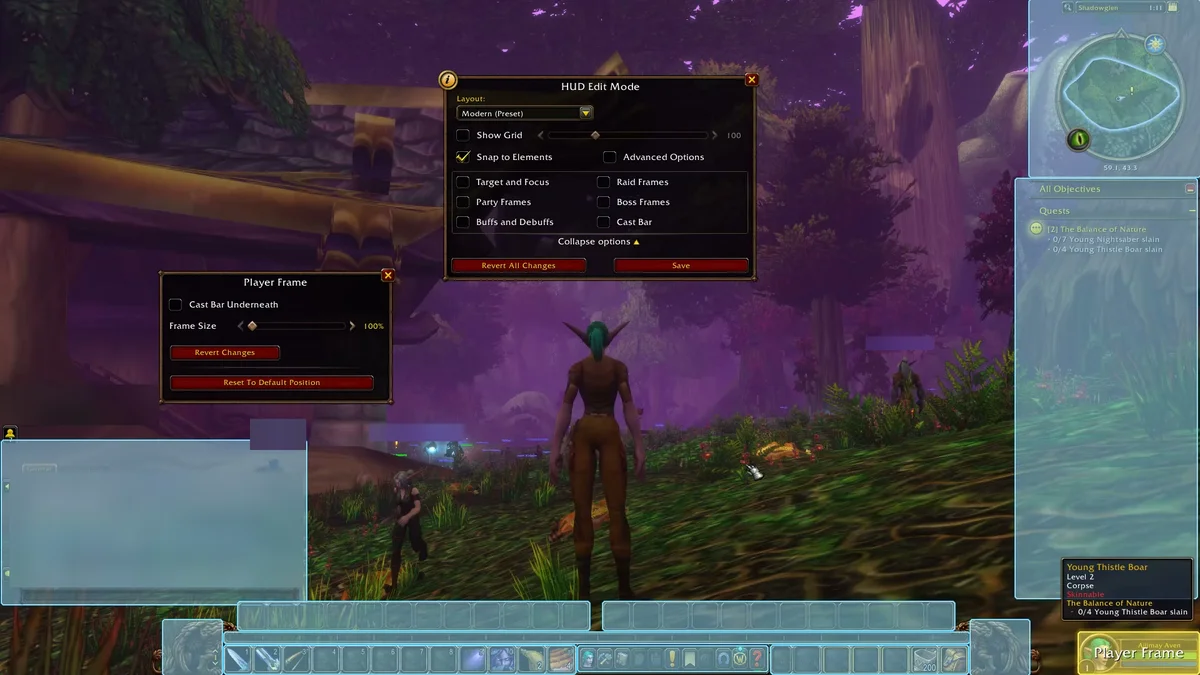
Our Player Frame started just right of the chat box, above the action bars. We first dragged it into the bottom right corner, then on a second visit to Edit Mode moved it up to the top left of the screen, which is where it stayed.
How to Save Your Layout
A new character uses the Modern (Preset) layout, shown in the Layout dropdown at the top of the window. The Save and Revert All Changes buttons stay grey until you move something, then turn red.
- Click Save.
- Name the layout. Since you started from a preset, the game opens a Name the New Layout box with a text field.
- Decide on Character Specific Layout. The checkbox under the name keeps the layout to the character you are on; leave it unticked if you want it on your other characters too.
- Click Save in the name box.
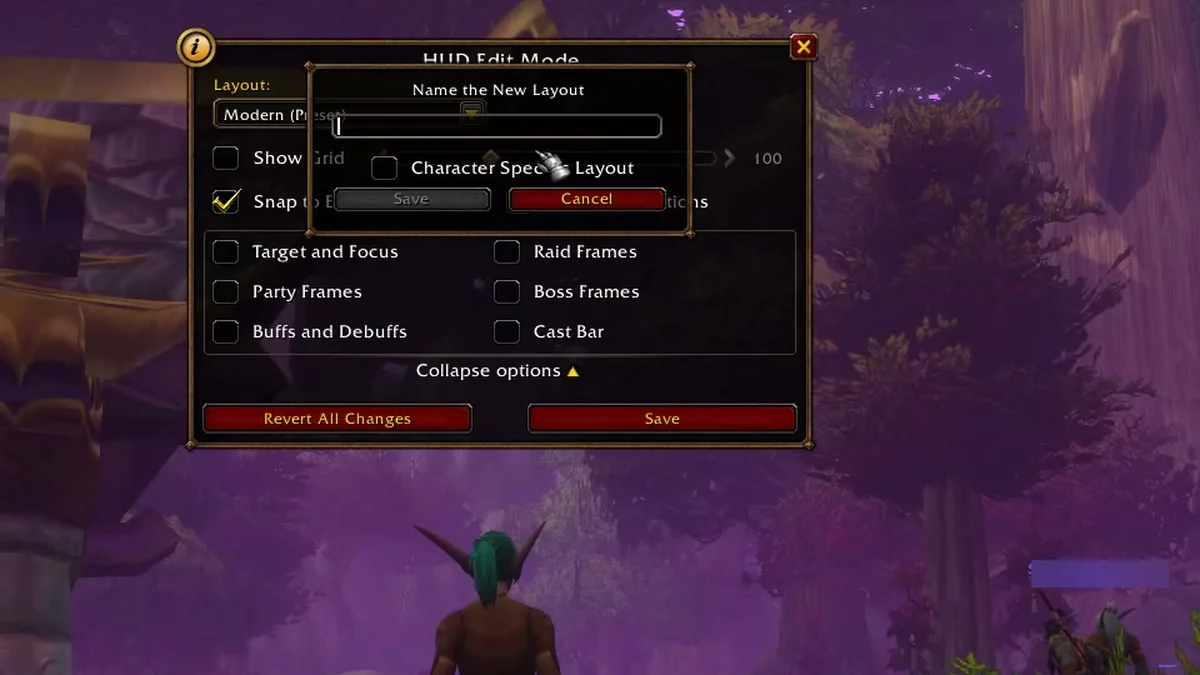
We named ours “Layout,” and from then on the dropdown showed Layout instead of Modern (Preset). The same dropdown lists Classic (Preset), New Layout, Import and Share, so you can keep more than one arrangement and switch between them.
Show Frames That Are Not on Screen Yet
Some frames only appear in certain situations, so Edit Mode lists them as checkboxes in the window: Target and Focus, Party Frames, Buffs and Debuffs, Raid Frames, Boss Frames and Cast Bar. Tick one to bring that frame up while you place it, so your party frames are where you want them before your first group. Collapse options folds the list away when you are done. The Advanced Options checkbox beside Snap to Elements is one we left alone.
How to Undo a Change
- Revert Changes, in a frame’s own settings box, undoes what you did to that frame.
- Reset To Default Position puts that frame back where the layout first had it.
- Revert All Changes, at the bottom of the main window, throws away everything since your last save.
- Modern (Preset) in the Layout dropdown switches you back to the original arrangement, and your saved layout stays in the list.
More Ways to Set Up Your Screen
Edit Mode moves the frames you already have; addons can add new ones, and our addon install guide and best addons list cover that side. Our autorun guide walks through the Keybindings page under Options, and our best graphics settings cover the Graphics page. Every Forever guide we have is on our World of Warcraft hub.
Frequently Asked Questions
Where is Edit Mode in WoW Forever? Press Esc and click Edit Mode in the Game Menu, between Shop and Support.
How do you move the Player Frame? Open Edit Mode, click the Player Frame, drag it, then click Save and name the layout.
How do you make the Player Frame bigger? Click it in Edit Mode and move the Frame Size slider in its settings box. It starts at 100%.
Can you have a different layout on each character? Yes. Tick Character Specific Layout when you name a new layout.
How do you reset your UI? Use Reset To Default Position on a single frame, Revert All Changes to drop unsaved edits, or pick Modern (Preset) in the Layout dropdown.