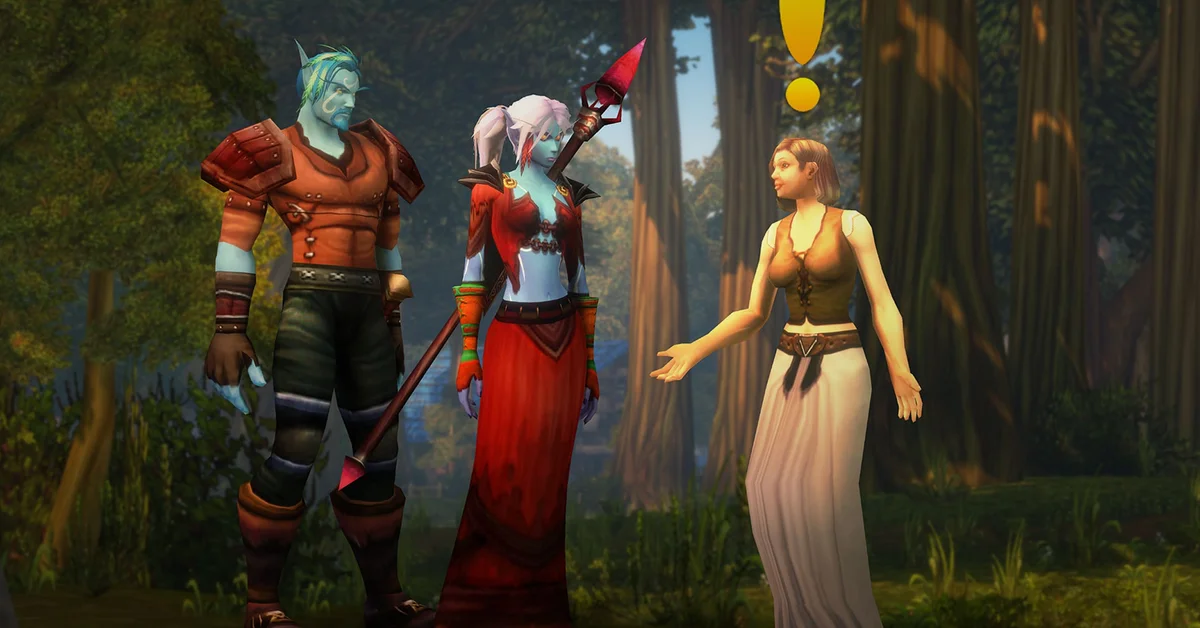
To use Questie in World of Warcraft: Forever, install the current Forever build, turn it on at character select, and open your map: quest givers, objectives and turn-ins appear on it and on the minimap with no setup. Type /questie in chat any time to open its options.
Questie is updated for Forever. As of November 8, the latest build on its official releases page is v12.6.4, dated November 7, and its notes carry Forever-specific fixes, including updated Forever quest data. Below is how to install it, what the markers mean, the commands worth knowing, and what to do when a marker is wrong.
How to Install Questie
- Download the latest release. Questie’s own notes recommend the CurseForge client or the latest GitHub release. The release zip bundles the quest database it needs.
- Unzip it into your Forever addons folder,
_forever_\Interface\AddOns. Our addon install guide walks through finding that folder. - Check the AddOns button at character select and make sure Questie is ticked.
- Log in. Your map now shows quests near you, and a Questie button sits on your minimap.
Update it often right now. Forever adds more than 1,000 new quests, and the addon’s Forever data has been changing almost daily since launch.
What the Markers Mean
| You see | It means |
|---|---|
| Yellow exclamation mark | A quest you can pick up here |
| Blue exclamation mark | A repeatable quest |
| Question mark | A quest you can turn in here |
| Objective icons | Where the monsters, items or objects for a quest in your log are |
Questie does not show quests that start from an item a monster drops, because there is no quest giver to mark. If you loot something that starts a quest, it will show up once you accept it.
To clear clutter, Shift + left-click an icon to hide that quest. Hidden quests can be brought back from the Journey window (/questie journey).
The Minimap Button
| Click | What it does |
|---|---|
| Left click | Opens My Journey |
| Right click | Opens a menu |
| Shift + left click | Opens Questie Options |
| Ctrl + left click | Reloads Questie |
| Ctrl + right click | Hides the button |
| Ctrl + Shift + left click | Hides or shows Questie |
A status badge on the button tells you when Questie has hit an error, so check it first if markers vanish.
Slash Commands Worth Knowing
| Command | What it does |
|---|---|
/questie or /q |
Opens the options |
/questie toggle |
Shows or hides Questie on the map and minimap |
/questie minimap |
Shows or hides the minimap button |
/questie journey |
Opens My Journey |
/questie tracker show, hide or reset |
Controls the quest tracker |
/questie tomap Gakin the Darkbinder |
Puts any named monster or NPC on your map |
/questie tomap object <name> |
Does the same for an object |
/questie tomap reset |
Clears those markers |
/questie doable <quest ID> |
Checks whether you can do a quest |
/questie version |
Shows which version you are running |
/questie help |
Lists the commands in chat |
/questie tomap is the one most people miss. It finds any quest target, trainer or vendor you can name, which saves a lot of wandering around a city. Pair it with our zone level ranges guide when you are picking where to quest next, and our flight paths guide for getting there.
Using the Quest Tracker
Questie replaces the default tracker with its own.
- Move it: hold Ctrl and left-click drag.
- Reset it: type
/questie tracker resetif it goes off screen. - Get an arrow: right-click a quest or objective in the tracker. The arrow needs the separate TomTom addon, which our best addons guide lists with the rest.
When a Marker Is Wrong or Missing
Forever’s new and changed quests make this more common than it was in Classic. Work through these in order:
- Update Questie. Most wrong markers are already fixed in the next release.
- Look at the minimap button’s status badge for an error.
- Check you did not hide the quest. To bring back every hidden quest at once, type
/run Questie.db.char.hidden = nil, then/reload. - Check the quest is real for your character.
/questie doablewith the quest’s ID tells you why it is or is not available. - Report it on Questie’s GitHub page, which is where the project takes wrong quest data.
Remember Questie is a helper, not the game: if a marker and the in-game quest text disagree, follow the quest text. For anything the quest log does not cover, such as class training, see our guide to learning new abilities. Every guide is on our World of Warcraft hub.
Frequently Asked Questions
Does Questie work on WoW Forever? Yes. The latest release has Forever-specific fixes and Forever quest data, and it was updated on November 7.
How do I open Questie’s settings? Type /questie in chat, or Shift + left-click the minimap button.
How do I hide Questie for a while? Type /questie toggle, or Ctrl + Shift + left-click the minimap button.
How do I get a waypoint arrow in Questie? Install TomTom, then right-click a quest or objective in Questie’s tracker.
Why is a quest not showing on my map? It may start from a dropped item, it may be hidden, or Questie may need an update. Our steps above cover all three.