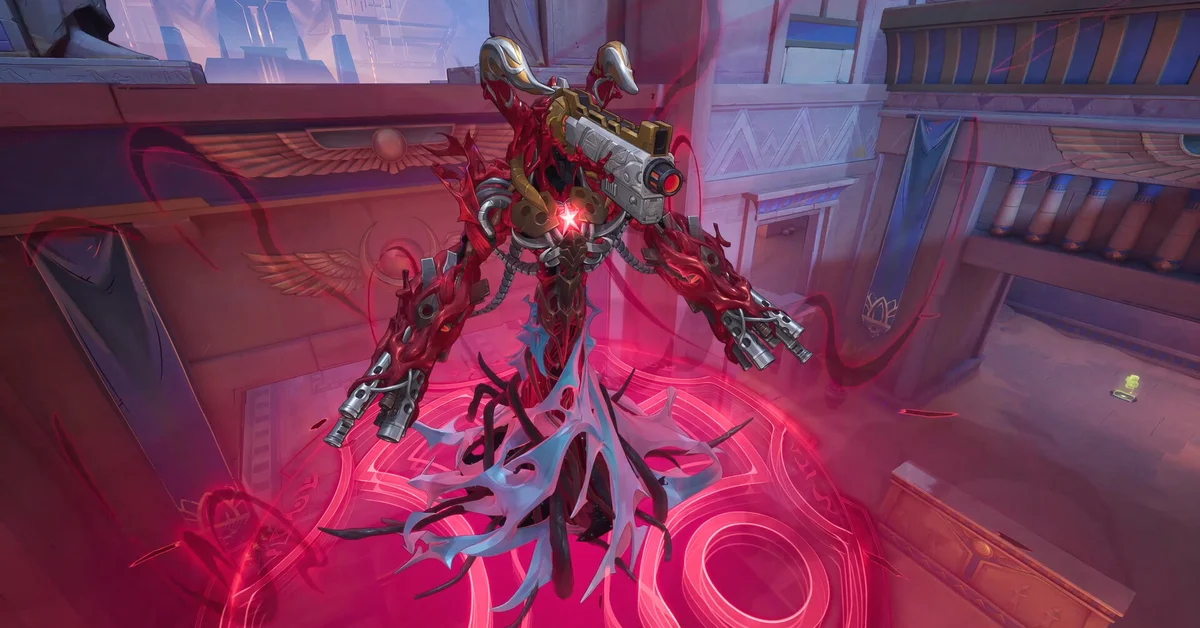
The settings that matter most in Marvel Rivals are the ones that cut visual clutter rather than the ones that make it prettier, because this is a game where a dozen abilities can go off in the same three metres. The single most underused feature is per-hero crosshair customisation, which since Season 8 lets you copy another player’s crosshair straight from their profile.
Settings That Cut Clutter
These options all exist in the game and are the levers worth pulling first:
- Effects Detail and Post-Processing. Lowering these reduces ability particle density, which is the main thing hiding enemies during a team fight.
- Global Illumination. Has an Off option. Costs frames for lighting quality you do not read during a fight.
- Reflection Quality. Also has an Off option, same reasoning.
- Model Detail. Includes a Performance option if you need frames more than fidelity.
- Anti-Aliasing. Can be turned off entirely, though most players prefer some form of it plus an upscaler.
- Texture Detail. Keep this as high as your VRAM comfortably allows. Textures cost memory rather than frame time, and they do not add clutter.
Treat the specific values as recommendations rather than rules. The options are verified to exist; what you set them to depends on your hardware and how much you value clarity over looks.
Latency and Frame Pacing
The game ships with NVIDIA Reflex, DLSS Super Resolution and Frame Generation, and later added DLSS 4 Multi Frame Generation. AMD Anti-Lag 2 and Intel XeSS 2 are supported too.
Enable a low latency mode (Reflex on NVIDIA, Anti-Lag on AMD) and cap your framerate at or near your refresh rate. Uncapped frames in a hero shooter mostly generate heat and inconsistent pacing.
Mouse Settings Worth Changing Immediately
Under Settings, Keyboard, Combat, there are toggles for Mouse Smoothing and Mouse Acceleration. Turn both off. Smoothing and acceleration both make the same flick produce different results depending on how fast you moved, which is exactly what you do not want when learning consistent aim.
The Crosshair System Is Better Than You Think
Marvel Rivals has a genuinely deep reticle system, and several parts of it are easy to miss:
- Crosshairs are configurable per hero, so a hitscan Duelist and a lock-on Strategist do not have to share one.
- There is a Reticle Type setting with custom reticles and an import and export code system, so a setup can be shared as a string.
- Reticle settings auto-upload to server storage, meaning they survive a local wipe or a reinstall.
- Since Season 8 you can open a pro player’s profile and copy their per-hero custom crosshair directly. If you are unsure what to use on a hero, this is faster than experimenting.
- Spectating shows the watched player’s hotkeys and crosshair settings, which is another way to learn a setup.
HUD Options
HUD Widget Size adjusts interface scale, and there is an Allied Health Bars toggle worth enabling if you play Strategist, since triage decisions depend on reading teammate health at a glance. Streaming Mode conceals names under the social settings if you broadcast.
System Requirements
Steam lists a minimum of a GTX 1060, RX 580, or Arc A380 with 16 GB of RAM and 70 GB of storage, with an SSD recommended. The recommended tier is an RTX 2060 Super, RX 5700-XT, or Arc A750.
Frequently Asked Questions
What settings help most with seeing enemies?
Lowering Effects Detail and Post-Processing, and turning off Global Illumination and Reflection Quality. They reduce the particle noise that hides targets.
Can I use a different crosshair for each hero?
Yes. Crosshairs are per hero, and you can copy another player’s setup from their profile.
Should I turn off mouse acceleration?
Yes, along with Mouse Smoothing. Both are under Settings, Keyboard, Combat.
Do my crosshair settings survive a reinstall?
Yes. Reticle settings upload to server storage rather than living only on your machine.