
In GTA 6, Family Savings is the second account in the BuckMe app, next to your checking account, and you fill it with Buck Yourself: open BuckMe on your phone, select your Checking Account, choose Buck Yourself, set the amount and confirm. Think before you do, because money in Family Savings stays there. The game’s own warning reads “You will not be able to withdraw once transferred. Are you sure?”
We moved money into Family Savings on our PS5 copy of Grand Theft Auto VI on launch day, at the end of the Buck Me story mission, and recorded it for the video at the end of this guide. The screenshots in this guide come from the same recording. Below are the steps, how the two accounts differ, the savings goal, and when it makes sense to put money in.
How to Put Money in Family Savings
- Take out your phone with Up on the D-pad and open BuckMe.
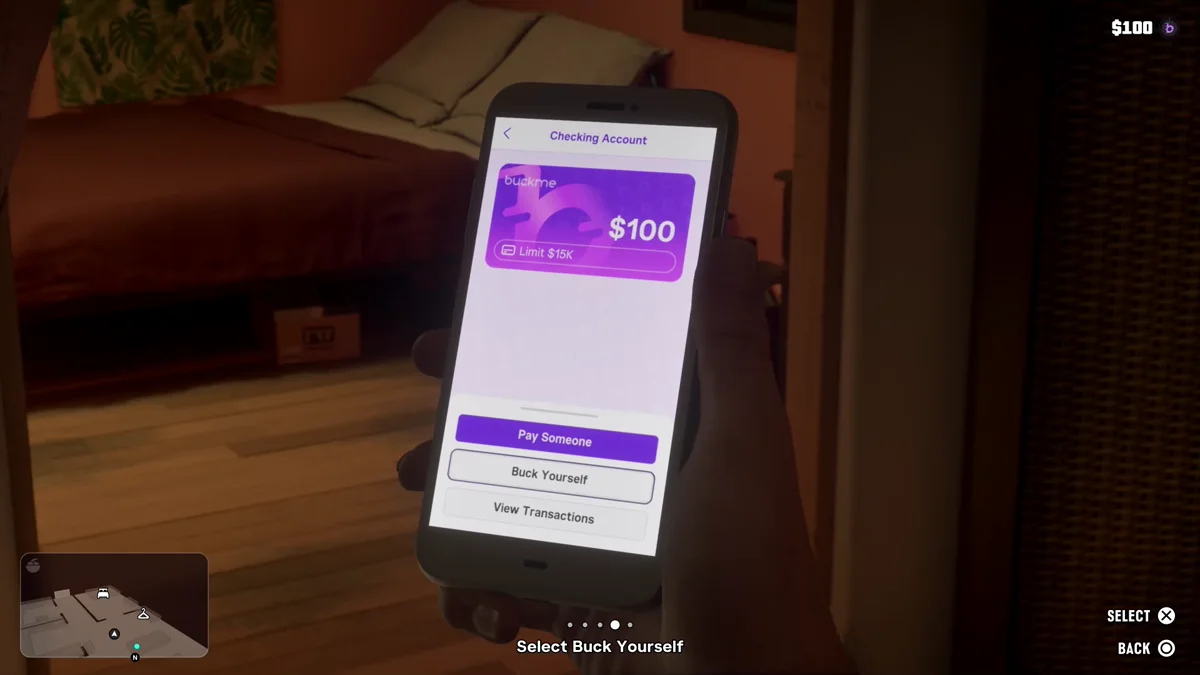
- Select your Checking Account. The app lists it above Family Savings, with each balance.
- Choose Buck Yourself. The checking screen offers Pay Someone, Buck Yourself and View Transactions.
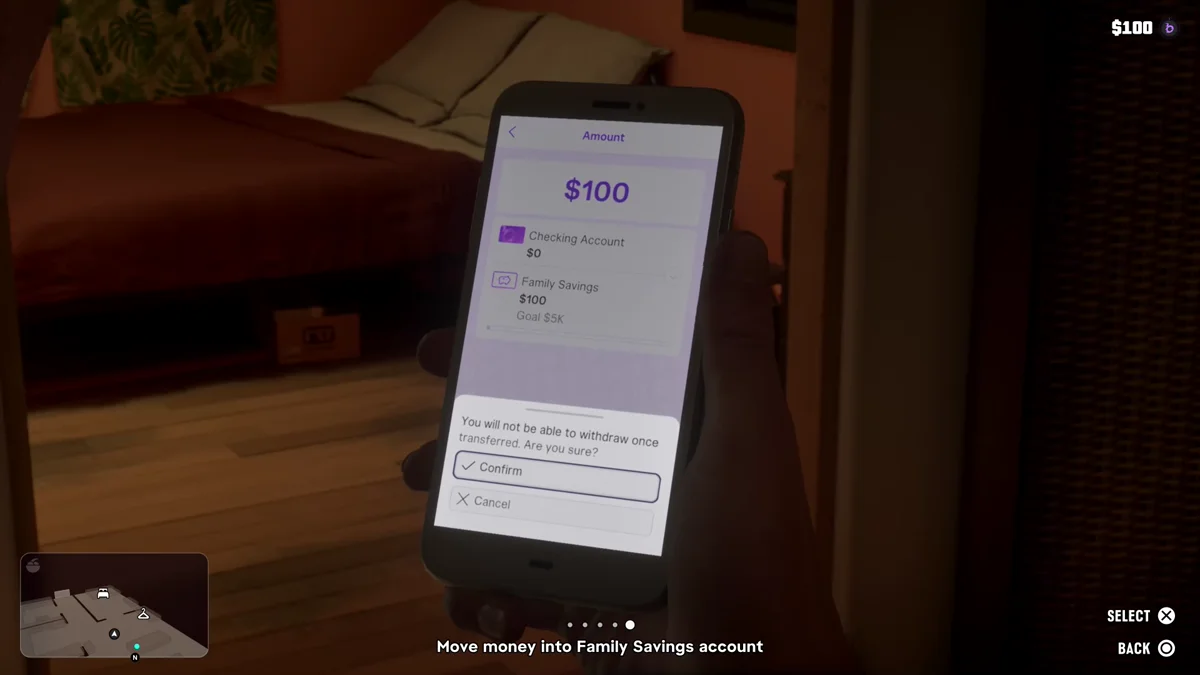
- Set the amount. The Amount screen shows what each account will hold after the move, with the money going from Checking Account to Family Savings.
- Confirm the warning. The game asks if you’re sure, since you can’t take the money back out. Pick Confirm, or Cancel to back out.
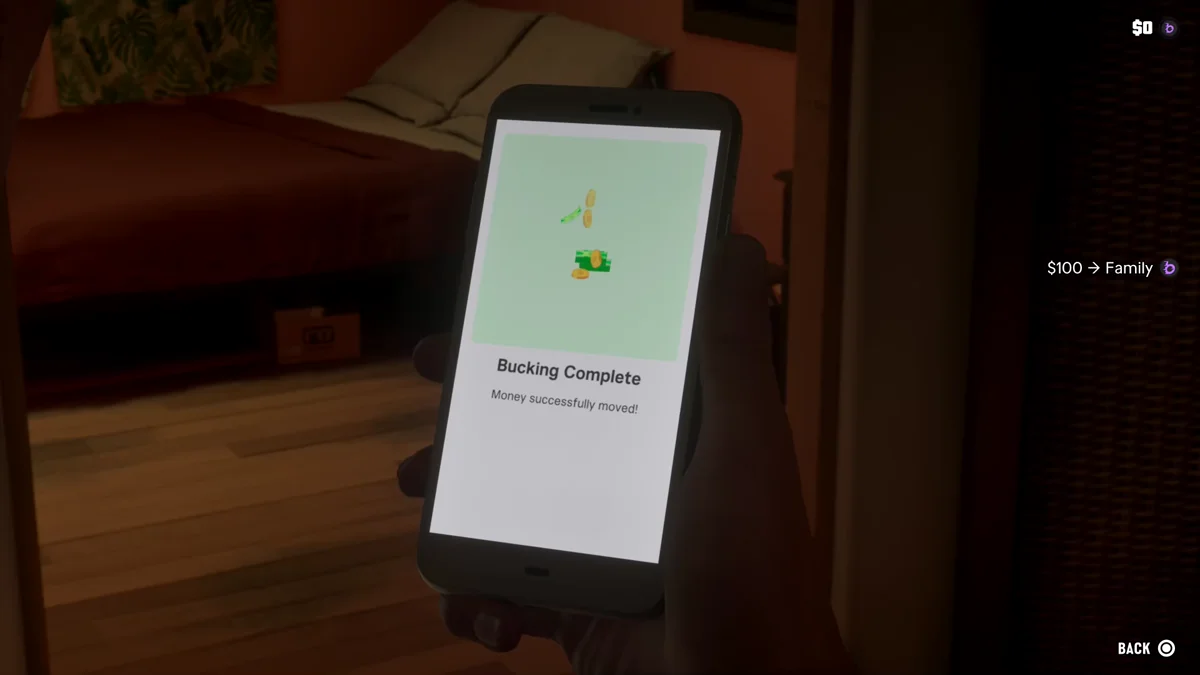
- Look for Bucking Complete. The app says “Money successfully moved!” and a note in the top right shows the amount heading to Family.
Checking Account vs. Family Savings
BuckMe starts you off with a checking account and a gift. When the Buck Me mission opened ours, the game said: “Welcome to BuckMe, the payment app from Fleeca! Here’s $100 for your new STANDARD CHECKING ACCOUNT to start things off.”
The two accounts do different jobs:
- Checking Account. This is your spending money. It’s what the BuckMe number in the top right of the screen shows, and it’s what the RydeMe app charged for our ride. Ours showed a limit of $15K on the checking screen.
- Family Savings. Money you put away and leave there. It counts toward a goal, and once it’s in, it can’t be withdrawn.
You can see the split on your HUD. After we moved our $100 into Family Savings, the BuckMe figure in the top right dropped to $0, even though the money was still ours in savings.
The Savings Goal
Family Savings shows a goal under its balance. Before we put anything in, the app read “$5,000 to next goal”; after our $100, it read “$4,900 to next goal”, and the Amount screen labeled the target “Goal $5K.”
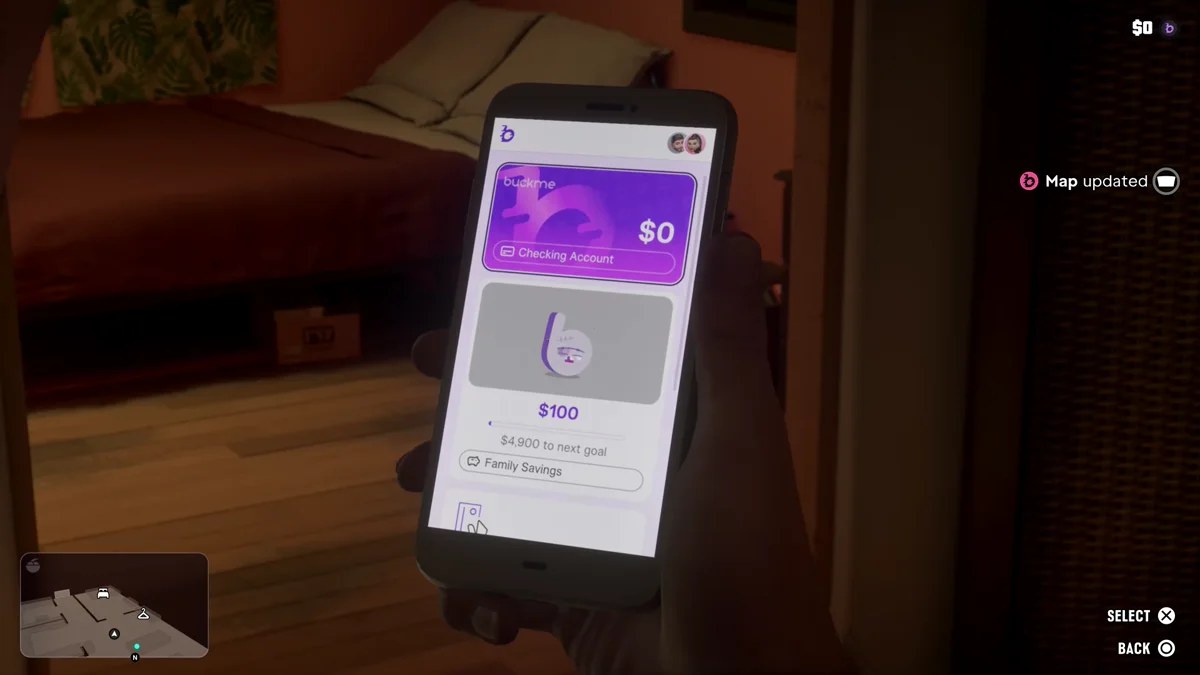
The goal matters, because the story holds back its progress until Family Savings reaches it. BuckMe’s FAQ list covers the account in more detail, with entries titled “How does the Family Savings account work?”, “When will my account upgrade?” and “How do limits work?” It fits what Rockstar said before launch: “there will be parts of the game where you need to make money to advance the mission flow,” Rockstar North co-studio head Rob Nelson told IGN.
When to Put Money in Savings
The story has you move some money into Family Savings to finish Buck Me, and the app walks you through it. After that, you’ll need to keep adding to it to reach the goal and keep the story moving. Because savings can’t come back out, put money in once you’ve covered what you need for cars, clothes, guns and rides.
Your checking account is the safer home for the rest. Cash in your pocket is lost if Jason or Lucia dies, while BuckMe keeps it, and you can take checking money back out at an ATM. Our guide to depositing money covers paying cash in at an ATM, and our guide to withdrawing money covers getting it back out.
Our guide to getting a bank account covers what you can only buy with BuckMe, our Buck Me walkthrough has the mission step by step, and our guide to making money fast helps you fill both accounts. Every other guide is on our GTA 6 hub.
Frequently Asked Questions
How do you put money in savings in GTA 6? Open BuckMe on your phone, select your Checking Account, choose Buck Yourself, set the amount and confirm. The money moves into Family Savings.
Can you withdraw from Family Savings in GTA 6? No. Before the transfer, the game warns “You will not be able to withdraw once transferred.” Only move money you won’t need to spend.
What is the Family Savings goal in GTA 6? Family Savings counts toward a goal shown under its balance: $5,000 when we started on our copy. The story holds back its progress until you reach it.
Does the HUD show your savings in GTA 6? No. The BuckMe number in the top right shows your checking account. Ours dropped to $0 when we moved our $100 into Family Savings.
What is the BuckMe account limit in GTA 6? Our checking account showed a limit of $15K, and the ATM’s deposit screen gave the same $15,000 limit. BuckMe’s FAQ list includes “When will my account upgrade?”