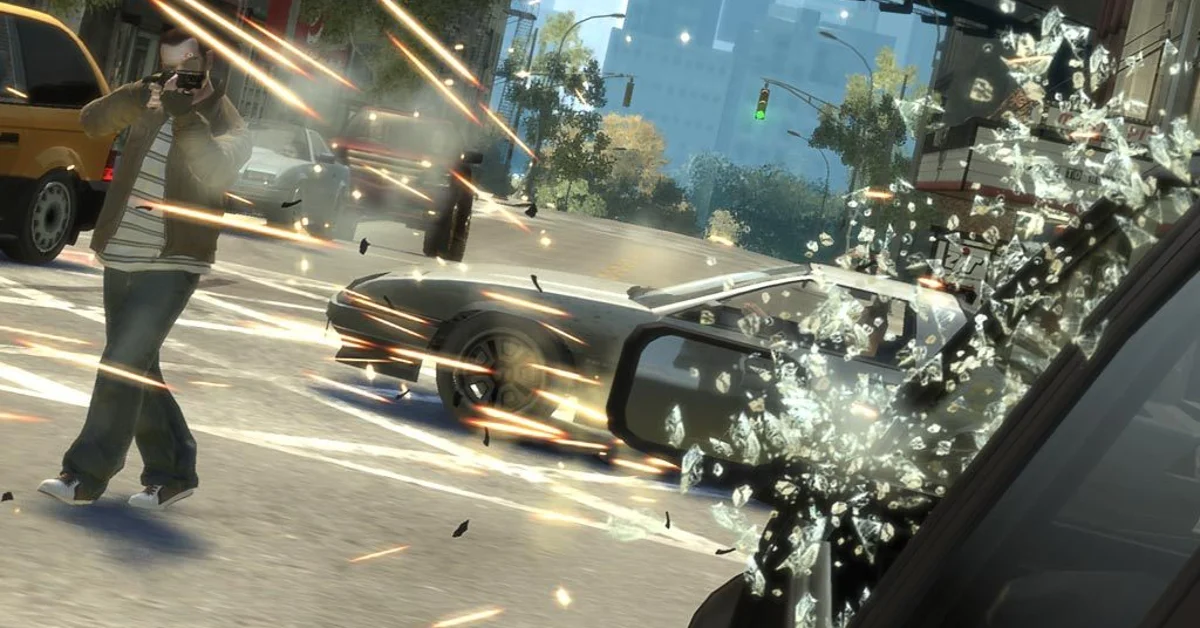
To turn off the radio in Grand Theft Auto IV on PC, get in a vehicle and press X on the keyboard. On Xbox 360, PS3 and Xbox Series X|S, hold Left or Right on the D-pad for a moment instead of tapping it, and if you play the PC version with a controller, hold Down on the D-pad.
Those are the defaults in Rockstar’s own manuals: the GTA IV PC manual that is still linked from the game’s Steam page lists X as “Turn Off Radio” and gives a held Down as the controller input, while Rockstar’s Xbox 360 manual lists a held Left or Right as “Turn Radio On/Off.” The same controls cover the base game and both Episodes from Liberty City. Below we cover every radio input for each platform, why the radio keeps coming back when you change cars, the settings workaround for silencing it everywhere, and what to check if the key does nothing.
On PC (Keyboard and Mouse)
GTA 4 on PC does not have the radio wheel that GTA 5 players know. It uses separate keys, and the vehicle section of the PC manual’s default controls lists them as:
- X: turn off radio
- Mouse wheel up and down: next and previous radio station
- N and B: next and previous song
So the quickest way to kill the music is one press of X as soon as you are behind the wheel. To turn the radio back on, scroll the mouse wheel and it picks up on a station again. N and B are the song-skip keys for Independence FM, the PC station that plays your own music (more on that below).
If X does nothing, you have probably remapped it, or you are playing on the Steam or Rockstar Games Launcher release (Grand Theft Auto IV: The Complete Edition) with a mod that changes the bindings. Open the pause menu, go to the Controls section, and look for the radio entries in the vehicle section. Whatever key sits next to the radio-off action there is the one to press.
On Xbox and PS3 (Controller)
On console the radio lives on the D-pad, and Rockstar’s Xbox 360 manual lists the same input on both sides of it:
- Get in any vehicle with a radio.
- Tap Left or Right on the D-pad to step through the stations.
- Hold Left or Right on the D-pad for a second to turn the radio off. Hold again to turn it back on.
That covers the Xbox 360 and, through backward compatibility, Xbox One and Xbox Series X|S. Player-made PS3 control lists give the same hold on Left or Right. The most common mistake is tapping repeatedly and expecting “off” to appear as a station; it is the hold, not the tap, that switches it off.
On PC With a Controller
This is the input that trips up PC players who reach for the console method. The PC manual’s “Xbox 360 Controller for Windows” layout moves the radio-off input: hold Down on the D-pad to turn the radio off. Holding Left or Right does something else on PC, skipping to the previous or next song on Independence FM, so if left and right only change stations or songs, that is why.
A quick tap of Down still zooms the mini-map out and skips phone conversations, as it does on console. It is only the hold that kills the radio. If your pad behaves differently, check the vehicle section of the controls menu for your binding.
Why the Radio Keeps Coming Back
This is the real reason most people search for this. Turning the radio off only silences the vehicle you are in. Every car, van or taxi you get into next comes with its own station already playing, so in a game built around stealing a new ride every few minutes, you end up pressing X (or holding the D-pad) over and over.
There is no in-game “radio always off” toggle in GTA 4. The good news is that it takes one input, and it becomes muscle memory quickly: get in, press X, drive.
The Settings Workaround
If you want silence in every vehicle without touching anything, the blunter tool is the music setting in the pause menu’s Audio section. Player reports on the Steam forums say that turning music off there silences the radio everywhere, with one catch: it also mutes the music cues the game uses outside the car, such as the mission-passed jingle.
That trade is worth it for some people (anyone running their own music in the background, for instance). For most players, pressing X per car is the better option, because it leaves everything else in the soundtrack alone.
On PC there is a middle ground: replace the radio with your own music. The PC manual says Independence FM plays your own non-DRM MP3, WMA or M4A files placed in Documents\Rockstar Games\GTA IV\User Music, with Quick Scan, Complete Scan and play-order options in the Audio tab of the pause menu. Player reports on the Steam forums say the same folder still works in The Complete Edition.
What Turning the Radio Off Does Not Mute
Switching the radio off only affects the in-car stations. Mission dialogue, phone calls and the sound of the city carry on as normal. That is usually the point: people switch the radio off during story drives so they can hear what Roman, Packie or whoever is riding along is saying, and the game handles that correctly. Your phone still rings in the car, too, which matters if you use it a lot; our guide to dialing numbers in GTA 4 covers the phone itself.
Tips Most Players Miss
- Do it before the mission dialogue starts. Kill the radio the moment you get in, not halfway through a conversation.
- Tap first, then hold. On controller, if you only want a quieter station rather than silence, tap through them; the hold is only for off.
- Some stations are gone on PC. The Steam page says RamJam FM, Self-Actualization FM and Vice City FM are temporarily unavailable in The Complete Edition, so do not go hunting for them.
- Let someone else drive. Long trips across Liberty City are easier as a passenger. See our guides to calling a taxi in GTA 4 and to saving cars in GTA 4 for keeping a ride you like.
- Mods can change the keys. Many popular PC mods rebind or replace radio controls; if you run any from our best GTA 4 mods list, check their readme first.
GTA 4’s radio is one of the most celebrated parts of the game, which makes the lack of a permanent off switch a slightly funny oversight. If you are still learning the rest of Liberty City, our guides to losing a wanted level and making money in GTA 4 are good next stops, and every other guide we have for the series is on our GTA guides hub.
Frequently Asked Questions
How do you turn off the radio in GTA 4 on PC? Get in a vehicle and press X. The mouse wheel changes stations up and down.
How do you turn off the radio in GTA 4 on Xbox or PS3? Hold Left or Right on the D-pad. Tapping those directions only changes the station; holding switches the radio off.
How do you turn off the radio in GTA 4 on PC with a controller? Hold Down on the D-pad. Rockstar’s PC manual lists that as the controller’s radio-off input; holding Left or Right skips songs on Independence FM instead.
How do you turn the radio back on? On PC, scroll the mouse wheel to pick a station. On console, hold Left or Right on the D-pad again, since the manual lists the hold as an on and off toggle.
Why does the radio turn back on? Turning it off only affects the vehicle you are in. Every new vehicle you enter starts with its own station playing.
Can you turn off the radio permanently in GTA 4? There is no dedicated option for it. Player reports say turning the music off in the Audio settings silences the radio everywhere, but it also mutes other music cues such as the mission-passed jingle.
Why are some radio stations missing on PC? The Steam page for The Complete Edition says RamJam FM, Self-Actualization FM and Vice City FM are temporarily unavailable in that version.
Does turning off the radio mute mission dialogue? No. Only the in-car stations go quiet; dialogue, phone calls and street sound are unaffected.