
To take a selfie in GTA 6, take out the phone with Up on the D-pad, open the Camera app and click the right stick (R3) to switch to Selfie, then press R2 to take the photo. There’s a second way in, too: when your partner texts you, pick the “Share a Selfie” reply and the phone opens straight into the selfie camera, then sends the photo when you take it.
We took and sent a selfie as Lucia on our PS5 copy of Grand Theft Auto VI, and the screenshots in this guide are from our own PS5 recordings. Below are both methods, every control on the selfie camera, and where your photo ends up.
How to Take a Selfie With the Camera App
The phone’s Camera app is the quick camera you can open at any time, out on the street or mid-drive.
- Press Up on the D-pad to take out the phone.
- Open the Camera app. On our phone it was the camera icon at the start of the second row of apps.
- Click the right stick (R3) for Selfie. It’s listed on the right side of the screen with the camera’s other controls.
- Press R2 to take the photo.
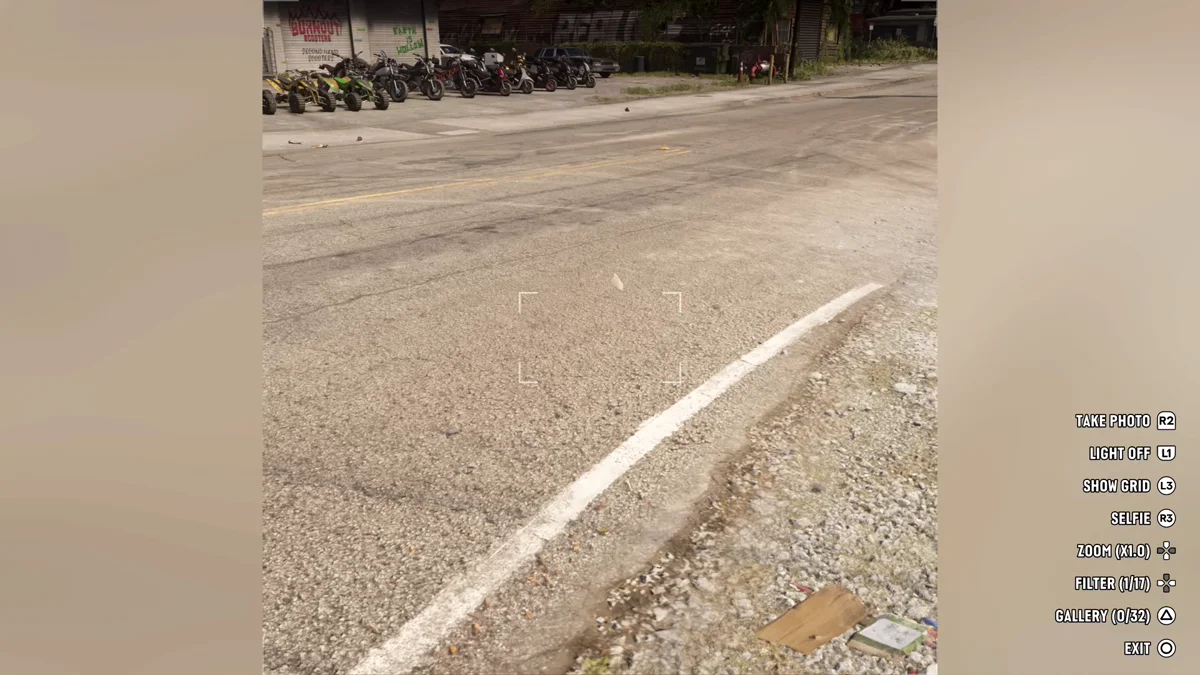
Make sure you’re clicking the stick in, not pushing it in a direction: R3 is a press. If you’ve been looking for a selfie switch in Photo Studio, the pause menu’s photo mode, there isn’t one. Our guide on why you can’t take a selfie in GTA 6 explains the difference between the two cameras.
How to Share a Selfie in a Text
Jason and Lucia text each other while you play, and some of those conversations offer a selfie as a reply. Ours came up as Lucia when Jason texted “Whats goin on lu?” and, after her answer, “Cool, wanted to check youre okay.”
- Open the conversation on the phone when the text comes in.
- Scroll to “Share a Selfie,” the reply with the camera icon. It sat between a thumbs-up and “Meet up?” in our chat.
- Select it, and the phone switches to the selfie camera.
- Pick a pose and an expression (controls below), then press R2.
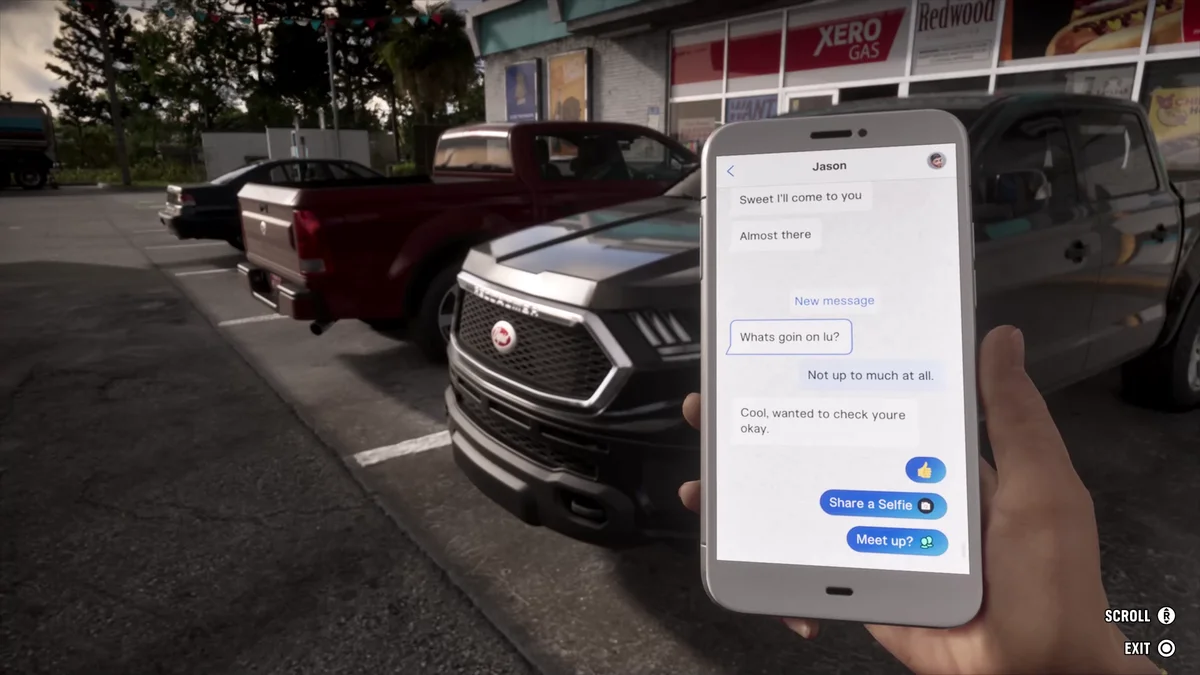
The photo goes straight into the conversation as your reply, so Jason or Lucia gets it the moment you take it.
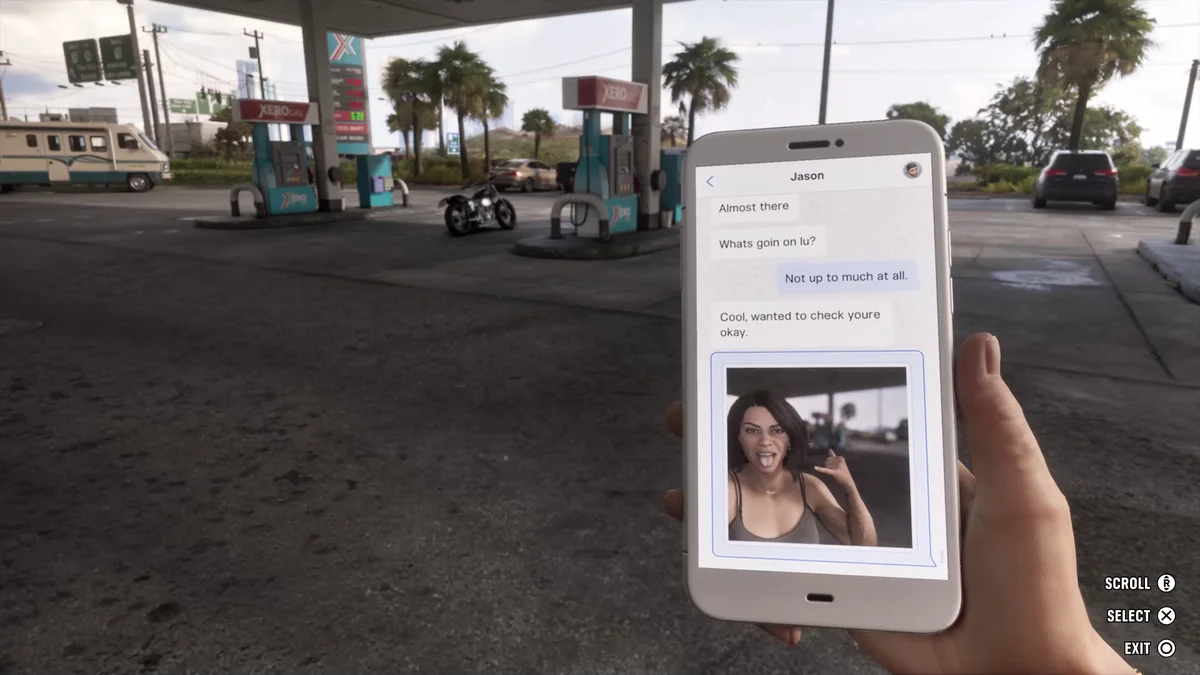
To text or call your partner yourself, our guide on how to call Lucia or Jason has the steps.
Every Selfie Camera Control
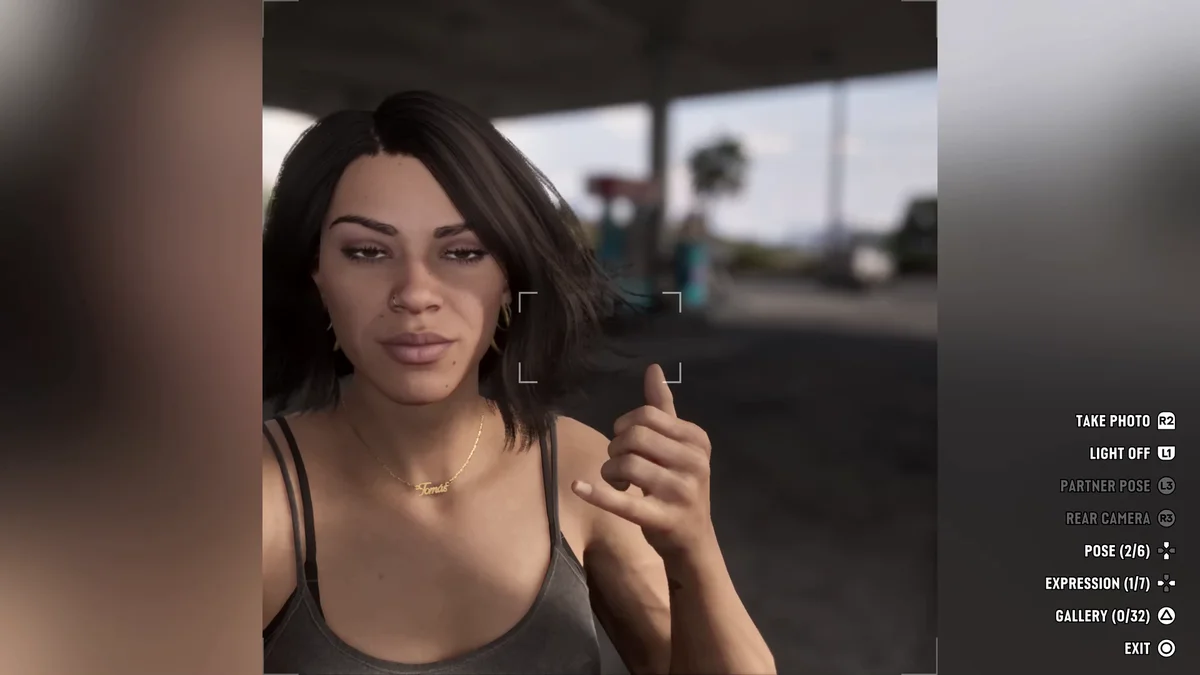
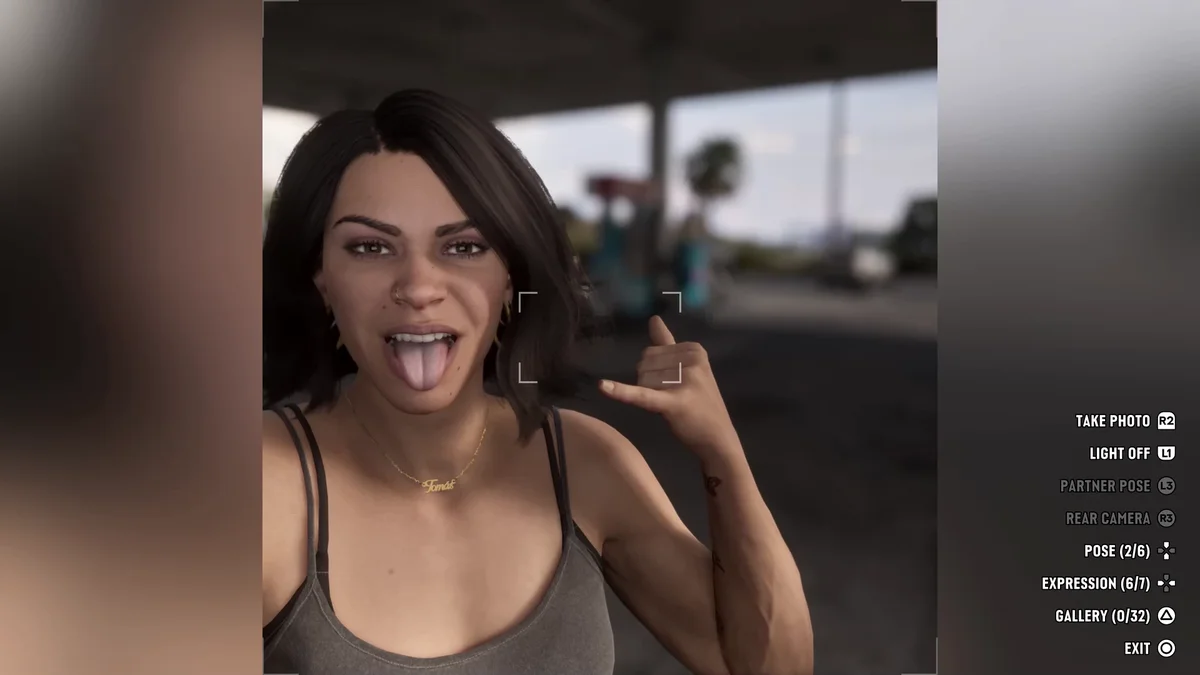
The selfie camera lists its controls down the right side of the screen. This is what our Share a Selfie camera showed on PS5, with the matching Xbox buttons:
| Action | PS5 | Xbox |
|---|---|---|
| Take photo | R2 | RT |
| Light off | L1 | LB |
| Partner pose | L3 | Left stick click |
| Rear camera | R3 | Right stick click |
| Pose (1 of 6) | Up and Down on the D-pad | Up and Down on the D-pad |
| Expression (1 of 7) | Left and Right on the D-pad | Left and Right on the D-pad |
| Gallery | Triangle | Y |
| Exit | Circle | B |
Partner Pose and Rear Camera were grayed out on ours, with Lucia on her own at a gas station. The Gallery counter read 0/32 before and after we sent the photo.
Poses and Expressions
The selfie camera’s two counters are where the fun is. Pose runs from 1 to 6 and changes what your character does with their body and hands. Expression runs from 1 to 7 and changes the face. You can mix any pose with any expression before you take the shot.
On ours, pose 2 had Lucia throwing a hand sign at the camera, and expression 6 had her sticking her tongue out. Cycle through both counters before you press R2, because the preview shows you exactly what the photo will look like.
For posed shots with more control over the camera, lighting and focus, our GTA 6 photo mode guide covers Photo Studio, and our guide to every phone app covers what else the phone can do.
Frequently Asked Questions
How do you take a selfie in GTA 6? Press Up on the D-pad to take out the phone, open the Camera app, click the right stick (R3) for Selfie and press R2 to take the photo.
How do you send a selfie in GTA 6? When your partner texts you, pick the “Share a Selfie” reply. The selfie camera opens, and the photo goes into the chat as soon as you press R2.
How do you change your pose in a GTA 6 selfie? Press Up or Down on the D-pad. The selfie camera has 6 poses.
How do you change your face in a GTA 6 selfie? Press Left or Right on the D-pad to cycle through the 7 expressions.
Can you take a selfie in GTA 6 photo mode? No. Photo Studio on the pause menu has no selfie option. Selfies come from the phone’s camera.