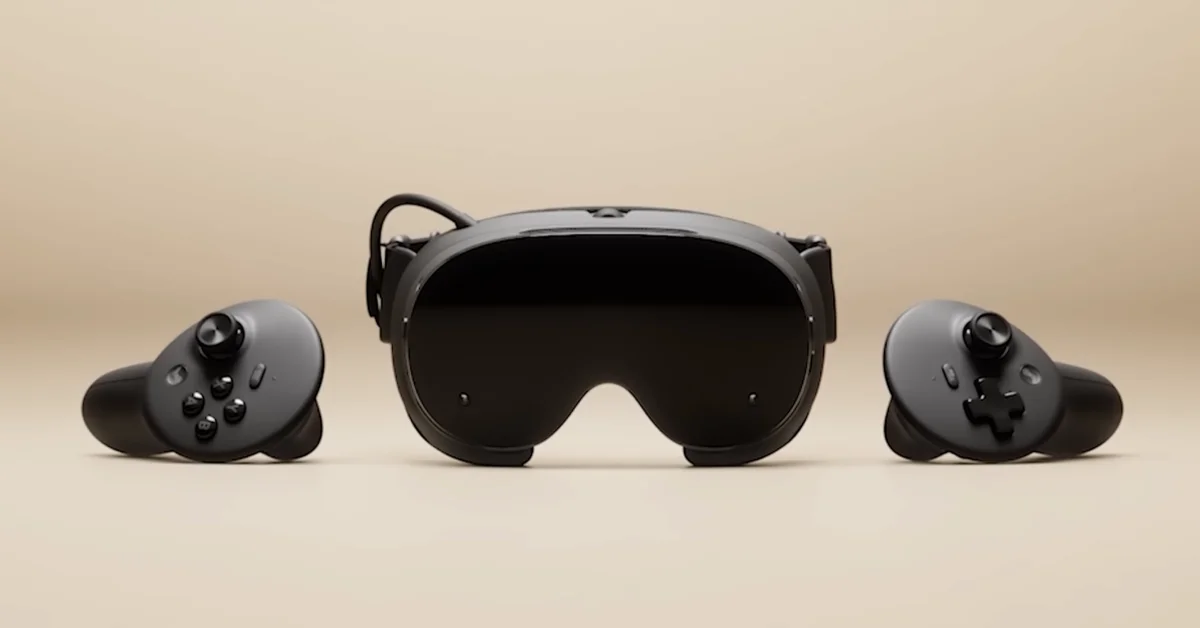
The best Steam Frame settings to change first are your power mode (Performance or Playtime, in the Quick Access Menu), each game’s refresh rate, resolution and motion smoothing in VR Settings > Video > Per-Application Video Settings, the presence sensor sensitivity if the screen keeps switching off, and your Dominant Eye. Before any of that, install every update, because Valve has been adding settings and fixing streaming problems every week or two since launch.
This guide goes through each setting in the order we would change them, says what Valve says it does, and gives our pick. Menu paths come from Valve’s Steam Frame support guide, its Steamworks documentation and its SteamOS release notes. There are no invented frame rates here: where Valve gives no number, neither do we.
Quick Reference: Our Picks
| Setting | Where it is | Our pick |
|---|---|---|
| Updates | Steam Settings > System > Updates | Install everything |
| Power mode | Quick Access Menu > Performance | Performance plugged in or streaming, Playtime for long standalone sessions |
| Refresh rate | VR Settings > Video > Per-Application Video Settings | Raise it only where the game has headroom |
| Resolution per eye | Same menu | Leave the game’s default unless the perf graph shows headroom |
| Motion smoothing | VR Settings > Video > Motion Smoothing (global), or per game | Keep it on for demanding games |
| Presence sensor | VR Settings > Startup / Shutdown > Presence Sensor | High sensitivity if you wear glasses or a spacer |
| Dominant Eye | VR Settings | Set it to your real dominant eye |
| Chaperone style | VR Settings > Play Area > Chaperone Style | Whatever you notice without it getting in the way |
| Battery percentage | Dashboard bar option | On |
Start With Updates
Valve’s first troubleshooting step for everything is the same: install updates on the headset under Steam Settings > System > Updates in the VR Dashboard, and, if you stream, update the Steam client and SteamVR on your PC too. Since the September launch, Valve’s SteamOS 0.4 update alone added the presence sensor and Dominant Eye settings, improved battery life by up to 12 percent, fixed color clarity while streaming and reduced “Error 17” connection drops.
If you want features before they ship to everyone, Valve offers a beta channel under Settings > System > System Update Channel. Leave it on stable unless you need a specific fix.
Performance or Playtime Mode
Valve’s support guide says there are preset Performance and Playtime modes “in the Performance section of the Quick Access Menu” to “prioritize power or battery life respectively.” Open the Quick Access Menu by clicking the clock in the VR Dashboard.
Our pick: Performance when you are streaming from a PC, playing a demanding standalone game, or sitting near a charger, and Playtime for long standalone sessions where battery matters more than the last few frames. Valve’s October 15 client update added a Playtime Mode icon to the notification area, so you can see at a glance which one is on.
Refresh Rate, Resolution and Motion Smoothing
These three live together. In the headset, open VR Settings > Video > Per-Application Video Settings and pick a game. Valve’s Steamworks documentation lists what you can change there and the default when a developer has not suggested one:
| Per-game setting | Valve’s default |
|---|---|
| Resolution Per Eye | 1728×1728 |
| Frame Limit / Refresh Rate Override | 72 Hz |
| Frame Limit / Throttling Behavior | No throttling |
| Motion Smoothing | Uses the global setting under Video > Motion Smoothing |
Developers can ship their own suggested defaults for Steam Frame, so a game may open with different values. Your changes override them, and Reset to Default restores the developer’s picks.
The Steam Frame panels run from 72 to 144Hz, and Valve labels 144Hz as experimental. A higher refresh rate feels smoother but asks more of the chip (standalone) or your PC (streaming), so raise it one step at a time. To see whether a game has room, turn on Valve’s frame-time graph: Valve’s debugging documentation says to click the clock in the lower right of the Dashboard, select Performance, scroll to VR Settings and toggle Show Perf Overlay In VR.
Motion smoothing fills in frames when a game cannot keep up. Our pick is to leave it on for demanding games and turn it off per game only if you see artifacts in a game that holds its frame rate. Valve’s SteamOS 0.3.0 notes fixed the per-app Force Always-On option, so that choice now sticks.
Streaming Settings Worth Checking
If you stream from a PC, the biggest “setting” is placement. Valve’s support guide says the wireless adapter works best with a clear line of sight and within about 20 feet of your play area, and its developer setup notes ask for a USB 3 port on the PC where possible. Our guide to connecting Steam Frame to your PC covers pairing and the Error 17 fix, which needs SteamVR 2.18.2 or later on the PC.
- Advanced streaming options are in Steam > Settings > Remote Play on the PC and Steam Settings > Remote Play on the headset.
- Foveated Streaming needs no setup. Valve calls it a system-level feature that “applies to all games, and requires no game developer work.”
- Wi-Fi power saving. Valve’s October 15 client update fixed a bug where Wi-Fi power saving switched itself on at startup even when disabled in settings. If you turned it off, update so it stays off.
- Spectator view (what others see on the PC) is smoothed by default since SteamOS 0.4. Turn smoothing off under VR Settings > Developer if you want it to match your head movement exactly.
Comfort and Fit Settings
- IPD. Set the wheel and lock before judging any graphics setting. Our guide to setting IPD on Steam Frame covers it.
- Presence Sensor. Under VR Settings > Startup / Shutdown > Presence Sensor, the high sensitivity option keeps the displays on “under a wider range of conditions, such as when using glasses spacers,” per Valve. Our Steam Frame glasses guide has more.
- Dominant Eye. Set it in VR Settings. Valve says it controls which eye is used for spectator view and screenshots.
- Track Dominant Eye Only. An accessibility option under VR Settings > General for limiting eye tracking to one eye. It appears only after you enable “show advanced settings.”
- Chaperone Style. Change how the boundary grid looks under VR Settings > Play Area > Chaperone Style.
- Recenter. Hold the Steam button while facing the direction you want, and release when the icon shows ready, per Valve’s support guide. The Playspace menu on the taskbar also lets you redraw your play area or fix the floor height.
- Game dimming. Valve added a VR Settings control for “Game dimming when dashboard is visible” in SteamOS 0.3.0. Turn it off if you like watching the game behind the menu.
Small Settings Worth Turning On
- Battery percentage. Valve’s September 25 client update added support for “Show Battery Percentage” in the Dashboard Bar. A number beats a battery icon when you are deciding whether to start another round.
- Advanced settings. Several useful options, including Track Dominant Eye Only and the performance assessment tools, only appear after you set Advanced Settings to Show.
Not sure what to play while you tune? Our list of the best Steam Frame games mixes standalone picks with PC VR games, and our guide to Steam Frame’s Desktop Mode covers the Linux side of the headset.
Frequently Asked Questions
What refresh rate should I use on Steam Frame? Start with the game’s default (72 Hz unless the developer suggests another) and raise it per game in VR Settings > Video > Per-Application Video Settings if the performance graph shows headroom. Valve lists 144Hz as experimental.
Where are Steam Frame’s graphics settings? In the headset, under VR Settings > Video. Per-game resolution, refresh rate, throttling and motion smoothing are under Per-Application Video Settings.
What is the difference between Performance and Playtime mode? Valve says Performance prioritizes power and Playtime prioritizes battery life. Both are in the Performance section of the Quick Access Menu.
Should I turn off motion smoothing on Steam Frame? Only for games that hold their frame rate and show artifacts. For demanding games, motion smoothing helps when the game cannot keep up.
How do I reset a game’s settings on Steam Frame? Open Per-Application Video Settings for that game and choose Reset to Default, which restores the developer’s suggested settings.
Do I need to turn on Foveated Streaming? No. Valve says it is a system-level feature that works for every game without setup.