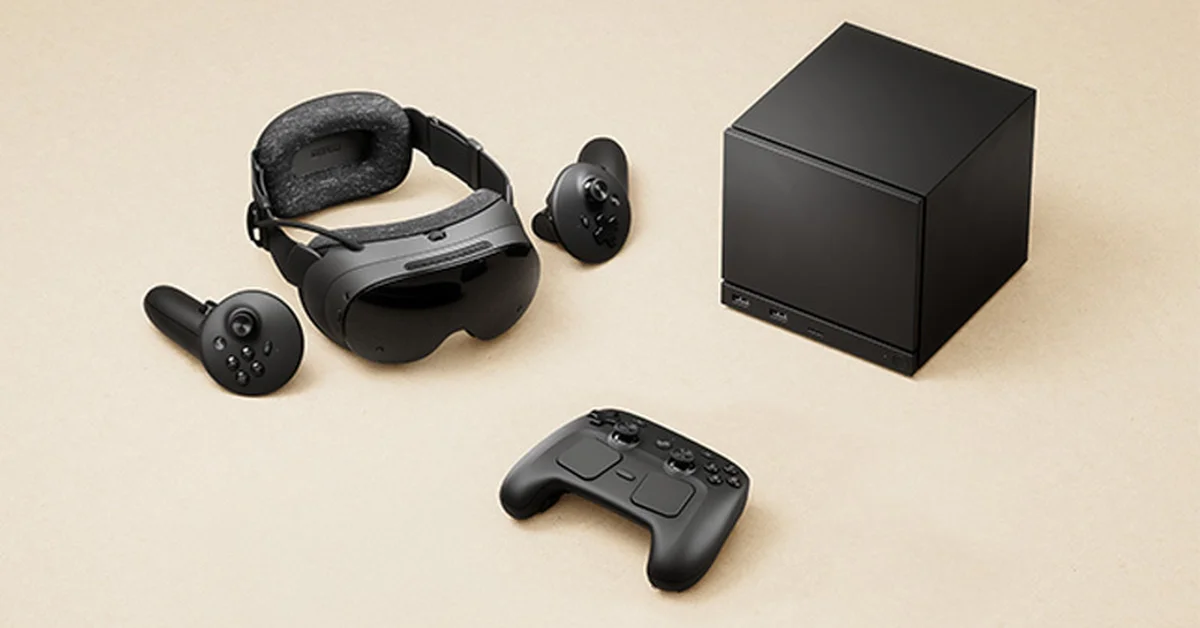
To open Desktop Mode on Steam Frame, open the dashboard menu, select “+” (Launch Program) and choose Desktop. A standard Linux desktop (KDE Plasma) opens in your headset as its own window, running alongside your other games and apps, and your controller works as a laser-pointer mouse: pull the trigger to left-click and push in the thumbstick to right-click.
Unlike Steam Deck or Steam Machine, you do not reboot or switch the whole device into Desktop Mode. Below are the exact steps, the mouse and keyboard controls, how to install apps and add them to your library, and how to close the desktop or get out if your headset started up in it. Everything is verified against Valve’s Steam Frame support guide, its developer documentation and its SteamOS update notes.
How Desktop Mode Works on Steam Frame
The Steam Frame runs SteamOS 3, which Valve lists as Arch-based, and its spec sheet names KDE Plasma as the desktop. Valve’s support guide describes Desktop Mode as “a standard Linux desktop experience” that “runs alongside the other games/apps open in Steam Frame.”
That last part is the big difference from Valve’s other hardware. On Steam Machine and Steam Deck, Desktop Mode replaces the Steam interface until you switch back. On Steam Frame, the desktop is just another program in your VR Dashboard, so you can keep a game suspended and open the desktop next to it.
Valve’s product page is clear about why it is there: “Just like any SteamOS device, install your own apps, open a browser, do what you want: It’s your PC.”
Step-by-Step: Open Desktop Mode
- Open the dashboard menu in your headset (the menu bar at the bottom of the VR Dashboard).
- Select “+” (Launch Program).
- Choose Desktop. The KDE desktop opens as a window in front of you.
- Point and click. Aim a Steam Frame Controller at the desktop and it acts as a laser-pointer mouse.
If you do not have a controller to hand, Valve’s support guide says the Aux button on the side of the headset brings up a cursor that follows your head, and pressing Aux again clicks.
Mouse Controls: Clicking and Right-Clicking
Valve’s support guide gives the controls:
| Action | Steam Frame Controller |
|---|---|
| Move the pointer | Aim the controller (laser pointer) |
| Left-click | Pull the trigger |
| Right-click | Push in (click) the thumbstick |
| Navigate without a controller | Press the Aux button on the headset for a head-tracked cursor |
Right-click matters more than you might expect. KDE puts many options in right-click menus, including the one you use to add a program to your Steam library (see below).
Typing in Desktop Mode
For anything more than a search box, pair a real keyboard and mouse. Valve’s support guide says to put the device into Bluetooth pairing mode using its own manual, then finish pairing on the headset in Steam Settings > Bluetooth. A Bluetooth keyboard and mouse then work in Desktop Mode like they would on any Linux PC.
Valve’s update notes show the on-screen keyboard has been a work in progress since launch: SteamOS 0.4 fixed “the keyboard not appearing while streaming.” If the virtual keyboard does not appear when you click a text field on the desktop, a Bluetooth keyboard is the dependable fallback.
Installing Apps and Adding Them to Steam
Desktop Mode is where you install software that is not on Steam. Valve’s support guide says applications launched from the desktop “create their own icon in your dashboard menu,” so they sit alongside your games while they run.
To launch a program from your Steam library later, add it to Steam from the desktop. SteamOS uses a right-click Add to Steam option for this, and Valve’s SteamOS 0.5.6 beta extended it to Android apps: its notes say it now allows “.apk files in right-click ‘add to steam’ context menu in Desktop mode.” That beta is opt-in under Settings > System > System Update Channel, so on the stable channel APK files may not show that option yet.
Remember that Steam Frame uses an Arm chip. Linux programs built for regular PC processors rely on Valve’s translation layers, so not every one will run smoothly, which is part of why Valve’s Standalone Verified program exists for games. Our guide to whether Steam Frame is standalone explains the compatibility layers Valve uses.
How to Close Apps and Exit Desktop Mode
Because the desktop is just another open program, you close it rather than “switching back”:
- Close an app from its own menus or controls, or hover over its icon in the dashboard menu and select Close, which Valve’s support guide describes for any app launched from the desktop.
- Close the desktop the same way: you launched it from the dashboard menu like any other program, so hover over it there and select Close.
- If the headset started straight into Desktop Mode, use Return to Gaming Mode. Valve’s SteamOS 0.4 notes list a fix for “Return to Gaming mode” when starting up directly into Desktop mode, so update first if it does nothing (Steam Settings > System > Updates).
- Still stuck? Restart the headset, which Valve’s support guide lists as a first step for any problem.
Desktop Mode for Streaming and Development
Two related uses come up often:
- Steam Machine streaming. Valve says SteamVR on Steam Machine is not fully supported yet and suggests switching the Steam Machine (not the headset) to Desktop Mode, opting into the SteamVR beta and launching SteamVR by hand before starting a VR game. Our guide to Steam Machine’s Desktop Mode covers that switch, and our guide to connecting Steam Frame to your PC covers streaming from a Windows PC.
- Remote desktop from your PC. Valve’s Steam Frame debugging documentation says that after you enable Developer Mode you can reach the headset’s Linux desktop with Windows’ Remote Desktop Connection by entering frame as the computer name. That is a developer feature, but it is handy for moving files with a real keyboard and mouse.
Frequently Asked Questions
How do you right-click in Steam Frame’s Desktop Mode? Push in the thumbstick on your Steam Frame Controller. Valve’s support guide says the thumbstick click acts as a right-click and the trigger as a left-click.
Does Steam Frame have a Desktop Mode? Yes. Open the dashboard menu, select “+” (Launch Program) and choose Desktop. It opens a KDE Plasma Linux desktop.
Do you have to restart Steam Frame to use Desktop Mode? No. Valve says Desktop Mode runs alongside your other games and apps, so it opens as a window in the VR Dashboard.
How do you exit Desktop Mode on Steam Frame? Close it from its icon in the dashboard menu. If the headset started up in Desktop Mode, use Return to Gaming Mode, which Valve fixed in SteamOS 0.4.
Can you use a keyboard and mouse in Steam Frame’s Desktop Mode? Yes. Pair them in Steam Settings > Bluetooth on the headset after putting them in pairing mode.
Can you install apps in Steam Frame’s Desktop Mode? Yes. Valve’s product page says you can install your own apps, and anything you launch from the desktop gets its own icon in the dashboard menu.