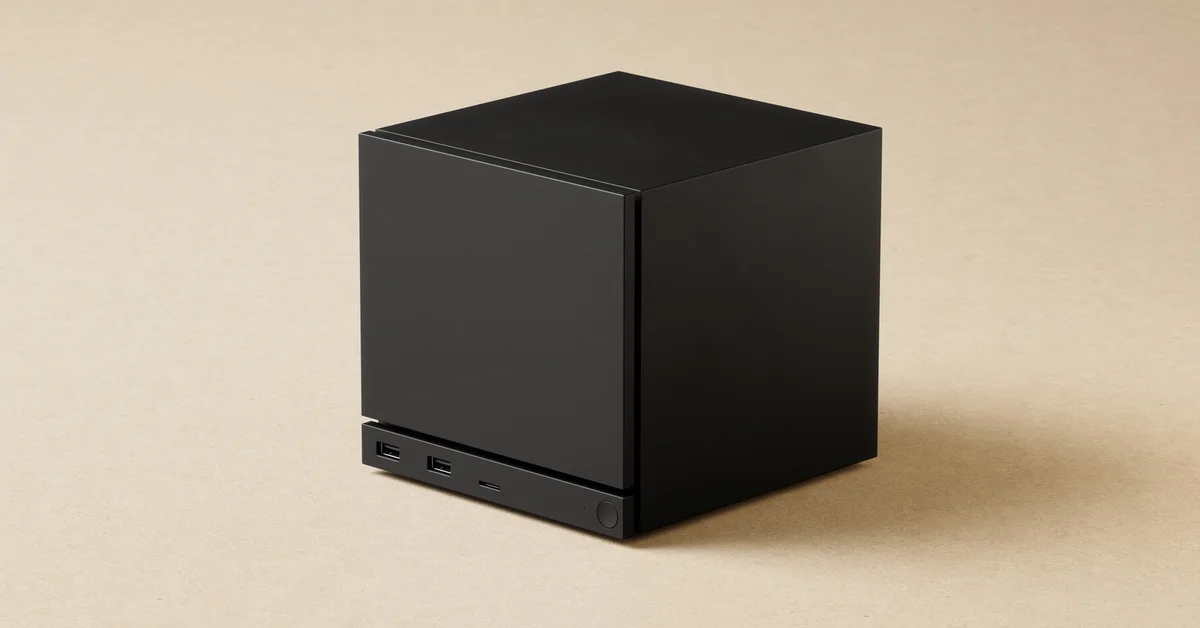
To switch your Steam Machine to Desktop Mode, press the Steam button, open Power, and choose Switch to Desktop. Valve’s own support guide describes the result as “a standard Linux desktop experience” (it is KDE Plasma), and you get back by selecting the Return to Gaming Mode icon on the desktop.
That is the whole trick, but the desktop is far easier to live with once you know how to type without a keyboard, how the Steam Controller acts as a mouse, and which settings Valve has been adding since launch. Everything below comes from Valve’s support pages and Steam update notes, not guesswork.
How Desktop Mode Works on the Steam Machine
The Steam Machine runs SteamOS 3, which Valve’s spec sheet lists as Arch-based, with KDE Plasma as its desktop. By default it boots into Gaming Mode, the big-screen Steam interface you see after setup. Desktop Mode is the same machine with the full PC desktop on top: a taskbar, a file manager, a web browser you can install, and a terminal.
Valve is upfront that this is deliberate. Its product page says the Steam Machine is “optimized for gaming, but it’s still your PC. Install your own apps, or even another operating system.” Desktop Mode is where you do that.
Step-by-Step: Switch to Desktop Mode
These are the steps from Valve’s Steam Machine Feature and Troubleshooting guide:
- Press the Steam button on your controller to open the Steam Menu.
- Scroll down to Power.
- Select Switch to Desktop.
- If a confirmation prompt appears, confirm it. Valve’s September 9 Steam Beta Client notes added a confirmation step to the “switch to desktop mode” power menu action, so newer builds ask before switching, and they warn you if a running game will be shut down.
The Plasma desktop then loads. Valve’s guide notes you “will need a keyboard and mouse or Steam Controller to navigate.”
How to Get Back to Gaming Mode
Valve documents two ways back:
- Select the Return to Gaming Mode icon on the desktop.
- Or open the Application Launcher, go to Session, and choose Log Out.
Either one drops you back into the normal Steam Machine interface.
How to Bring Up the Keyboard in Desktop Mode
This is the step most new owners get stuck on. Valve’s Steam Deck and Steam Machine Desktop FAQ says: “While Steam is running, if you press STEAM + X, you can bring up an on-screen keyboard.” The same FAQ adds that if you are using a Steam Controller with your Steam Machine, “this will work the same as on Deck.”
Two caveats from Valve itself:
- Steam has to be running. The shortcut comes from Steam, so if you have closed the Steam client on the desktop, reopen it first.
- It is not perfect yet. Valve writes that it is “still working on improving this, and you may find yourself in situations where you’ll need to plug in a physical keyboard and mouse.”
If you use a different controller, Valve’s Steam Machine guide says to long-press the Steam, PS or Xbox button and select Show Controller Shortcuts to see the button chords that apply to your controller.
Using a Steam Controller as a Mouse
You do not need a mouse for basic desktop use. Per Valve’s Desktop FAQ, the trackpad works as a mouse: clicking the right trackpad is a primary (left) click, and clicking the left trackpad is a secondary (right) click. With Steam running, apps and games in Desktop Mode also have access to the controller’s inputs.
For anything involving a lot of typing or precise clicking, a real keyboard and mouse is far more comfortable. Any USB keyboard and mouse can go in the front USB-A ports, and Bluetooth devices pair from Steam Menu > Settings > Bluetooth in Gaming Mode.
What You Can Do in Desktop Mode
Valve’s Desktop FAQ covers the basics:
- Install apps with the Discover Software Center on the taskbar. It installs Flatpak apps onto the writable part of the drive, so they survive SteamOS updates (if that drive fills up, our guide to upgrading the RAM and storage covers adding space).
- Run desktop apps in Gaming Mode. Open the Steam client on the desktop, click Add a Game, then Add a Non-Steam Game, and pick the app. It then appears in your library under the Non-Steam tab.
- Use sudo. The default user ships with no password. Open a terminal and set one with the
passwdcommand if you need administrator commands.
Valve also warns that anything installed outside Flatpak (with pacman, for example) “may be wiped with the next SteamOS update”, and that disabling the read-only system image is only for people who know exactly what they are doing. If something breaks, Valve’s SteamOS Recovery and Troubleshooting article covers rolling back to the previous OS version while keeping your games and saves.
Booting Straight to the Desktop
Valve has started adding this. Its September 9 Steam Beta Client update notes list a new “Default to Desktop Mode” toggle in System settings. As of October 5, that change has appeared in Steam Beta Client notes but not in a stable Steam Client update’s notes, so if you do not see the toggle, you are likely on the stable client. Until it reaches the stable client, Desktop Mode stays a manual switch each time you boot.
Display Tips for the Desktop
Valve’s guide says multiple displays can be connected to the Steam Machine, but Gaming Mode currently supports one display at a time, and HDMI is the default output for Gaming Mode when it is connected. If your screen locked up after plugging or unplugging HDMI on the desktop, update SteamOS: Valve’s SteamOS 3.8.28 notes list a fix for HDMI hotplugging causing lockups in Desktop Mode.
If you are coming from a Steam Deck, almost all of this will feel familiar, since Valve documents both devices in the same Desktop FAQ. Our Steam Deck coverage for games like Control Resonant and Ace Combat 8 explains how Valve’s Verified ratings work, and our guide on how to refund games on Steam covers what to do if something you bought will not run.
Frequently Asked Questions
How do I get to the desktop on the Steam Machine? Press the Steam button, go to Power, and select Switch to Desktop. Valve documents this in its Steam Machine support guide.
How do I bring up the keyboard in Steam Machine Desktop Mode? Press STEAM + X while Steam is running. Valve says this works the same on a Steam Controller connected to a Steam Machine as it does on Steam Deck.
How do I get back to Gaming Mode? Select the Return to Gaming Mode icon on the desktop, or open the Application Launcher, go to Session, and choose Log Out.
Which desktop does the Steam Machine use? KDE Plasma, running on SteamOS 3, which Valve lists as Arch-based.
Can I install apps like a web browser? Yes. Use the Discover Software Center on the taskbar, which installs Flatpak apps that survive SteamOS updates.
Can I use the Steam Controller as a mouse on the desktop? Yes. Per Valve, the trackpad moves the cursor, a right trackpad click is a primary click, and a left trackpad click is a secondary click.