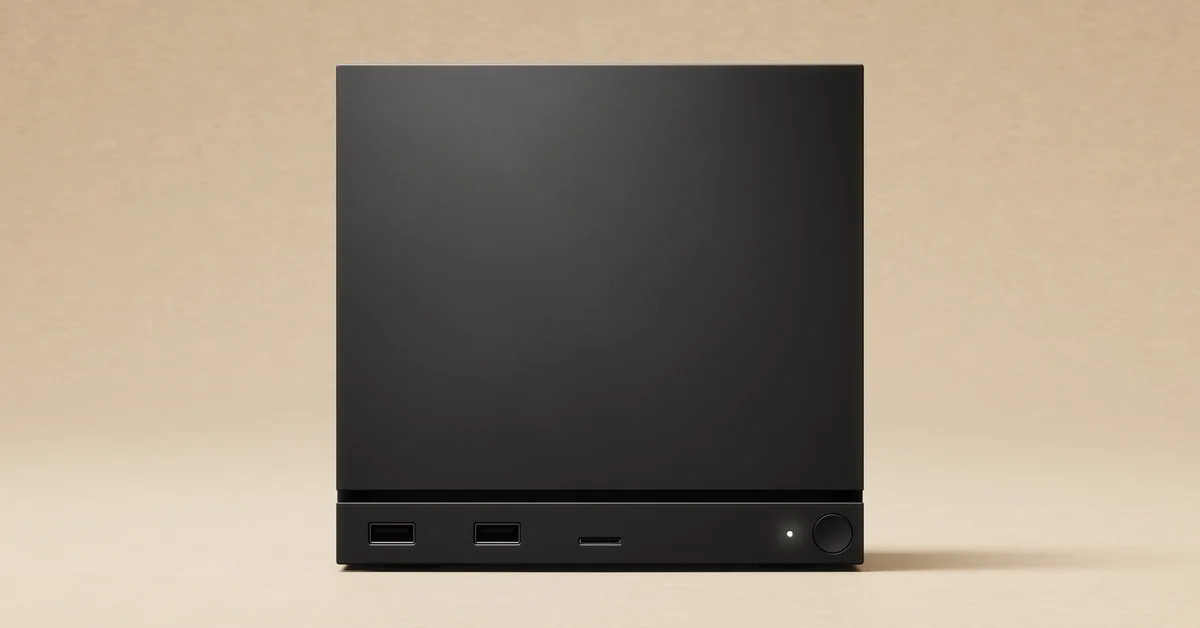
The only storage upgrade Valve supports on the Steam Machine without opening it is a microSD card in the front slot: Valve says any UHS-I (class 3 or better) card works, and you format it from Settings > Storage. Swapping the internal SSD or RAM means opening the case, and Valve’s own support guide says it does not recommend that and that “any damage that results won’t be covered under your product warranty.”
So there are two very different upgrades here: the easy, official one, and the internal one that is possible but at your own risk. We cover both below, keeping what Valve states separate from what teardown and repair guides report.
What Valve Ships and What It Calls Expandable
Valve’s Steam Machine spec sheet lists:
- Memory: 16GB DDR5 system RAM plus 8GB of GDDR6 video memory.
- Storage: a 512GB or 2TB NVMe SSD, depending on the model.
- Expansion: “Both models include a high-speed microSD card slot.”
The product page describes storage as “expandable” only in the microSD sense: “Both come with expandable storage via microSD.” Valve’s pages do not describe the RAM or the internal SSD as user-upgradeable parts, and it does not list compatible replacement parts. What Valve does say is that the Steam Machine is “still your PC”, and it publishes a full guide to reinstalling SteamOS, which matters if you ever replace the drive.
Upgrade 1: Add Storage With a microSD Card (Official)
This is the upgrade Valve documents in its Steam Machine Feature and Troubleshooting guide:
- Insert the card into the microSD slot on the front of the Steam Machine.
- Go to Settings > Storage and select your SD card.
- Bring up the options menu and choose Format. Valve says it “may take a few minutes to complete.”
Card rules, per Valve:
- Any UHS-I (class 3 or better) card is supported.
- UHS-II and UHS-III cards “are expected to work as well, but their higher data transfer speeds are not supported.”
- Steam Deck cards carry over. If you already used a microSD card as library storage on a Steam Deck, Valve says it “should be able to” work in the Steam Machine with the installed games playable “without performing any additional steps.”
You manage the internal drive and “any other connected storage” from the same Settings > Storage screen.
What Valve Says About Opening the Steam Machine
Valve’s support guide has a short Disassembly and Modification section, and it is worth reading in full before you buy parts:
- “We don’t recommend opening or otherwise modifying your device – the internal components are sensitive and any damage that results won’t be covered under your product warranty.”
- The accessible screws use a T8 Torx driver, and “an extended bit may be required to reach some internal screws without risking damage to nearby components.”
- “Valve is not responsible for replacing or servicing screws or other components damaged while attempting to open or modify your Steam Machine.”
In plain terms: opening the case is allowed in the sense that Valve tells you which driver to use, but anything you break doing it is on you.
Upgrade 2: Swapping the Internal SSD (At Your Own Risk)
Valve has not published a drive-swap procedure, but iFixit has published a set of Steam Machine repair guides, which iFixit and several hardware outlets describe as official. Treat the following as iFixit’s description rather than a Valve spec:
- iFixit’s SSD guide says the Steam Machine has a single M.2 NVMe slot that accepts 2230 or 2280 drives, with a standoff you move with a 5.0 mm nut driver to fit the longer size.
- Its steps reach the drive by removing the four rubber feet, the back panel and the inner assembly, all with a T8 Torx driver.
- iFixit also notes that a new drive needs an operating system installed before it works.
That last part is where Valve’s documentation does apply. Its SteamOS Installation and Repair article covers the Steam Machine specifically:
- Download the SteamOS recovery image for Deck, Machine and PC from Valve’s SteamOS download page and write it to a USB drive of at least 8GB (Valve suggests Rufus on Windows or Balena Etcher on Mac and Linux).
- Plug the USB drive into the Steam Machine, power it on, and press Esc a few times during boot to enter the BIOS. Valve recommends a wired keyboard.
- Select Boot Configuration, then the UEFI entry for your USB drive.
- On the recovery desktop, choose Wipe Device and Install SteamOS.
Your Steam library downloads again afterwards, and Steam Cloud saves come back with it for games that support them. Keep your original SSD until the new one is up and running.
Upgrade 3: Swapping the RAM (Hardest by Far)
The RAM is not soldered, according to Gamers Nexus’ pre-launch teardown filmed with Valve’s engineers, and iFixit’s RAM guide says the Steam Machine has two slots for DDR5-5600 SODIMM laptop-style modules. Valve itself does not list a supported RAM upgrade or maximum capacity, so treat both of those as reported, not official.
What iFixit’s guide makes clear is the effort involved. Reaching the memory goes far deeper than the SSD: after the back panel and inner assembly, it removes a port board, peels two adhesive-backed wireless antennas off the fan with heat, disconnects and removes the fan, and works through several more cable covers and boards. Valve’s own warning about sensitive components applies most here, and iFixit says replacement Steam Machine parts are not on sale yet, so a damaged connector cannot simply be replaced.
What Cannot Be Upgraded
The GPU and its 8GB of GDDR6 video memory are part of Valve’s semi-custom AMD design, and nothing Valve or iFixit has published describes a way to upgrade either one. If a game is short on video memory, more system RAM will not change that.
If you plan to install your own tools or another operating system after an upgrade, start with our guide to switching the Steam Machine to Desktop Mode, the full KDE Plasma desktop under the Steam interface. For how Valve rates games on its hardware, see our Steam Deck write-ups for Control Resonant and WARDOGS, and if a purchase will not run, our guide on how to refund games on Steam covers the refund window.
Frequently Asked Questions
Can you upgrade the storage on the Steam Machine? Yes. The official route is a microSD card in the front slot, formatted from Settings > Storage. Swapping the internal NVMe SSD is possible but means opening the case, which Valve does not recommend.
Does opening the Steam Machine void the warranty? Valve’s support guide says it does not recommend opening the device and that any damage that results won’t be covered under the product warranty.
What size SSD fits the Steam Machine? iFixit’s repair guide reports a single M.2 NVMe slot that takes 2230 or 2280 drives. Valve has not published a supported drive list.
Can you upgrade the RAM on the Steam Machine? Reports say yes: iFixit lists two DDR5-5600 SODIMM slots, and Gamers Nexus’ teardown found the RAM is not soldered. Valve does not list it as a supported upgrade, and reaching it requires a deep teardown.
What microSD card should I buy for the Steam Machine? Valve supports any UHS-I card rated class 3 or better. UHS-II and UHS-III cards should work, but without their extra speed.
Do I need to reinstall SteamOS after changing the SSD? Yes. Valve’s SteamOS Installation and Repair article explains how to install it from a USB recovery drive on the Steam Machine.