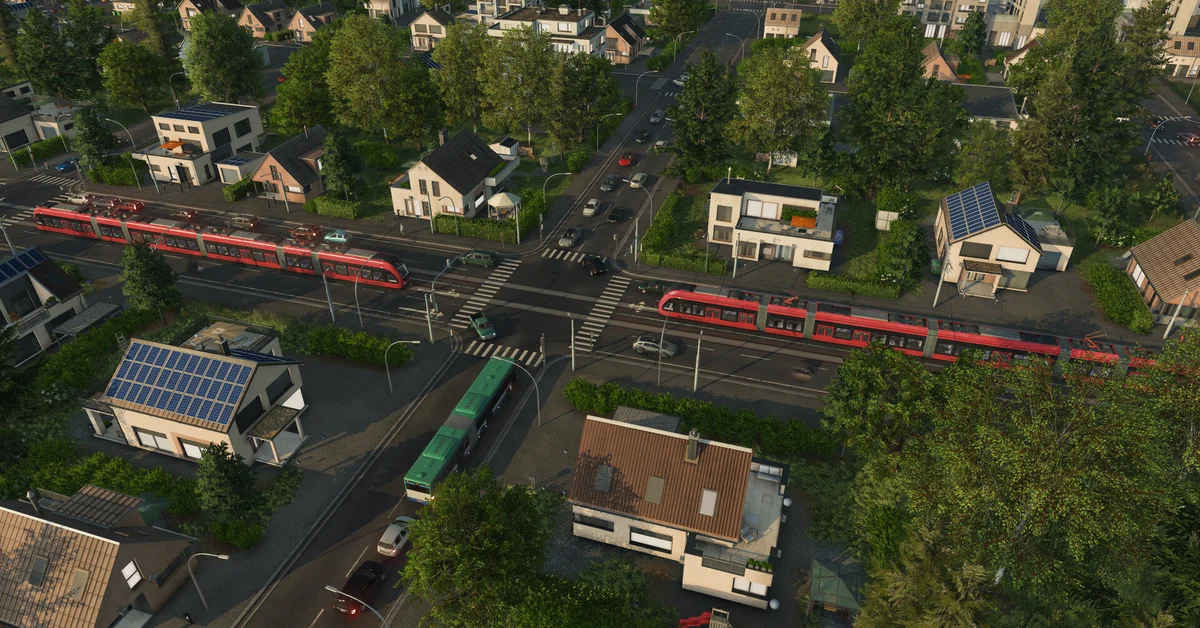
The best performance settings in Transport Fever 3 start with working out what is slowing you down. If the frame rate is low even while the game is paused, your graphics card is the limit, so lower the graphics preset or the Resolution Scale. If fast-forward stops speeding the game up, your processor is the limit, and graphics settings will not fix it: map size and population will.
Below we cover what each preset changes, the order we would lower settings in, the gameplay options that load the processor, the system requirements, and the hidden options in the settings.lua file. The settings come from Urban Games’ official settings manual.
What the Graphics Presets Change
Open Settings from the main menu or the pause menu and go to the Graphics tab. There are four presets, and this is exactly what each sets:
| Setting | Low | Medium | High | Very High |
|---|---|---|---|---|
| Textures | Low | High | High | Very High |
| Terrain textures | Low | High | High | Very High |
| Anti-aliasing | Off | 2x | 4x | 4x |
| Ambient occlusion (SSAO) | Off | On | On | On |
| Reflections (SSR) | Off | Medium | High | High |
| Geometry | Low | Medium | High | High |
| Shadows | Low | Medium | High | High |
| Terrain | Low | Medium | High | High |
| Grass | Off | Medium | High | High |
Very High only raises the two texture settings over High. Textures mostly cost video memory rather than frame rate, so if your card has plenty of VRAM, Very High costs little over High. The game also has a Show Video Memory Usage Warning option that tells you when your graphics settings are too high for your card.
The Order We Would Lower Settings In
If you are graphics-limited, start from the High preset and work down. This is general PC tuning advice rather than an official Urban Games ranking:
- Resolution Scale. Usually the single biggest lever. Per the manual, it reduces the rendering resolution of the main viewport “to reduce the performance load.”
- Anti-aliasing. Drop from 4x to 2x, the Medium preset value.
- Reflections (SSR) to Medium, then Off.
- Shadows to Medium.
- Ambient occlusion (SSAO). Off gives back performance at the cost of depth.
- Grass to Medium or Off, which matters most when you zoom in on busy countryside.
Other window settings:
- Display Mode: Windowed, Borderless or Fullscreen. Switch with Alt + Enter.
- Resolution: fullscreen resolution can only be changed from the main menu, not in-game.
- VSync: on or off. Turning it off can raise the frame rate on high-refresh screens, at the risk of tearing.
Settings That Load the Processor
Late-game slowdown in a transport sim is usually simulation load, not graphics. These choices, made when you create a Free Game, matter more for a big network than any graphics slider:
- Map size. Bigger maps mean more towns, industries and vehicles to simulate. Our map size guide covers the options, including why consoles top out lower.
- Population. Under the Advanced section of Gameplay Settings. The manual states plainly that “increasing the population has an impact on the simulation performance.”
- Town and industry density. More towns and industries mean more to simulate, and industries keep spawning as towns grow, so busy maps get heavier over time.
Population and density are fixed for a map, so decide before you start a long save. Moving gameplay settings away from standard values can also switch off achievements, as our achievements guide explains.
PS5 and Xbox Series X|S
On console there is no detailed graphics menu. Per the manual, “only a graphics mode can be selected,” and some advanced settings are missing. Console maps are also capped at smaller sizes than PC, which keeps the simulation in check.
System Requirements
From the Steam store page:
| Minimum | Recommended | |
|---|---|---|
| OS | Windows 10 or 11 (64-bit) | Windows 11 |
| CPU | Intel Core i5-8400 or AMD Ryzen 5 2600X | Intel Core i7-13700K or AMD Ryzen 7 7800X3D |
| RAM | 8 GB | 16 GB |
| GPU | GTX 1060, RX 480 or Arc A380 (4 GB VRAM) | RTX 3070, RX 6800 or Arc A770 (8 GB VRAM) |
| Storage | 90 GB, SSD required | 90 GB, SSD required |
Every processor must support AVX2, and older chips without it cannot run the game at all. Mac and Linux details are in our platforms guide.
Hidden Options in settings.lua (PC)
Advanced settings live in the settings.lua file in your user data folder (Settings > Advanced > Open User Data Folder). Edit it with a text editor only while the game is closed. Urban Games warns these are for advanced users, “at your own risk.”
- debugInfoShowFps = true shows your frame rate in the corner, which makes tuning much easier.
- bloomQuality = 0 turns off the emissive bloom effect entirely (1 and 2 are higher quality).
- disableConstructionParticles = true removes smoke effects while building and demolishing.
- graphicalDeviceOverride lets you force a specific GPU, useful on laptops with two graphics chips.
- experimentalOptimizeShaders enables experimental optimized shaders. It is labelled experimental for a reason.
If a setting breaks the game, delete settings.lua and it resets to the defaults.
Still Stuttering?
Stutter on launch, crashes and black screens are a different problem. Our crash and stutter fix guide covers Urban Games’ official fixes. Every guide is on our Transport Fever 3 hub.
Frequently Asked Questions
Does Transport Fever 3 have DLSS or FSR frame generation? No. Urban Games has said the game does not use frame generation technologies.
How do I show FPS in Transport Fever 3? Set debugInfoShowFps to true in settings.lua while the game is closed, or use your platform’s overlay.
Why is my game slow even on a fast graphics card? If fast-forward does not speed the game up, the processor is the limit. Smaller maps and lower population help more than graphics settings.
Can I change graphics settings on PS5 or Xbox? Only the graphics mode can be selected on console.
How do I reset Transport Fever 3 settings? Delete settings.lua from the user data folder with the game closed, and the defaults come back.