
To lock on to someone in GTA 6 on PS5, put your weapon away, look at them and hold L2. With a gun out, L2 aims instead, and whether that aim locks on to a target is decided by the Targeting option in the Combat section of the Gameplay settings. During some chases the game also lets you press R3 to lock the camera onto the person you’re after.
We ran into all three on our PS5 copy of Grand Theft Auto VI on launch night and launch day, and the screenshots in this guide come from those recordings. Below are locking on to people, the Targeting setting, the other aim help next to it, and the camera lock.
How to Lock On to a Person
Locking on to someone works much like it did in Red Dead Redemption 2: it’s how you start a conversation, a sale or a scuffle with one specific person.
- Put your weapon away. With a gun in your hands, L2 aims it at people instead. Our guide to putting your gun away in GTA 6 has the button.
- Look at the person and hold L2.
- Pick an option. What you can do with that person is listed in the bottom right corner, each with its own button.
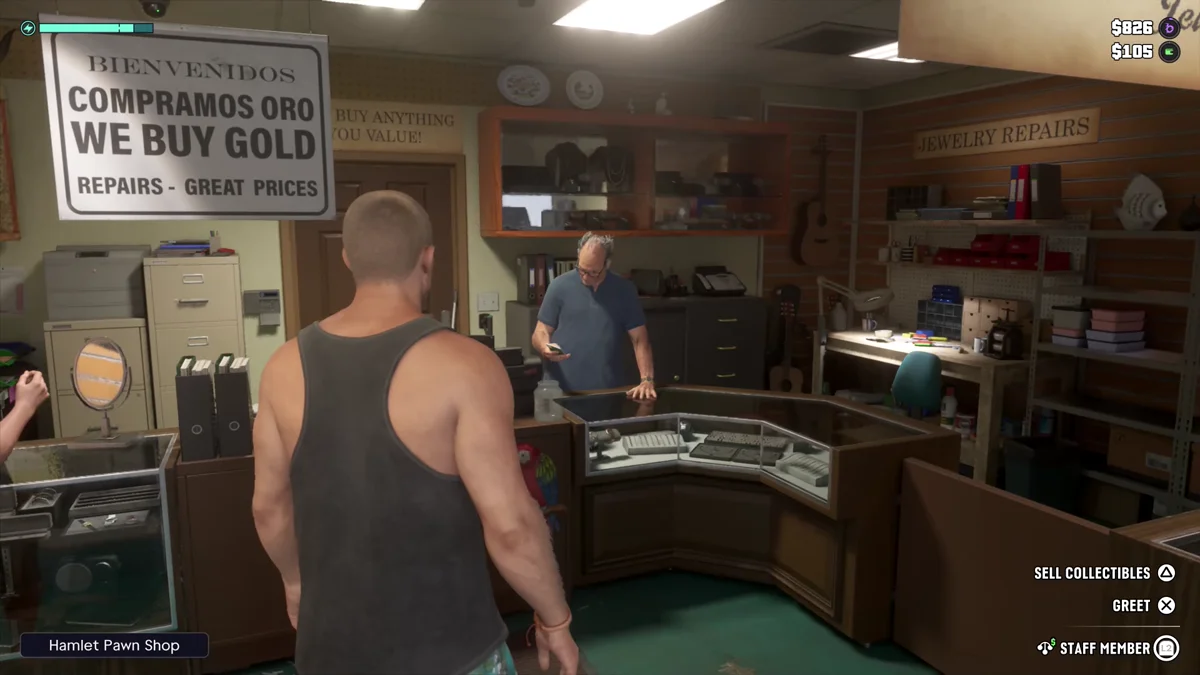
At the counter of the Hamlet Pawn Shop, the bottom right corner listed Sell Collectibles on Triangle and Greet on Cross, above the label Staff Member with the L2 button beside it.
Strangers on the street get their own set of lines. Our guide to talking to NPCs in GTA 6 goes through them, and the fighting guide covers what happens when locking on to someone ends in fists.
How to Lock On When Aiming: the Targeting Setting
Aiming a gun has its own lock-on, and a setting controls it.
- Press Options and open Settings.
- Press R1 until you reach the Gameplay tab.
- The first section is Combat, and Targeting is the top line.
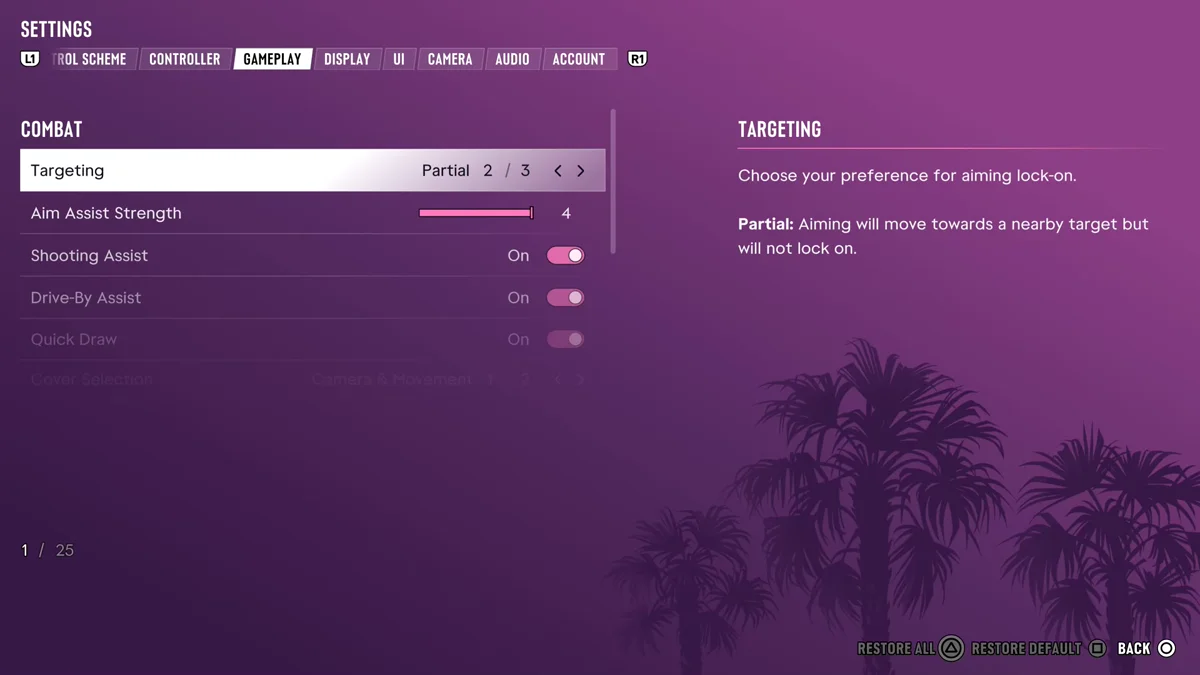
The game’s own description of the setting reads “Choose your preference for aiming lock-on.” Ours was on Partial, the second of three choices, and the game says this about it: “Aiming will move towards a nearby target but will not lock on.”
So on Partial, your crosshair drifts toward someone close to it but doesn’t stick to them, and keeping it on a moving target is up to you. The other two choices sit on either side of Partial. Press left or right on the line to move between them, and the panel on the right of the screen is where the game explains what each one does. If you want your aim to grab a target and hold it, pick the one that says it locks on.
This is a change if you’re coming from GTA 5, whose aim snapped onto targets for you. GTA 6’s Partial gives you a nudge and leaves the rest to your thumbs.
The Other Aim Help in the Combat Section
Targeting isn’t the only setting that decides how much the game helps your aim. The lines right under it on our copy:
| Setting | Ours | What it changes |
|---|---|---|
| Targeting | Partial (2 of 3) | Whether aiming moves to, or locks on to, a nearby target |
| Aim Assist Strength | 4, the top of the slider | How hard the game helps your aim |
| Shooting Assist | On | Help while you shoot |
| Drive-By Assist | On | Help while you shoot from a vehicle |
If gunfights feel too hard, check these before anything else, because GTA 6 has no difficulty selector. Our guide to GTA 6’s difficulty settings covers the other ways to make fights easier, and the best settings guide goes through the rest of the menu. For shooting from a car or bike, see how to shoot while driving.
How to Lock the Camera Onto a Target
The third kind of lock-on is for the camera. When the game had us chase someone on foot on launch night, a hint came up in the top left corner: “Press R3 to lock the camera onto the target.” It came up again later, at night, when the game had us follow another character.
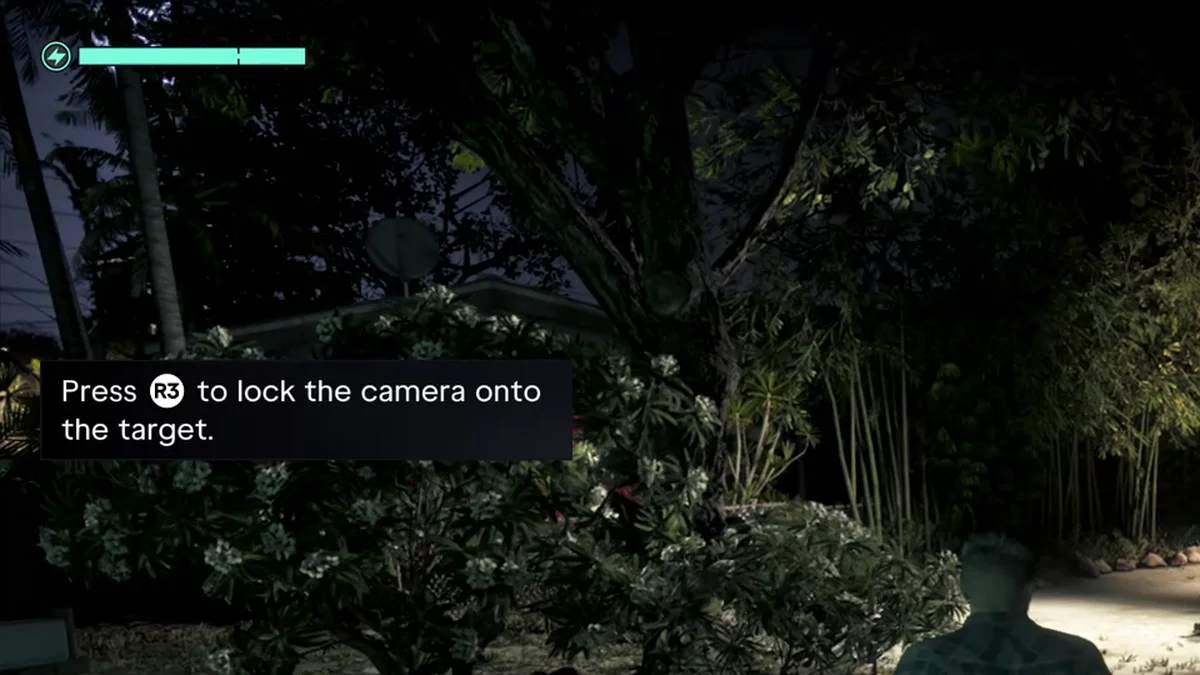
R3 is a click of the right stick. Press it when the hint is up and the camera keeps the person you’re after in view, so you can watch them while you steer. We only saw the hint while chasing or following someone.
R3 does other jobs too. With a weapon that has an optic, aiming with L2 and then pressing R3 switches to first person, which our guide to first person in GTA 6 explains. To change the camera itself, see how to change the camera view, and our controls guide has every other button.
Frequently Asked Questions
What button locks on in GTA 6? On PS5, hold L2 with your weapon put away to lock on to a person. With a gun out, L2 aims, and the Targeting setting decides whether that aim locks on. During chases, R3 locks the camera onto the person you’re after.
How do you turn on aim lock-on in GTA 6? Press Options, open Settings and go to the Gameplay tab with R1. Targeting is the first line of the Combat section. It starts on Partial, which pulls your aim toward a target without locking on, so step through the other two choices and read the description of each.
Why won’t my aim lock on in GTA 6? Most likely because Targeting is on Partial, the setting our copy started on. The game says Partial “will move towards a nearby target but will not lock on.”
How do you lock on to someone to talk in GTA 6? Put your weapon away, look at the person and hold L2, then pick from the options in the bottom right corner, such as Greet on Cross.
How do you lock the camera in a chase in GTA 6? Press R3, a click of the right stick, when the hint appears. It locks the camera onto the person you’re chasing or following.
More GTA 6 guides are on our GTA 6 hub.