
To change the camera view in GTA 6, hold Down on the D-pad to open the camera menu, then press Square to cycle between Camera 1, 2 and 3. It works on foot and in a vehicle. For a permanent change, press Options, go to Settings and move to the Camera tab with R1, where Height (On Foot) and Height (All Vehicles) set how high the camera sits.
We used both on our PS5 copy of Grand Theft Auto VI on launch night and launch day, and the screenshots in this guide are from those recordings. Below are the camera menu, the Camera settings tab, and where first person fits in.
How to Change the Camera in the Game
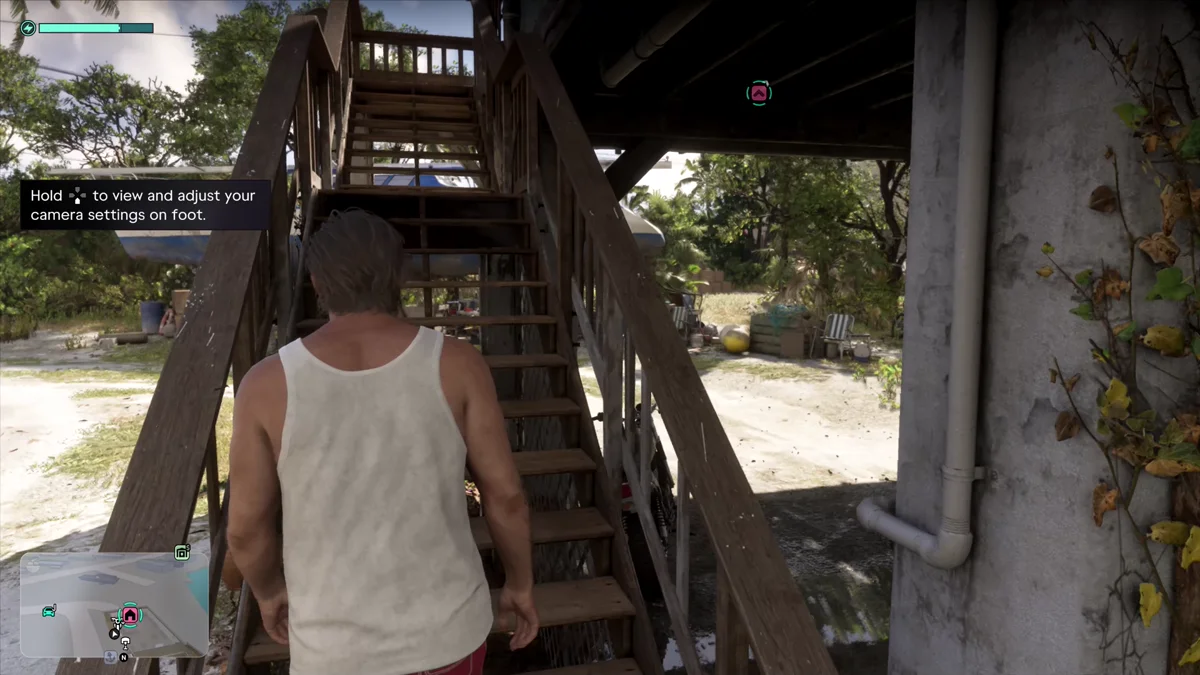
The game tells you about this one itself. The hint reads “Hold [Down on the D-pad] to view and adjust your camera settings on foot,” and the same hint comes up in a car with “in a vehicle” at the end.
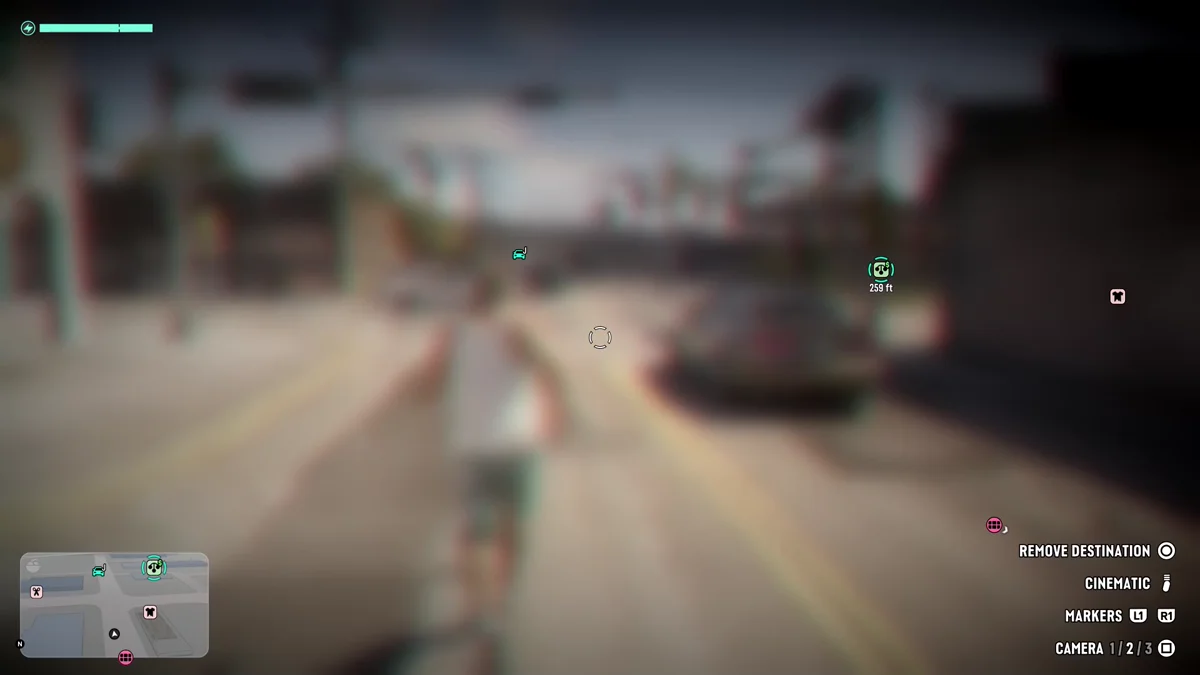
- Hold Down on the D-pad. The screen blurs and the camera menu appears in the bottom right corner.
- Press Square to change the camera. The menu lists Camera 1 / 2 / 3, with the one you’re on lit up. Ours started on Camera 2.
- Let go of Down to go back to the game.
The same menu holds two more options:
- Cinematic. A cinematic camera, marked with a swipe icon instead of a face button.
- Markers (L1 and R1). Steps through the markers on the map around you. On foot with a route set, ours also offered Remove Destination on Circle.
How to Change the Camera in Settings
The Camera tab sets how the camera behaves everywhere, and it had 24 settings on our copy.
- Press Options and select Settings.
- Press R1 until you reach the Camera tab, between UI and Audio.
- Pick a setting and change it. Left and right step through the choices or move the slider, and the panel on the right explains whatever you highlight.
Square restores the highlighted setting to its default and Triangle restores them all, so there’s no harm in experimenting.
What Each Camera Setting Does
These are the Camera tab settings we saw, with the values our copy started on:
| Setting | What it changes | Ours started on |
|---|---|---|
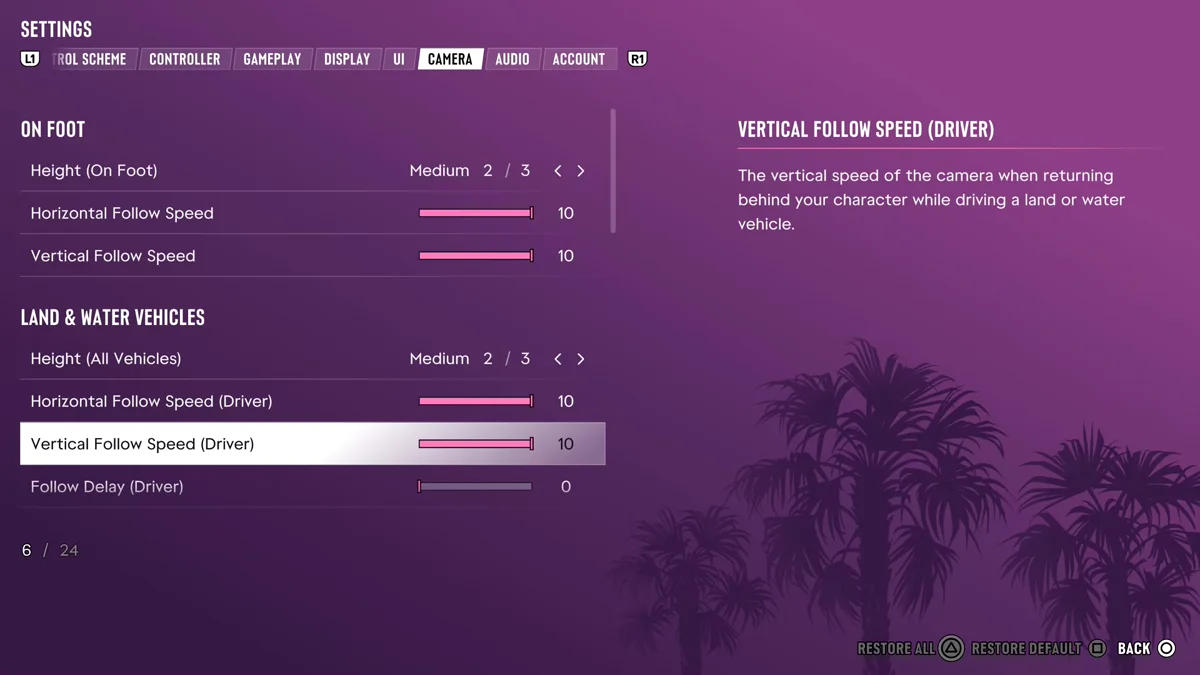
| Height (On Foot) | How high the camera sits behind you on foot | Medium, 2 of 3 |
| Horizontal and Vertical Follow Speed | How fast the camera swings back behind you on foot | 10 |
| Height (All Vehicles) | How high the camera sits behind a vehicle | Medium, 2 of 3 |
| Horizontal and Vertical Follow Speed (Driver) | How fast the camera returns behind you while driving | 10 |
| Follow Delay (Driver) | The delay before the camera follows while driving | 0 |
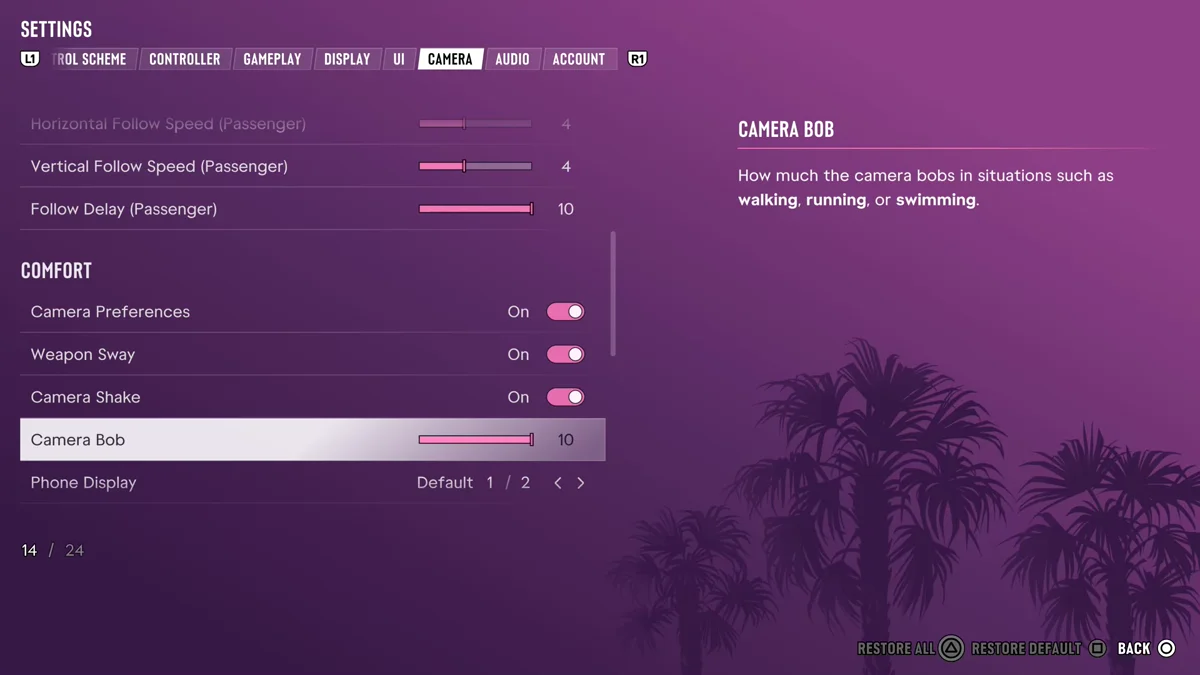
| Follow Speed (Passenger), both directions | The same, when you’re a passenger | 4 |
| Follow Delay (Passenger) | The passenger follow delay | 10 |
| Camera Shake, Weapon Sway, Camera Preferences | Comfort options | On |
| Camera Bob | How much the camera bobs when “walking, running, or swimming” | 10 |
| Phone Display | The phone’s display style | Default, 1 of 2 |
If the camera makes you queasy, Camera Bob and Camera Shake are the first two to turn down. Our best GTA 6 settings guide has more for comfort.
Can You Switch to First Person?
Not for the whole game. GTA 6 has first-person views for specific moments, like aiming through an optic on your gun, rather than a camera setting that puts you behind Jason’s eyes all the time. Our guide to playing in first person covers when and how.
If the camera moves the wrong way when you push the stick, that’s a different setting: our guide to inverting the camera covers it, along with the sensitivity sliders. Our GTA 6 controls guide lists the other PS5 buttons, and every other guide is on our GTA 6 hub.
Frequently Asked Questions
How do you change the camera view in GTA 6? Hold Down on the D-pad to open the camera menu and press Square to cycle Camera 1, 2 and 3. It works on foot and in a vehicle.
How do you change the camera height in GTA 6? Press Options, select Settings and go to the Camera tab with R1. Height (On Foot) and Height (All Vehicles) each have three settings; ours started on Medium.
Is there a cinematic camera in GTA 6? Yes. Hold Down on the D-pad and the camera menu lists a Cinematic option alongside Camera 1, 2 and 3.
Can you play GTA 6 in first person? Only in specific moments, such as aiming through an optic. There’s no setting for a full first-person camera.
How do you turn off camera shake in GTA 6? In Settings, on the Camera tab, switch Camera Shake off under Comfort. Camera Bob is a slider just below it.