The GTA 6 settings to change first on PS5 are subtitles, brightness, motion blur and camera bob, the car radio and the aim help, and it’s worth knowing where sprint lives before your first chase. All of them are in the Settings menu, which you open by pressing Options and picking Settings at the bottom of the pause menu.
We went through every tab on our base PS5 copy on launch night. Below is what each setting does, where it is and what it starts at, so you can change the ones that matter to you and leave the rest. The screenshots in this guide are from that recording.
How to Open Settings in GTA 6
- Press Options to open the pause menu in Grand Theft Auto VI. It lists Map, Game, Store, Help, Photo Studio and Settings.
- Select Settings with Cross.
- Use L1 and R1 to move between the eight tabs: Control Scheme, Controller, Gameplay, Display, UI, Camera, Audio and Account.
The panel on the right describes whatever you have highlighted, and many options show a picture of what they change. One handy trick: Square is Restore Default for the highlighted option, and it’s greyed out when that option is already on its default, so you can always tell what you’ve changed. Triangle is Restore All.
1. Know Where Sprint Is
GTA 6 moves run and sprint to L3, clicking the left stick, instead of tapping a face button. The game says so the first time you start it: “The default controls for GTAVI now use L3 to run and sprint, but can be changed at any time.” The Control Scheme tab has three layouts if you want to change it, and our guides to sprinting and the classic controls cover the options.
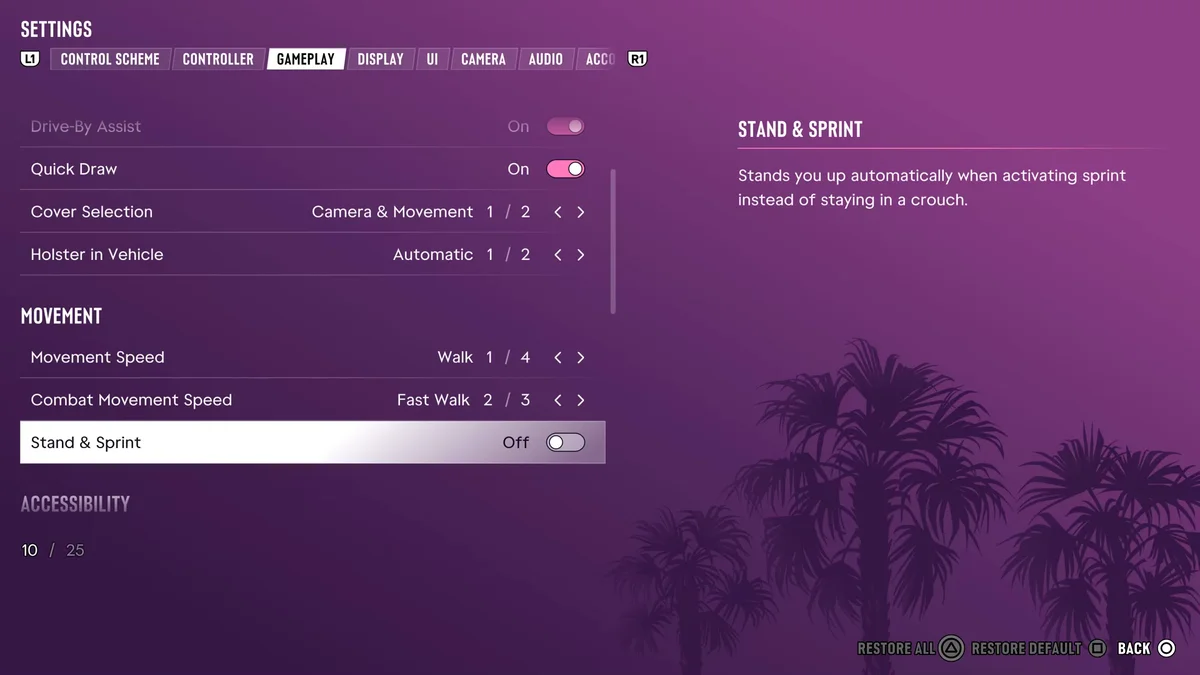
In the Gameplay tab, Stand & Sprint is off by default. It “stands you up automatically when activating sprint instead of staying in a crouch,” which saves you standing up first when you need to run.
2. Motion Blur and Camera Comfort
GTA 6 targets 30 frames per second on every console, so how smooth motion looks comes down to a few sliders:
- Motion Blur Strength (Display tab) sets “the intensity of motion blur effects when moving your character or the camera quickly.” It starts at 3. Lower it if fast turns look smeared, or raise it if 30fps looks choppy to you.
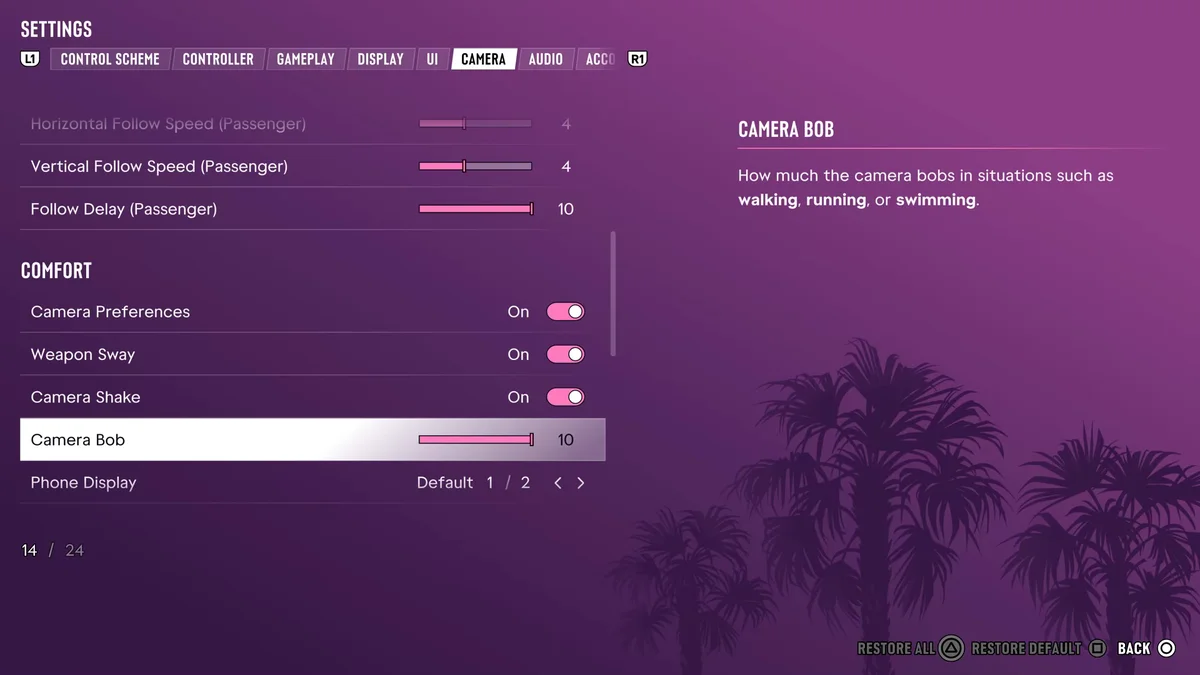
- Camera Bob (Camera tab, Comfort section) sets “how much the camera bobs in situations such as walking, running, or swimming.” It starts at 10, the top of the slider.
- Weapon Sway and Camera Shake sit right above it and are both on by default.
If camera motion makes you queasy, turn Camera Bob down and switch off Camera Shake and Weapon Sway. Our guide to GTA 6’s performance mode explains why there’s no faster mode to switch to.
3. Subtitles
Subtitles are off by default. The first-boot setup asks about them with a choice of Off or a size, and on our copy picking Small there left Subtitles on Mission Only in Settings, which shows text “only during moments critical to gameplay and story.” To change it, go to the UI tab and find Subtitles & Captions, where you can also turn on Speaker Names and a Background behind the text. Our subtitles guide walks through every option, and our guide to changing the language covers the option at the top of the same tab.
4. Brightness
The first-boot calibration screen asks you to “adjust the value until the symbol is barely visible.” The slider starts at 15, and our TV needed it at 30, so take a moment to set it properly. You can redo it from Display > Brightness Calibration. The same tab has Brightness Reduction, which “softens the output of bright lights without impacting the HUD.” Our brightness guide covers both.
5. The Car Radio and Sound
In the Audio tab, Vehicle Radio decides what happens when you get in a car. On Default, “if the previous driver was listening to the radio, it will resume automatically.” On turns the radio on every time and Off keeps it off. Mute Licensed Music sits above it, which matters if you stream or record. Further down the Audio tab, Controller Cop Scanner “plays the cop scanner audio on the controller speaker.” Our guides to the radio stations and the police scanner have more.
6. Aim Help
GTA 6 has no difficulty selector, so the Combat section of the Gameplay tab is where you make fights easier or harder. It starts with the help on: Targeting on Partial, which pulls your aim toward a nearby target without locking on, Aim Assist Strength at the top of its slider, and Shooting Assist and Drive-By Assist on. Leave them on for a forgiving game, or turn them down for more of a challenge. Our guide to GTA 6’s difficulty settings covers Accessible Combat and the other options.
7. The HUD
The first-boot Navigation Experience screen asks whether you want the minimap alone or the minimap and a compass, both shown “dynamically or on demand.” We kept the minimap alone, and Settings > UI > Compass read Off afterwards. In the UI tab:
- Minimap on Dynamic shows the minimap “dynamically for gameplay purposes or when pressing” down on the D-pad.
- GPS Route “when in a vehicle, displays a GPS route to your set destination.”
- Door Markers on On means “door markers will always appear on approach.”
The UI tab runs to 70 options, covering reticles, notifications and prompts, so if something on screen bothers you, it can probably be switched off there.
8. DualSense Settings
The DualSense Wireless Controller Features section of the Controller tab is worth a pass:
- Touch Pad Button lets you “choose whether to open the map or toggle the camera view” with the touch pad. It starts on Map.
- Adaptive Triggers Resistance “applies simulated resistance to L2 and R2” for “shooting and driving.” It’s on by default, along with Adaptive Triggers Vibration. Switch them off if the stiff triggers tire your fingers.
- Vibration & Haptics Strength starts at 10, the top of the slider.
The same tab has the camera inversion and sensitivity options, covered in our guide to inverting the camera. For every button, see our controls guide.
Frequently Asked Questions
What settings should you change first in GTA 6? Subtitles, brightness, motion blur and camera bob, the car radio and the aim help. All of them are in the Settings menu under Options.
How do you open settings in GTA 6? Press Options and select Settings, the last option in the pause menu, then use L1 and R1 to switch tabs.
Does GTA 6 have a graphics or performance mode? No. There’s no performance, graphics or resolution option in the settings menu on our base PS5, and Rockstar targets 30fps on every console.
How do you turn off motion blur in GTA 6? Lower Motion Blur Strength in the Display tab. It starts at 3.
How do you turn off camera shake in GTA 6? Switch off Camera Shake in the Camera tab’s Comfort section, and lower Camera Bob and switch off Weapon Sway there too.
How do you see what you’ve changed in GTA 6’s settings? Highlight an option and look at Restore Default (Square) at the bottom of the screen. It’s greyed out when the option is still on its default.
Every GTA 6 guide we’ve written is on our GTA 6 hub.