
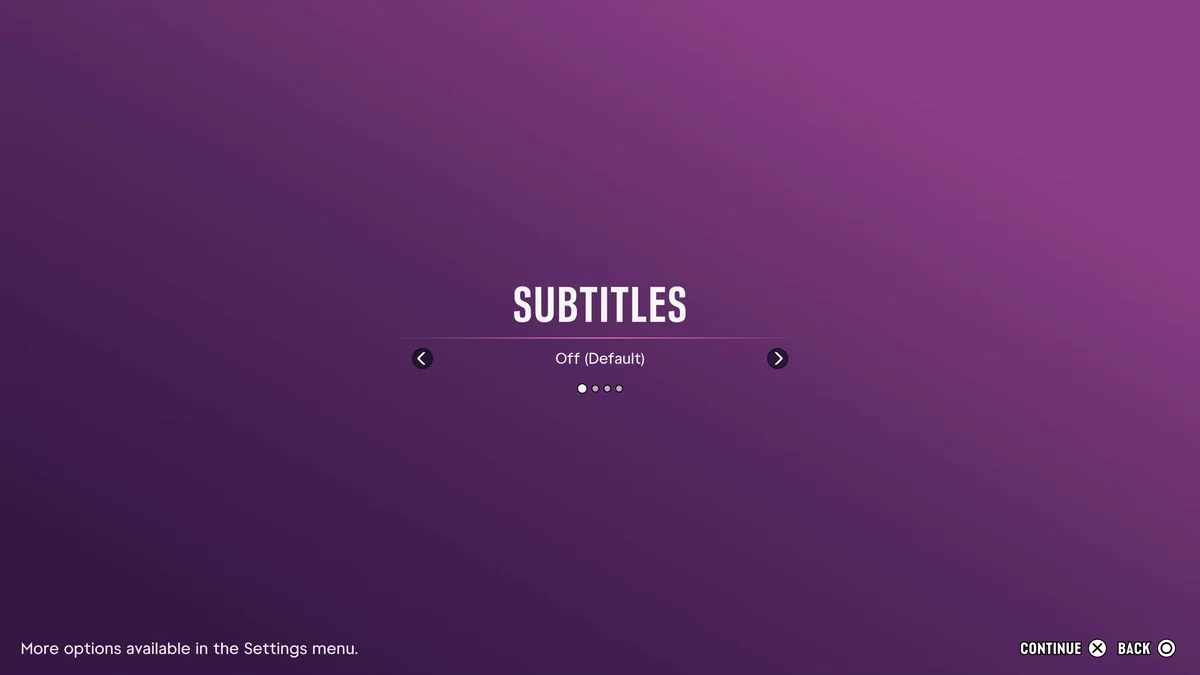
To turn on subtitles in GTA 6, press Options, select Settings, move across the tabs to UI with R1, and change Subtitles under Subtitles & Captions. Subtitles are off by default, and the game also asks about them the first time you start it, with a choice between Off and a text size.
That first-boot screen doesn’t caption everything, though. On our PS5 copy we picked Small there on launch night, and when we opened Settings a few minutes later, Subtitles read Mission Only, which the game describes this way: “Subtitles will only display during moments critical to gameplay and story.” Below is how to change it, what the other caption options do, and the settings we’d turn on. We recorded ourselves finding the subtitle settings on PS5 for the video at the end of this guide. The screenshots in this guide come from the same recording.
How to Turn On Subtitles
- Press Options to open the pause menu in Grand Theft Auto VI.
- Select Settings, the last option, under Photo Studio.
- Use L1 and R1 to move across the tabs to UI. It’s the fifth of eight tabs.
- Scroll down past Scaling & Readability to Subtitles & Captions. Subtitles is the first option there.
- Press left or right to change it. Mission Only is the second of three settings, and the panel on the right describes the one you’re on, so read each before you back out.
While you’re on these options, a sample line reading “This is a subtitle.” appears near the bottom of the screen, so you can check the size and background without leaving the menu.
The first-boot screen offers Off (the default) and a list of sizes, Small and Medium among them, and its footer reads “More options available in the Settings menu.” That’s the hint: the size you pick there switches subtitles on, but the full choice of when they show lives in the UI tab.
What Mission Only Means
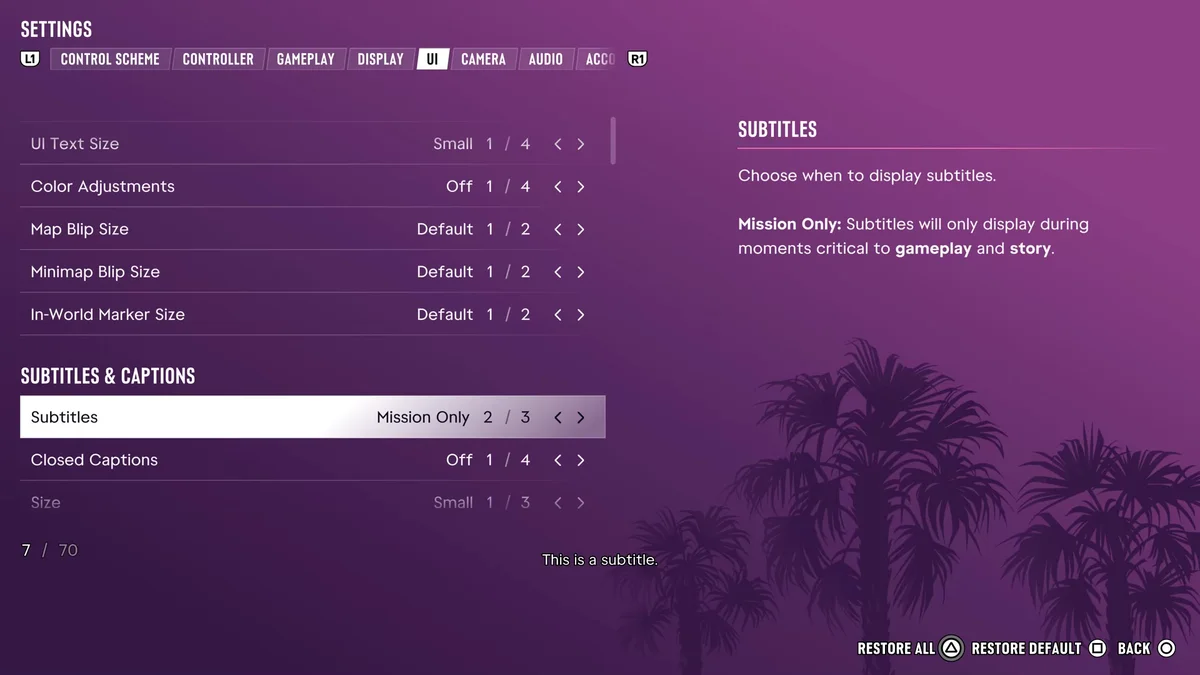
With Subtitles on Mission Only, you get text for the moments the game marks as important to the story and to what you need to do next. Lines outside those moments can go without text, and nothing on screen tells you a line was skipped.
If Mission Only leaves out lines you want, step through the other two settings for Subtitles and read each description to find the one that suits you. Square (Restore Default) puts the option back to its default if you change your mind.
Size, Background and Speaker Names
Four more options sit under Subtitles in the same section. Here’s what each did on our copy:
| Option | What the game says | On our copy |
|---|---|---|
| Closed Captions | “Choose when to display closed captions.” | Off, one of four settings (“Closed captions will never display.”) |
| Size | “The size of the subtitles and closed captions.” | Small, one of three |
| Speaker Names | “Displays the name of the character in subtitles and closed captions.” | Off |
| Background | “Choose the background for subtitles and closed captions.” | Off (“No background.”), one of three |
Closed Captions is a separate option from Subtitles and is off by default, so change it too if you want closed captions as well.
The Settings We’d Change
- Size up one step if you sit across the room from your TV. Small text can be hard to read from a couch.
- Turn on a Background. With none, the text sits straight on the picture, and a backing behind it keeps it readable over bright scenes.
- Turn on Speaker Names. You play as both Jason and Lucia, and scenes with several characters talking are easier to follow when each line names who said it.
UI Text Size at the top of the same tab is worth a look too. It sets “the size of text, icons, and button prompts” and starts on Small, the first of four sizes, though the game notes that “Small will affect some of the HUD but not menus.” Our guide to the best settings to change first covers the rest of the menu, and our guide to changing the language covers the option at the very top of the UI tab.
Frequently Asked Questions
Does GTA 6 have subtitles? Yes. They’re off by default, and you can turn them on at first boot or in Settings > UI > Subtitles & Captions.
Why do subtitles only show sometimes in GTA 6? Subtitles is probably set to Mission Only, which shows them “only during moments critical to gameplay and story.” That’s what we got on our PS5 after picking a size on the first-boot screen. Change it in the UI tab.
How do you make subtitles bigger in GTA 6? Change Size under Subtitles & Captions in the UI tab. It starts on Small, the first of three.
Can you see who is talking in GTA 6 subtitles? Yes. Turn on Speaker Names, which “displays the name of the character in subtitles and closed captions.”
Does GTA 6 have closed captions? Yes, as a separate option from subtitles. Closed Captions is off by default, and you turn it on in the same section of the UI tab.
Every GTA 6 guide we’ve written is on our GTA 6 hub.