
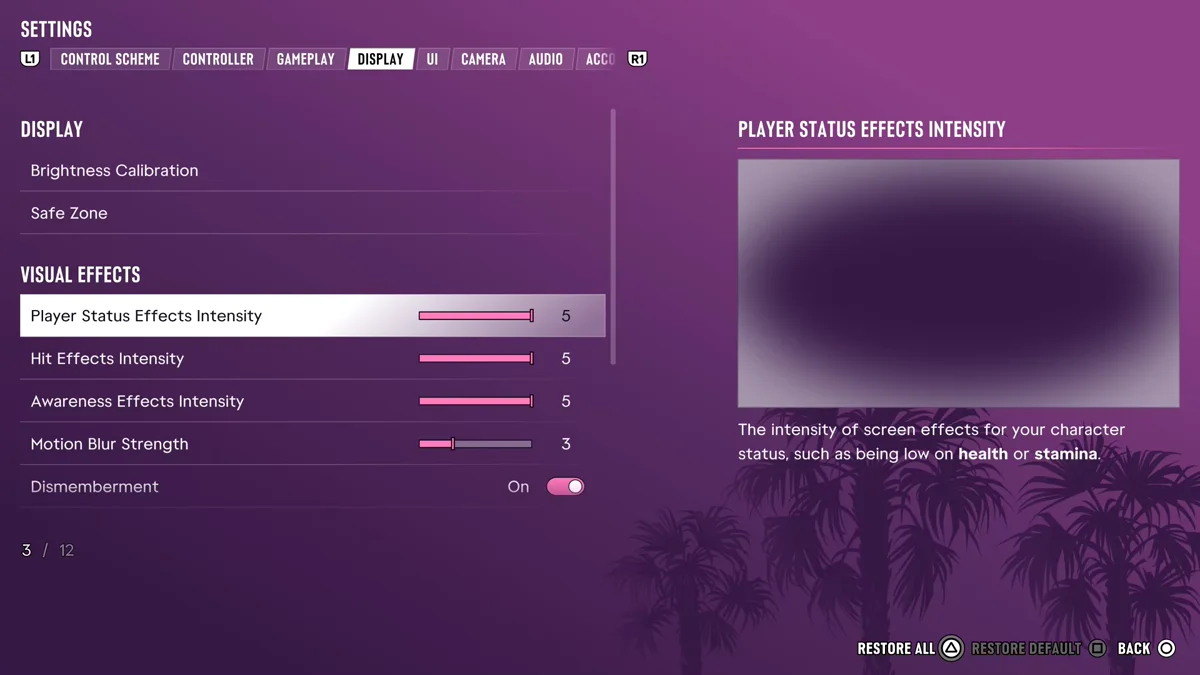
To turn off the vignette in GTA 6, press Options, go to Settings, move to the Display tab with R1, and turn Player Status Effects Intensity all the way down. There’s no option with “vignette” in its name; Player Status Effects is the one that clouds the edges of your screen when you’re low on health or stamina, and its preview picture in the menu is exactly that vignette.
Two more sliders next to it control other effects around the screen edges, so depending on what’s bothering you, you may want those down too. We went through the Display tab on our PS5 copy on launch night, and here’s what each one does.
How to Turn the Vignette Down
- Press Options to open the pause menu in Grand Theft Auto VI, and select Settings.
- Press R1 until you reach the Display tab. It comes after Control Scheme, Controller and Gameplay.
- Highlight Player Status Effects Intensity. It’s the first slider under the Visual Effects heading, below Brightness Calibration and Safe Zone.
- Slide it all the way to the left until it reaches its lowest setting.
The game describes it as “the intensity of screen effects for your character status, such as being low on health or stamina.” It started at 5 on our copy, with the slider full.
The Other Edge Effects
If the darkened edges you’re seeing don’t line up with low health, one of these is probably the cause. Both sit right under Player Status Effects in the Visual Effects section, and both started at 5 on our copy:
- Hit Effects Intensity: “the intensity of screen edge hit effects, such as blood spatters, bullet whizz by, and armor hits.” Turn this down if the edges flash or smear when you’re shot at.
- Awareness Effects Intensity: “the intensity of screen edge effects that warn of cops and off-screen threats.” These glows at the edge of the screen tell you where trouble is coming from, so think twice before turning it all the way off.
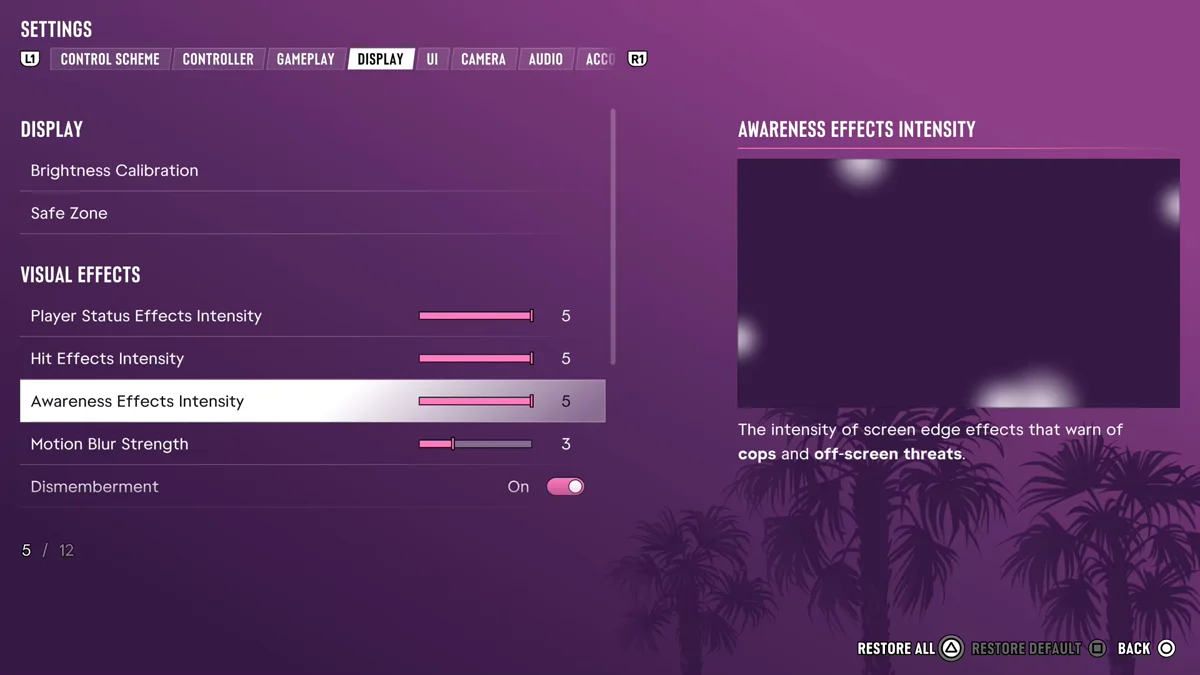
Our suggestion is to drop Player Status Effects and Hit Effects as low as you like for a cleaner picture, and keep Awareness Effects on, because it’s useful information rather than decoration.
Motion Blur and Other Display Options
The same section has more effects you can tone down:
- Motion Blur Strength controls “the intensity of motion blur effects when moving your character or the camera quickly.” It started at 3 on our copy, lower than the three edge sliders.
- Brightness Reduction “softens the output of bright lights without impacting the HUD.” It was Off.
- Dismemberment and Blood & Gore Intensity handle the gore. They were On and High.
- Flashbang chooses “whether flashbangs display a bright or a dark flash.” It was on Bright.
If you want to put everything back, Restore All on Triangle returns the defaults.
Related Settings
Our guide to the best settings for GTA 6 goes through every tab, and our brightness guide covers calibrating the picture and Brightness Reduction. If you’re turning effects down because the game is hard to read, our guide to turning subtitles on or off helps too. Every GTA 6 guide is on our GTA 6 hub.
Frequently Asked Questions
Can you turn off the vignette in GTA 6? Yes, in effect. Turn Player Status Effects Intensity all the way down in Settings > Display. It controls the clouded screen edges you get when low on health or stamina.
Why are the edges of my screen dark in GTA 6? Usually low health or stamina, which triggers the Player Status effect. Edge effects also appear when you’re hit (Hit Effects) and when cops or threats are off-screen (Awareness Effects).
Is there a vignette setting in GTA 6? Not by that name. The Display tab’s Visual Effects sliders control the screen-edge effects instead.
How do you turn off motion blur in GTA 6? Lower Motion Blur Strength in the Display tab of Settings. It started at 3 on our copy.