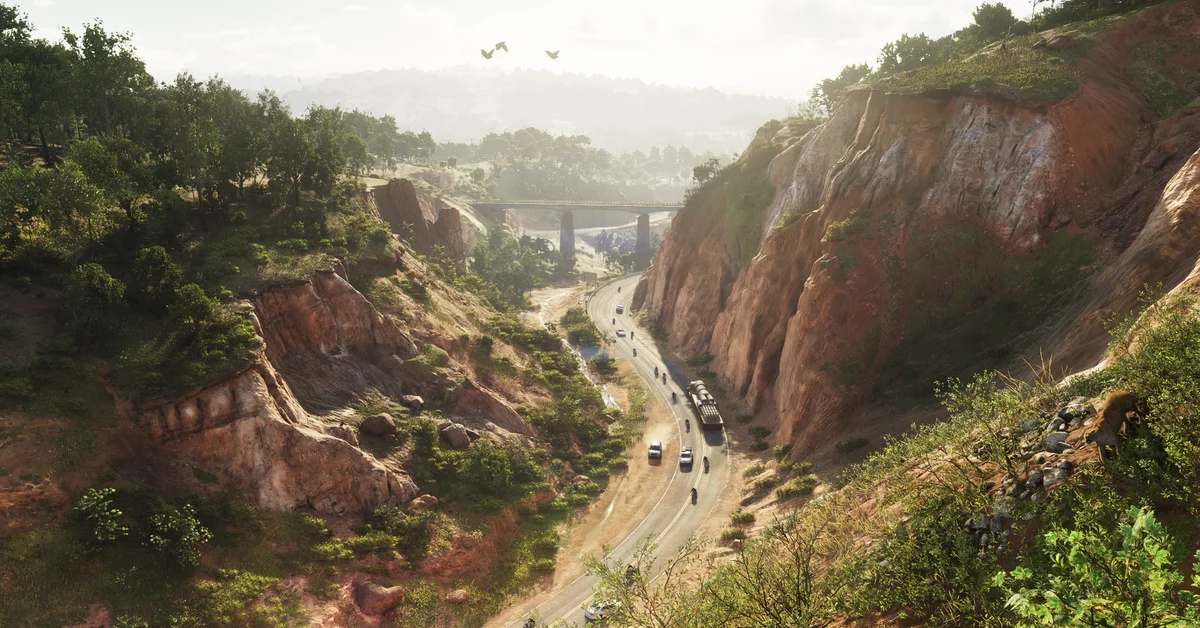
The best brightness setting in GTA 6 is the one where the symbol on the calibration screen is barely visible, which is exactly what the game tells you to aim for, and on our TV that meant pushing the slider all the way to 30. The Brightness Level slider starts at 15, and you can change it any time from Settings > Display > Brightness Calibration.
Grand Theft Auto VI shows the calibration screen the first time you start it, right after it asks about subtitles. Below we cover how to set it, how to get back to it, why your number may differ from ours, and the two Display options that change how bright scenes look. We recorded ourselves calibrating the brightness on PS5 on launch night for the video at the end of this guide. The screenshots in this guide come from the same recording.
How to Calibrate Brightness in GTA 6
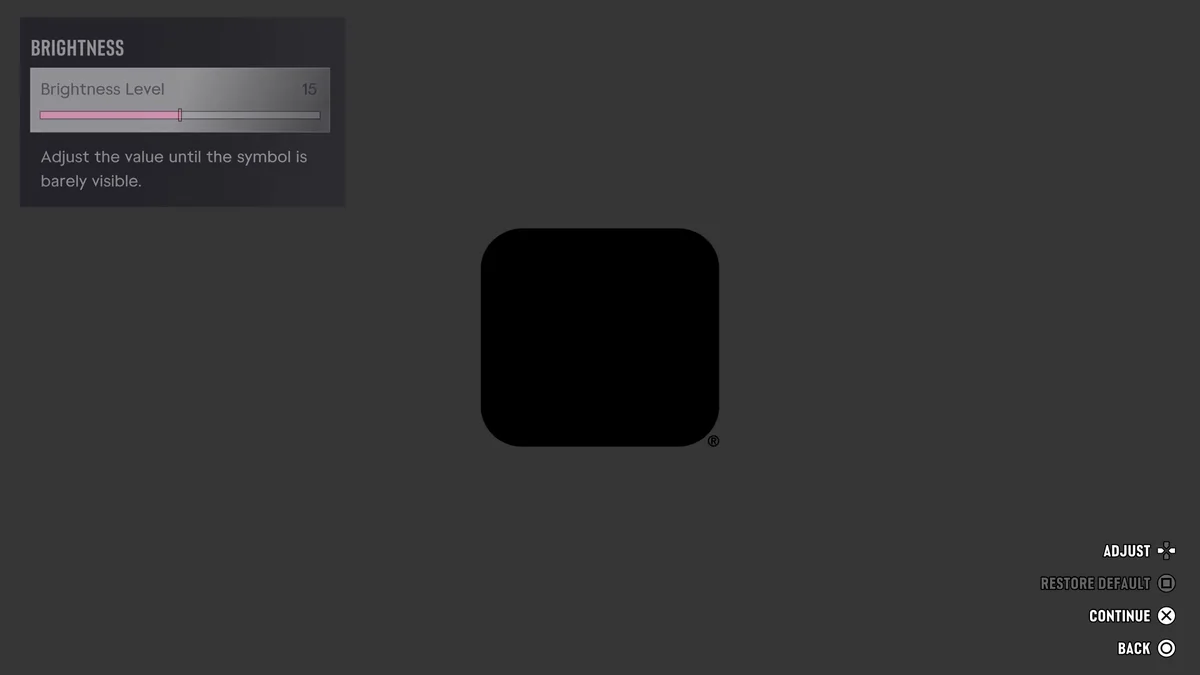
The calibration screen is plain: a Brightness Level slider in the top left corner, a black square in the middle of a grey screen, and one instruction: “Adjust the value until the symbol is barely visible.”
- Watch the black square in the middle of the screen, not the slider.
- Press left or right on the D-pad to move the slider. The screen’s Adjust prompt shows the D-pad.
- Stop when you can only just make the symbol out. If it’s easy to see, the picture will look washed out in dark scenes. If you can’t see it at all, night streets and interiors will crush into black.
- Press Cross to continue. Square restores the default of 15, and Circle goes back.
Set it in the room and lighting you usually play in. A level that looks right with the lights on at night can look dim on a sunny afternoon, and the reverse.
How to Change Brightness Later
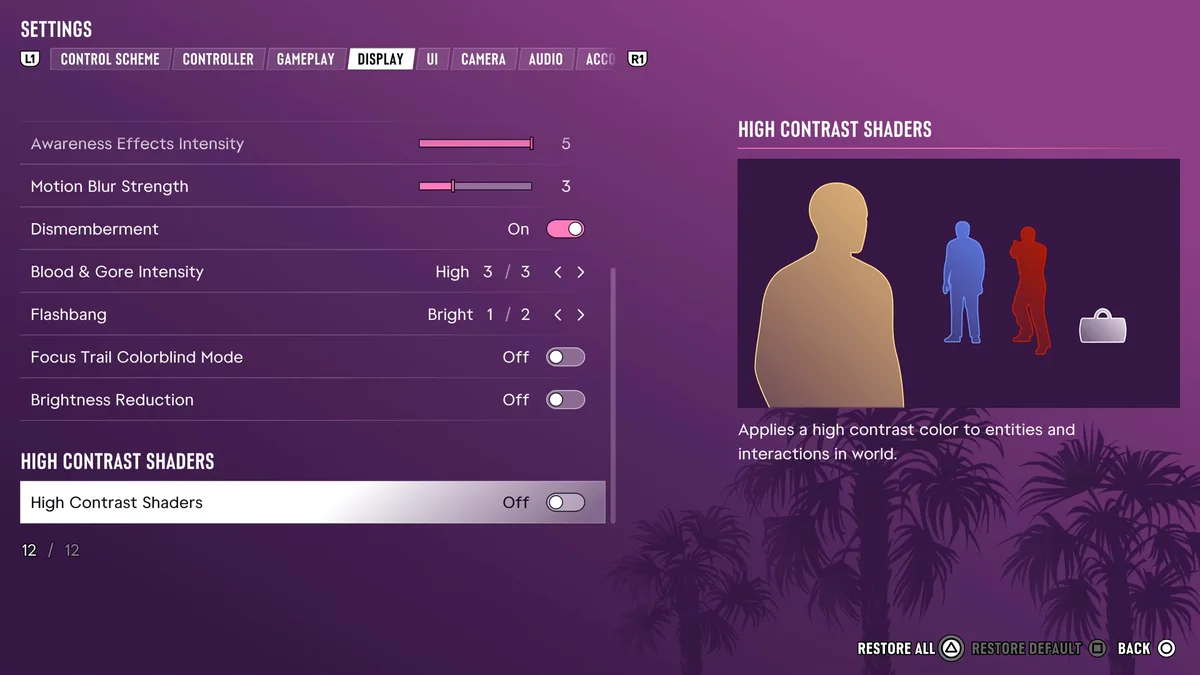
You aren’t stuck with what you picked at first boot.
- Press Options to open the pause menu.
- Select Settings, the last option under Photo Studio.
- Use L1 and R1 to move across the tabs to Display.
- Brightness Calibration is the first option. Its description reads “Adjust the brightness of your game.” Press Cross to select it.
Safe Zone sits right under it, for fitting the on-screen display inside the edges of your TV.
Why We Set It to 30, and Why Yours May Differ
We pushed the slider to 30, the top of its range, before we moved on. That’s what the symbol test gave us on our TV, not a number to copy. Every TV handles dark shades differently, and its picture mode, its own brightness and backlight, and whether HDR is on all change where the symbol appears. Run the test on your own screen and trust what you see.
Two things are worth checking outside the game first:
- Your TV’s game mode. It cuts input lag, and some TVs also change their brightness handling in it, so calibrate after you switch it on, not before.
- PS5’s own HDR setup. On our copy, the Display tab’s 12 options include no HDR slider, so for HDR, run Adjust HDR under Settings > Screen and Video > Video Output on the PS5 itself. Sony’s video output guide says it “enables fine brightness adjustments and optimized HDR rendering.”
Our guide to GTA 6’s performance mode covers the rest of the console and TV settings worth a look.
Brightness Reduction and High Contrast Shaders
Two more Display options change how bright the world looks, and both are off by default.
Brightness Reduction “applies a filter to the world that softens the output of bright lights without impacting the HUD.” The game adds a warning: “This will affect how the game and scenes are presented.” Turn it on if bright sunlight, headlights or neon are hard on your eyes. Leave it off if you want the picture the way Rockstar lit it.
High Contrast Shaders “applies a high contrast color to entities and interactions in world.” It’s an accessibility option that tints people and things you can interact with so they stand out from the background, which helps if you have trouble picking them out of a busy scene.
The same tab also has Flashbang, which starts on Bright, the first of two settings, if the flash from flashbangs bothers you. For the rest of the menu, our guide to the best settings to change first goes through every tab.
Frequently Asked Questions
What is the best brightness setting for GTA 6? The level where the symbol on the calibration screen is barely visible. That’s the game’s own instruction, and on our TV it was 30, the top of the slider.
What is the default brightness in GTA 6? The Brightness Level slider starts at 15. Press Square on the calibration screen to put it back.
How do you change the brightness in GTA 6 after setup? Press Options, select Settings, move to the Display tab and select Brightness Calibration, the first option.
Why does GTA 6 look too dark? Your brightness is probably set below the point where the calibration symbol shows. Raise it until the symbol is barely visible, and check your TV’s picture mode and the PS5’s Adjust HDR setting if it still looks dark.
What does Brightness Reduction do in GTA 6? It “applies a filter to the world that softens the output of bright lights without impacting the HUD.” It’s off by default.
Every GTA 6 guide we’ve written is on our GTA 6 hub.