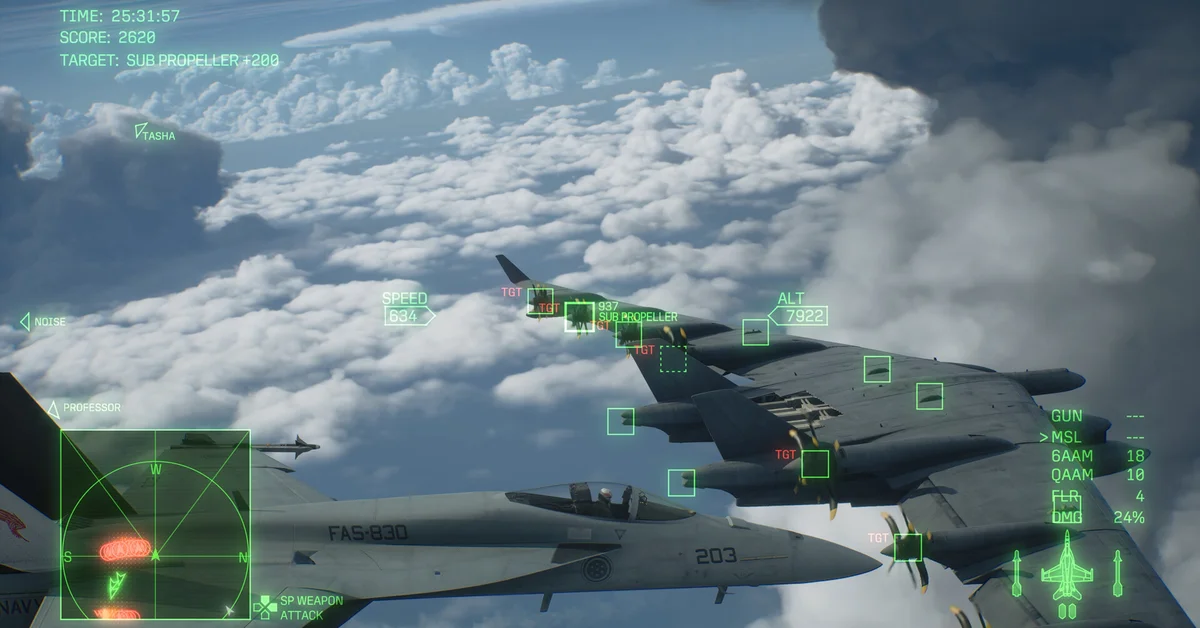
Ace Combat 8: Wings of Theve has two officially licensed flight sticks, HORI’s Ace Combat 8 Flight Stick for PS5, PS4 and PC and Thrustmaster’s T.Flight HOTAS NEO Ace Combat 8 Edition for PlayStation, Xbox and PC, and both are built to work with it out of the box. Other sticks are hit and miss: the Thrustmaster T.16000M and T.Flight HOTAS One work on PC, others such as the X52 Pro can go unrecognized, and no stick can be remapped in game yet. To set one up, plug it in by USB before you launch the game, then pick the Standard or Expert flight control mode, which Bandai Namco says you can choose whenever you load into the cockpit.
This guide covers which devices work on each platform, how to connect them, what Standard and Expert change, model-by-model notes for the sticks people ask about most, and what to try if yours is ignored. It started with the launch version, including the Deluxe Edition’s early access from our launch trailer news.
Which Flight Sticks Ace Combat 8 Supports
Bandai Namco has not published a supported device list. The Steam store page lists full controller support plus DualShock and DualSense support, and nothing about flight sticks. The two licensed devices come from the peripheral makers:
| Device | Platforms | Key features, per the manufacturer |
|---|---|---|
| HORI Ace Combat 8: Wings of Theve Flight Stick (SPF-034) | PS5, PS4, Windows PC | Hall effect stick, throttle and brake levers on both sides, dedicated High-G button, 8 assignable buttons, $129.99 |
| Thrustmaster T.Flight HOTAS NEO Ace Combat 8 Edition | PS5, PS4 and PC version; separate Xbox and PC version | Detachable throttle, 7 axes, 16 action buttons, High-G Turns button, dual rudder system, vibration, $149.99 |
Thrustmaster promises plug-and-play setup with “mapping optimized for the game,” and says vibration works only on PS5 and PC. Its support article on the NEO’s compatibility modes adds that NEO mode is required for Ace Combat 8. That is the default mode on PS5 (red LED) and Xbox Series X|S (white LED); on PC you have to install Thrustmaster’s TFHT driver first, which turns the LED green. Without the driver the stick stays in its backward-compatible Legacy mode and identifies itself as an older T.Flight HOTAS 4 or HOTAS One. HORI lists its stick for PS5, PS4 and Windows PC only, so the Thrustmaster Xbox and PC edition is the licensed option on Xbox Series X|S.
Other sticks are the problem. One launch reviewer wrote that the game “refused to recognise my X52 Pro” and “doesn’t support any other HOTAS setups at launch.” On September 30, Bandai Namco’s Flight Stick Support Update, posted on Steam, confirmed that “some of the configuration options available for certain devices in ACE COMBAT 7 are not available in ACE COMBAT 8,” apologized, and said the team is “exploring solutions and improvements to bring the flight stick experience closer to ACE COMBAT 7.” It gave no date.
On PC, older and unlicensed sticks fare like this:
- Working without changes: the Thrustmaster T.16000M stick and TWCS throttle (after installing Thrustmaster’s drivers) and the T.Flight HOTAS One.
- Not reliably detected out of the box: the X52 Pro, VKB Gladiator sticks and Virpil hardware.
- On every stick: even one that works cannot be remapped, because the game has no flight stick button settings yet.
Bandai Namco’s notes for update 1.01.002, which went out on October 23, say it “changed the connection settings for certain peripheral devices” and tell players to contact each device’s manufacturer about how their hardware behaves afterwards. The notes do not name the devices, and they add no flight stick button settings: the only controls change is adjusted key assignments for some keyboard controls. If your stick worked before the update, recheck it in a free mission.
How to Connect Your Stick
- Plug in before launching. Both licensed sticks connect by USB (Thrustmaster includes a USB-C cable), and HORI notes its stick is not wireless.
- On the Thrustmaster Xbox and PC edition, set the mode. One reviewer says you hold the View button for five seconds, then use the stick’s directional button to switch; a green light means PC and a white light means Xbox.
- On PC, install the maker’s software. Thrustmaster’s TFHT driver puts the NEO in the NEO mode Ace Combat 8 needs, and HORI’s stick needs a firmware update on PC (see the HORI section below).
- Pick your control mode in game (see below).
- On PC, give Windows a moment. One reviewer’s PC took a while to recognize the Thrustmaster at first. If yours does not show up, try another USB port and check Thrustmaster’s or HORI’s support pages for firmware updates.
Standard vs Expert Controls
Bandai Namco’s official difficulty and controls guide describes the two flight control modes:
- Standard: “you turn by pushing the left stick to the left or right,” which Bandai Namco says may feel natural to anyone used to first or third-person games.
- Expert: you “roll your craft to the left or right with the left stick, then turn by pitching up and down,” which “enables a wider range of aerial maneuvers and more precise aircraft control.”
Expert is the natural pairing for a flight stick, because it matches how a real stick behaves: sideways rolls the jet and pulling back pitches it. Reviewers lean the same way. One calls Expert “truer to the Ace Combat experience,” and another chose it for full control of roll and pitch. Difficulty is separate: Rookie, Pilot (the default), Veteran and Elite can be changed at any time, per the same post.
What the Buttons Do
One reviewer describes the Thrustmaster’s in-game layout: the trigger fires the machine gun with the special weapon switch above it, the front has target select and missile buttons, and one mini-stick looks around the cockpit while the other replaces the D-pad. The throttle carries the face buttons, a rudder paddle for yaw, and buttons for the radar and landing gear.
That D-pad replacement matters, because Bandai Namco’s Japanese site puts wingman orders (Forward Attack, Dispersed Attack, Special Weapon permission and Cover) on the D-pad. Two trophies depend on those orders, as our trophy list explains.
HORI’s High-G button works like this, per HORI: “Simply hold the button and pull back the control stick to instantly execute a ‘High-G Turn.'” Both makers let you assign functions on the device, but the game itself offers no way to remap flight stick controls at launch.
Notes for Specific Sticks
HORI Ace Combat 8 Flight Stick
HORI’s stick is licensed for PS5, PS4 and Windows PC, not Xbox. On PS5 it is plug and play. On PC, HORI’s support page says a firmware update released on October 7, 2026 fixes a bug where yaw (twisting the stick) stayed pushed to the left in FLIGHT Mode (DirectInput). To install it:
- Download and install HORI Control Center from HORI’s site.
- Set the mode selector on the back of the stick to PS5 Mode, then connect it to your PC by USB.
- In HORI Control Center, open Settings and select Update Version.
- Check that the firmware version now reads V1.60. If the update fails, unplug the stick, reconnect it and try again.
HORI also sells the stick as half of a twin-stick setup (two units joined by a modular cable), but it frames that around “a variety of simulator titles,” and Bandai Namco has not said how Ace Combat 8 handles it.
Thrustmaster T.16000M
The T.16000M is not licensed for Ace Combat 8, and Thrustmaster’s T.16000M support page still offers mapping examples for Ace Combat 7 but none for Ace Combat 8. Even so, it works on PC: the stick and TWCS throttle run once Thrustmaster’s drivers are installed and the PC restarted.
The catch is the throttle. With a TWCS throttle plugged in, the slider on the T.16000M’s base also counts as a throttle, so the two fight each other and thrust can stall at about half or jump between zero and full. The workaround is to route the devices through mapping tools such as vJoy and Joystick Gremlin. Since the game cannot remap anything yet, there is no in-game setting for it.
Thrustmaster T.Flight Full Kit X (Buttons Not Working)
The Full Kit X pairs a T.Flight HOTAS One with rudder pedals for Xbox and PC. Thrustmaster’s Full Kit X page lists Ace Combat 7 among its compatible Xbox games, but not Ace Combat 8, and Bandai Namco has not listed it either. On PC, the T.Flight HOTAS One works without changes; on Xbox Series X|S, neither Thrustmaster nor Bandai Namco confirms it either way.
If the stick moves the jet but some buttons do nothing or the wrong thing, that is a common problem with unlicensed sticks: the game reads them through a fixed layout with no remapping, so a button may sit on an action you do not expect. Test each button in a free mission and note what it does. On PC, Steam Input (in the game’s Properties, under Controller) can rebuild the layout. On Xbox there is no workaround we can confirm. The safe choice there is the T.Flight HOTAS NEO X in NEO mode, for which Thrustmaster’s support site publishes a native Ace Combat 8 mapping on Xbox Series X|S and PC, and Thrustmaster’s support team is who to ask about the Full Kit X after the October 23 update.
Turtle Beach VelocityOne Flightstick
Turtle Beach’s VelocityOne Flightstick page lists Xbox Series X|S, Xbox One and Windows 10 and 11 PCs. Its PC compatibility list names “Ace Combat” without saying which game, and its Xbox list names only Microsoft Flight Simulator natively, plus Star Wars Squadrons, Elite Dangerous and War Thunder through the stick’s Compatibility Mode. Neither Turtle Beach nor Bandai Namco lists it for Ace Combat 8, so do not count on the game detecting it. On PC, the Steam Input and controller-emulation workarounds below get around that; on Xbox there is no confirmed fix.
TrackIR
Ace Combat 8 has no native TrackIR support. It is not on NaturalPoint’s list of TrackIR-enhanced games, and Bandai Namco has not mentioned head tracking. On PC, there is a do-it-yourself route that converts TrackIR head movement into the right stick of a virtual Xbox controller (the stick that looks around the cockpit) using vJoy-style controller emulation and FreePIE. It is technical and unsupported, and update 1.01.002’s change to peripheral connection settings may affect it.
Controller Emulation and Mods on PC
For any stick the game ignores, the usual route on PC is to make it look like an Xbox controller: Steam Input, or vJoy with Joystick Gremlin or x360ce. A community mod on Nexus Mods called AC8 HOTAS Support goes further and binds sticks, throttles and pedals to the game’s own flight stick inputs, but its page says it is for offline single-player use and requires turning off Easy Anti-Cheat. We would not use it on any account you play ACE COMBAT ONLINE with.
If You Would Rather Use a Controller
A gamepad is the default for every platform, and it suits the game’s arcade pace anyway. Our guides to pairing a PS5 controller and connecting an Xbox controller to PC cover the setup. Playing on a handheld PC? Our Steam Deck guide covers how the game runs there, and our VR support guide explains whether you can fly in a headset. Whatever you fly with, learn the basics from our dogfighting tips, pick a jet that forgives mistakes early, as our best early plane guide explains, and find every other topic on our Ace Combat 8 hub.
Frequently Asked Questions
Does Ace Combat 8 support HOTAS? It supports the licensed Thrustmaster T.Flight HOTAS NEO Ace Combat 8 Edition, and HORI’s licensed stick is built around the game’s High-G turn. Other sticks are mixed: the T.16000M and T.Flight HOTAS One work on PC, while sticks such as the X52 Pro are not reliably recognized, and Bandai Namco says it is working on better flight stick support.
Which flight stick works on Xbox Series X|S? The Xbox and PC version of the Thrustmaster T.Flight HOTAS NEO Ace Combat 8 Edition. HORI’s stick is for PS5, PS4 and PC only.
Can you remap flight stick buttons in the game? Not yet. There was no option at launch, update 1.01.002 did not add one, and Bandai Namco’s September 30 update confirmed some Ace Combat 7 configuration options are missing. HORI’s stick lets you assign functions to its 8 customizable buttons on the device itself.
Should you use Standard or Expert with a flight stick? Expert, since it maps roll and pitch the way a real stick works. Bandai Namco says Expert allows a wider range of maneuvers.
Why does my HORI flight stick drift left on PC? HORI says it was a firmware bug in FLIGHT Mode on PC. Update the stick to firmware V1.60 through the HORI Control Center app, with the mode selector set to PS5 Mode while you update.
Does the Thrustmaster T.16000M work with Ace Combat 8? Yes, on PC, once Thrustmaster’s drivers are installed, but the stick’s own throttle slider can fight a TWCS throttle, and nothing can be remapped in game.
Does Ace Combat 8 support TrackIR? No. It is not on NaturalPoint’s list of supported games, and the only route is an unofficial controller-emulation setup on PC.
Can you link two HORI sticks together? HORI says two units connect with a modular cable to act as one device, but it frames twin-stick play around “a variety of simulator titles,” and Bandai Namco has not said how Ace Combat 8 handles it.