To use auto drive in GTA 6 on PS5, get in a car, hold Down on the D-pad to open the camera menu and press Options to switch to the cinematic camera. Then hold Circle to Enable Auto Drive, and the car drives itself. L2 and R2 change its speed, Disable Auto Drive on Circle turns it off again, and holding Down on the D-pad leaves the cinematic camera.
We used it on our PS5 copy of Grand Theft Auto VI on launch day, in Jason’s pickup at a junction in Key Lento, and recorded it for the video at the end of this guide. The screenshots in this guide come from the same recording. Below are the steps, the speed setting, how to take back control, and what auto drive is good for.
How to Turn On Auto Drive
Auto drive lives inside the cinematic camera, so the first step is getting there.
- Get in a car. Ours was sitting at a junction when we started.
- Hold Down on the D-pad. The screen blurs and the camera menu appears in the bottom right corner, with Cinematic at the top.
- Press Options to switch to the cinematic camera.
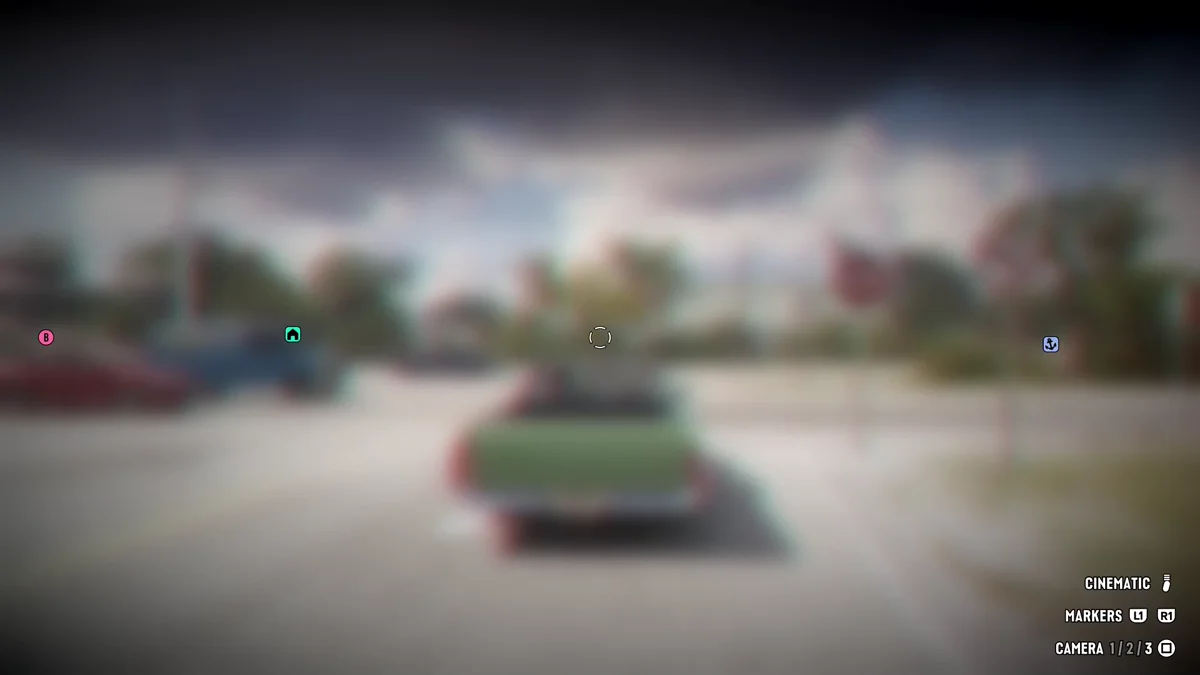
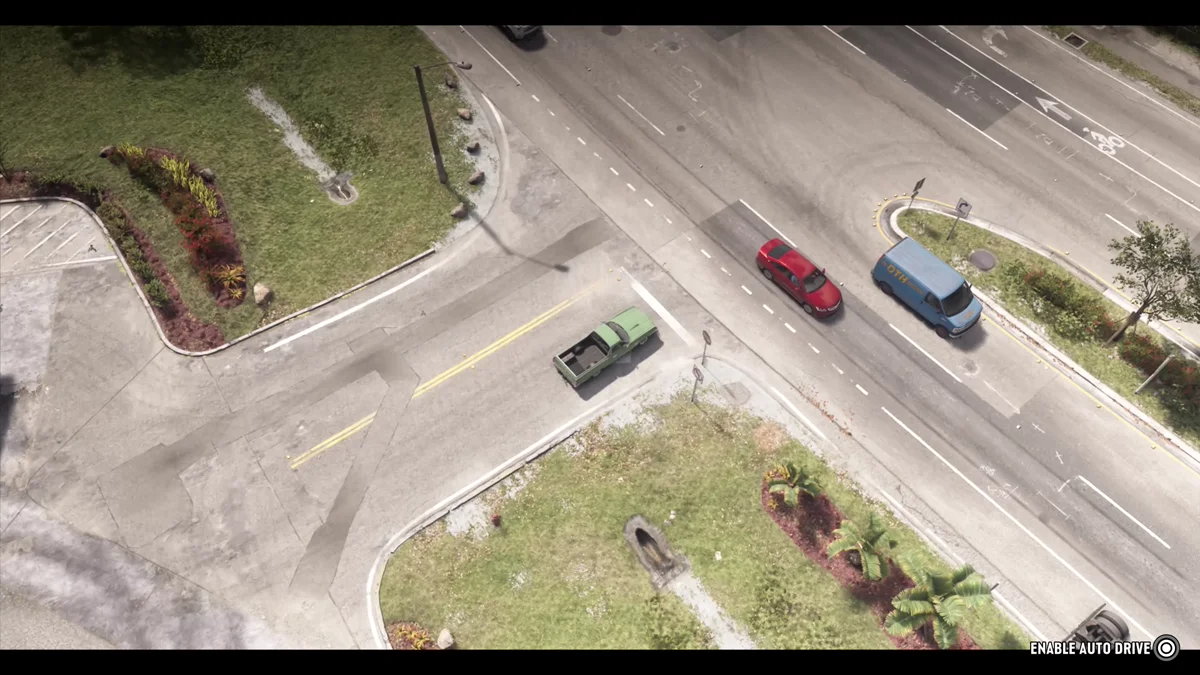
The view jumps to a wide shot with black bars at the top and bottom, and one prompt sits in the bottom right corner: Enable Auto Drive, on Circle.
- Hold Circle to turn on auto drive. A ring around the Circle icon fills as you hold it, and auto drive comes on once it’s full.
How to Change the Auto Drive Speed
Once auto drive is on, the prompts change. Speed appears with a choice of 1, 2 or 3, and L2 and R2 move between them. Under it, Disable Auto Drive takes over the Circle button.
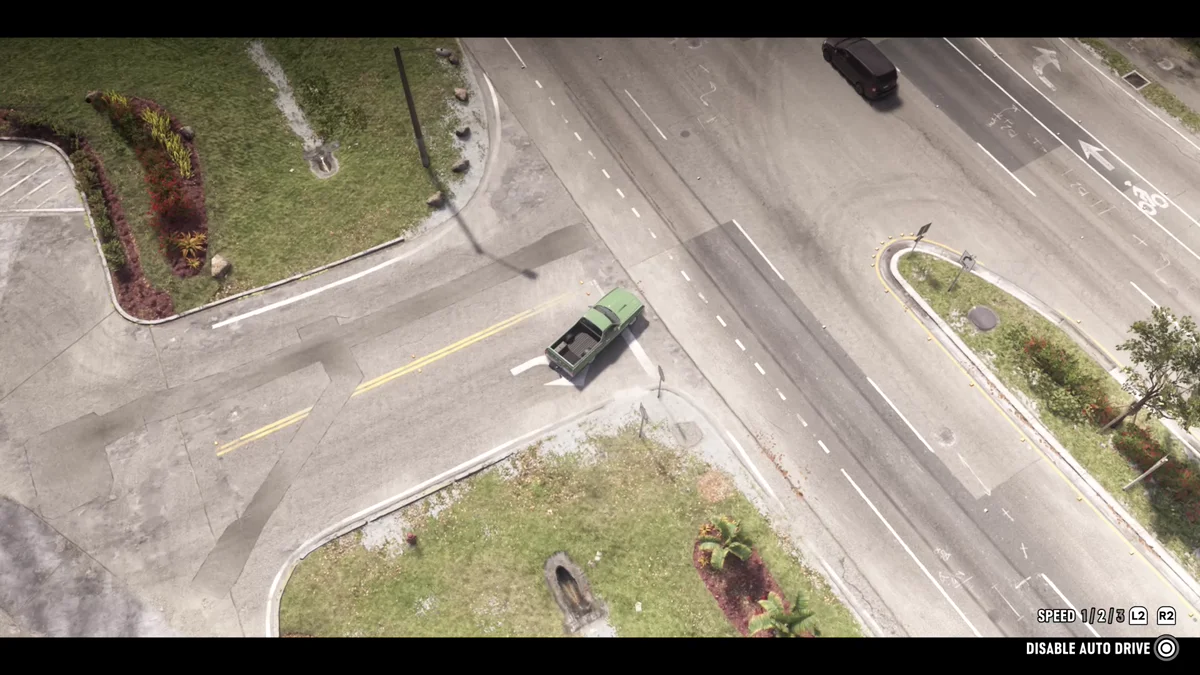
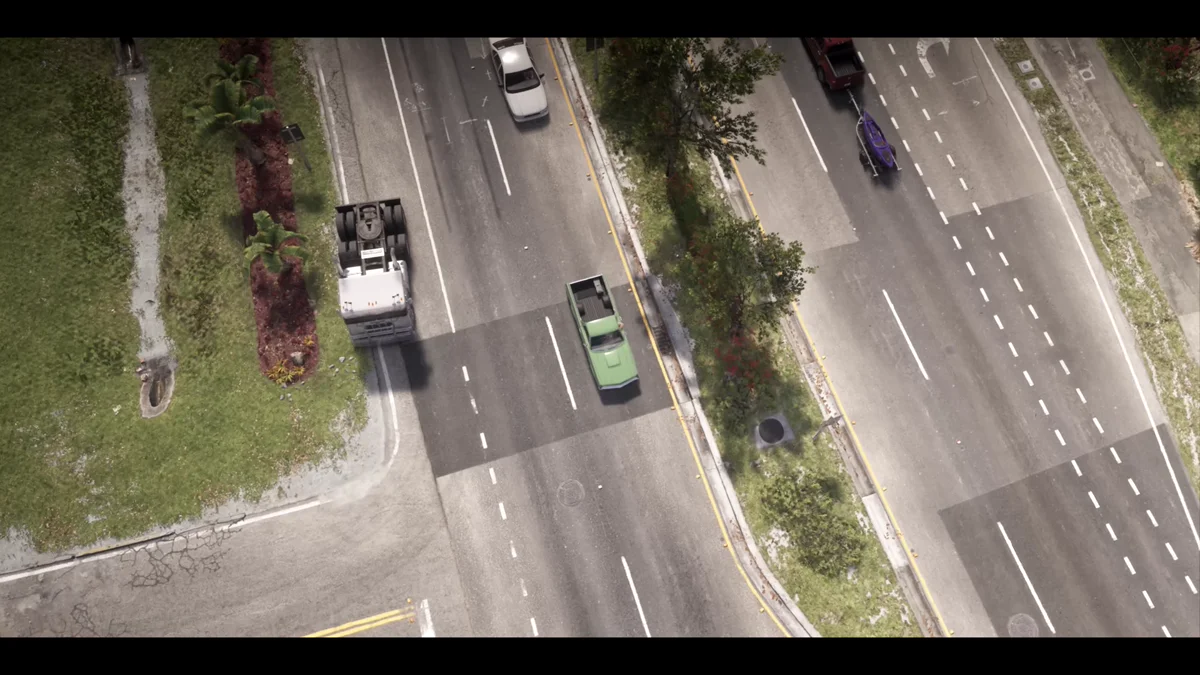
We hadn’t set a destination when we turned it on, and the pickup still drove itself: it pulled out of the junction, made the turn onto the main road and kept to its lane in traffic while we watched from above.
How to Turn Off Auto Drive
There are two ways back:
- Disable Auto Drive takes over the Circle button while auto drive is on. Its icon has the same ring as Enable Auto Drive, so expect to hold it the same way.
- Hold Down on the D-pad to exit the cinematic camera. A hint in the top left corner reminds you of this while the camera is on, and an Exit Cinematic prompt with a filling ring shows in the bottom right corner as you hold it. The normal camera comes back a moment later.
What Auto Drive Is Good For
Auto drive is the way to sit back on a long trip. Leonida is big, and the cinematic camera makes the drive look like a film while the car does the steering. It’s also a free way to travel, unlike the $100 skip on a RydeMe ride or a taxi, which our fast travel guide compares.
The other choices in the camera menu, Camera 1, 2 and 3, are covered in how to change the camera view. For every other button, see our controls guide, and if you’ve lost track of where you left your ride, how to find your car has the answer.
Frequently Asked Questions
Does GTA 6 have auto drive? Yes. It’s part of the cinematic camera: in a car, hold Down on the D-pad, press Options for the cinematic camera, then hold Circle to Enable Auto Drive.
What is the auto drive button in GTA 6? Hold Circle, once you’re in the cinematic camera. On PS5, the cinematic camera is Options in the camera menu you open by holding Down on the D-pad.
Can you change the auto drive speed in GTA 6? Yes. With auto drive on, L2 and R2 move between Speed 1, 2 and 3.
Do you need a waypoint for auto drive in GTA 6? We didn’t have one set, and the car still drove itself down the road.
How do you stop auto drive in GTA 6? Use Disable Auto Drive on Circle, or hold Down on the D-pad to exit the cinematic camera.
More GTA 6 guides are on our GTA 6 hub.