
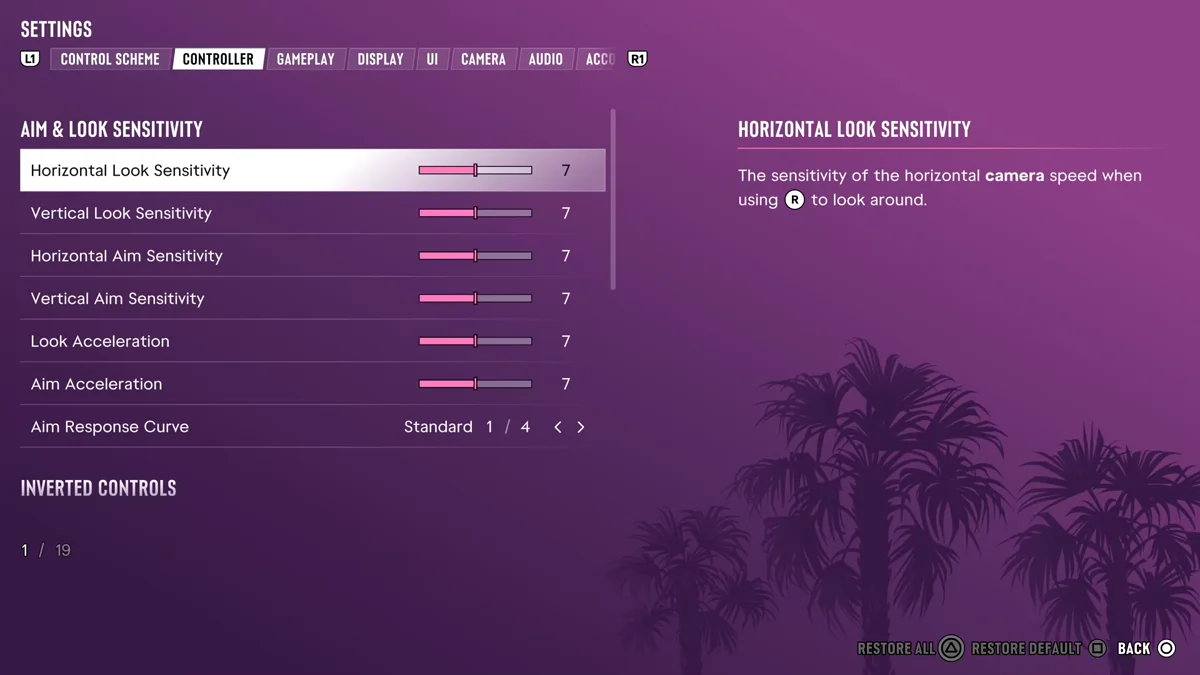
To change sensitivity in GTA 6 on PS5, press Options, select Settings and press R1 to move to the Controller tab. Aim and Look Sensitivity is the first section there, with separate sliders for looking around and for aiming.
Every slider in that section starts at 7, and the Aim Response Curve below them starts on Standard. Below we cover the steps, what each setting does and how to tune them in Grand Theft Auto VI. The screenshot in this guide is from our own PS5 recording, and our video of it is at the end.
How to Change Sensitivity (Step by Step)
- Press Options to open the pause menu.
- Select Settings, the last option in the pause menu.
- Press R1 to move to the Controller tab. L1 and R1 switch between the tabs along the top.
- Pick a slider under Aim and Look Sensitivity at the top of the tab.
- Push left or right on the slider to lower or raise it, then back out with Circle.
Every Sensitivity Setting
The section holds six sliders and one curve, and on our copy every slider sat at 7:
- Horizontal Look Sensitivity: how fast the camera turns left and right. The game describes it as “the sensitivity of the horizontal camera speed when using” the right stick “to look around.”
- Vertical Look Sensitivity: the same for looking up and down.
- Horizontal Aim Sensitivity and Vertical Aim Sensitivity: the same two speeds while you’re aiming.
- Look Acceleration and Aim Acceleration: how quickly the camera speeds up when you push the stick, looking around and aiming.
- Aim Response Curve: the way the right stick responds while aiming. It starts on Standard, the first of four, where aim responsiveness is balanced between speed and precision.
Look and aim are kept apart for a reason: you can turn the camera fast to scan a street and still aim slowly enough to land a shot.
How to Tune Your Sensitivity
Change one slider at a time, then try it out in the world before you touch the next. A few starting points:
- The camera feels twitchy: lower the two look sliders a step or two. GTA 6 targets 30fps on PS5 and Xbox Series X|S, and a fast camera can feel jumpy at that frame rate.
- Turning around takes too long: raise Horizontal Look Sensitivity first, since you turn left and right far more than you look up and down.
- You overshoot targets: lower the aim sliders, or the acceleration, before you change the curve.
Our guide to the 30fps target explains the frame rate side, and our guide to locking on covers the Targeting option that decides whether your aim locks on to a target.
Inverted Controls and Other Settings
Right below the sensitivity sliders sits Inverted Controls, where you can flip the camera, your movement, the 3D map and flying. Our guide to inverting the camera covers those four settings. For every other tab, our guide to the best settings to change first goes through what we’d switch on day one, and every other GTA 6 guide is on our GTA 6 hub.
Frequently Asked Questions
How do you change sensitivity in GTA 6?
Press Options, select Settings, press R1 to reach the Controller tab and adjust the sliders under Aim and Look Sensitivity.
What is the default sensitivity in GTA 6?
Every Aim and Look Sensitivity slider starts at 7, and the Aim Response Curve starts on Standard.
Can you set aim and look sensitivity separately in GTA 6?
Yes. Look and aim each have their own horizontal and vertical sliders, plus their own acceleration.
Where is the invert camera setting in GTA 6?
On the same Controller tab, under Inverted Controls, right below the sensitivity sliders.