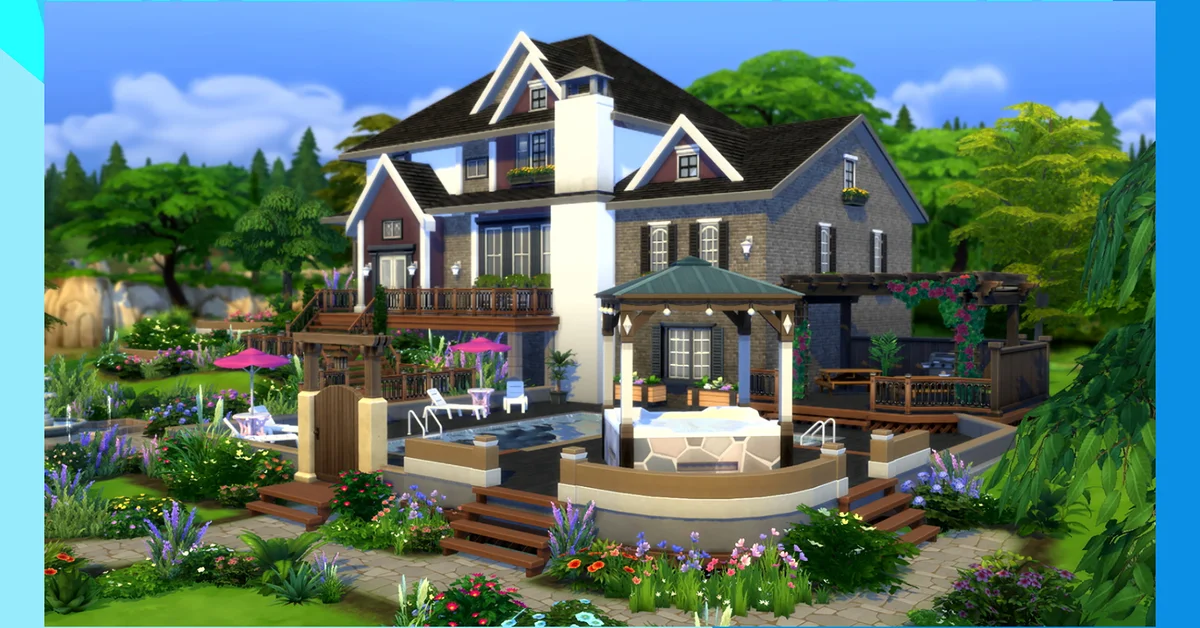
To rotate objects in The Sims 4, pick the object up in Build Mode and press the period key to turn it clockwise or the comma key to turn it counter-clockwise, or right-click with the mouse; each press turns it 45 degrees. On console, RB and LB on Xbox or the shoulder buttons on PlayStation do the same job. Below we cover the exact controls for every platform as EA documents them, how the Sims 3 camera setting changes things, free rotation for clutter and décor, the quarter-tile grid, and the bb.moveobjects cheat for placement the grid would otherwise refuse.
Rotate With Keyboard or Mouse on PC and Mac
Open Build Mode (the hammer icon at the top right, or F2 on a keyboard), then click the object you want to move so it is in your hand. Per EA’s rotation guide, you then have two options:
- Mouse: right-click to rotate the object 45 degrees. Keep right-clicking until it faces the way you want, then left-click to place it.
- Keyboard: press the period key (.) to rotate clockwise or the comma key (,) to rotate counter-clockwise. Left-click to place.
On Mac the keyboard method is identical. EA’s mouse instructions for Mac are slightly different: with the object selected, click the right mouse button and then press the right arrow key to rotate 45 degrees, then left-click to place.
If you have enabled The Sims 3 Camera in Game Options, rotation works differently, and this is the usual reason the keys “stop working”. With that camera, EA’s guide says to left-click and hold the object, then move the mouse to rotate it, or hold the left button and press the period and comma keys, and let go of the button when the object faces the right way. Switching back to the default Sims 4 camera restores the tap-to-rotate behavior.
Rotate With a Controller on PlayStation and Xbox
Console Build Mode uses the shoulder buttons. Per EA’s guide, on Xbox press RB to rotate an object clockwise or LB to rotate it counter-clockwise, then let go of both when it faces the right way to place it. On PlayStation, EA’s console tips article names L1 and R1 as the rotation pair, while the newer help page lists R1 for clockwise and R2 for counter-clockwise; if one button does nothing, try the other shoulder button on the same side. The on-screen control legend in the top-right corner of Build Mode always shows the live binding for your platform, and the Control Schemes overlay lists every Build Mode button if you need more.
The console builds lag the PC version by a few days on each patch. As of the current build the console game is version 2.39, matching the PC 1.128.90.1030 update of September 22, 2026, which among other things fixed a gamepad directionality crash on console, so update before blaming the controller.
Free Rotation for Clutter and Décor
Forty-five degree steps are fine for sofas, but a mug on a counter looks better slightly askew. EA’s guide describes free rotation as follows, and notes it only works with the mouse or the analog stick, never the rotation keys:
- PC and Mac: left-click and hold the object, hold the Alt key (Option on Mac) as you move the mouse to turn it, and release the mouse button when it faces the way you want. Holding Alt also lets you drop the object off the grid entirely, which is how decorators get clutter overlapping and angled naturally.
- PlayStation: hold L1 and R1 together and rotate the item with the right analog stick, then let go.
- Xbox: hold LB and RB together and rotate the item with the right analog stick, then let go.
Free rotation applies to almost anything you can pick up, but large furniture still has to fit its footprint, so a bed rotated 20 degrees may refuse to place near a wall. That is where the cheat below comes in. Note that the September 22, 2026 update also fixed the eyedropper tool on half wall trims and moved several wall patterns into their correct catalog categories, so if a piece seems to be missing from the catalog after rotating your camera around a room, check the Paneling and Tile categories.
The Grid, the Camera and the Cheat
Three more tools make rotation useful:
- Quarter-tile placement. On PC, F5 cycles the placement grid between full, half and quarter tiles, so a rotated object can be nudged into a corner rather than snapping a whole tile away. On console, the same toggle is on the Build Mode control legend.
- Camera rotation. Rotating the camera is separate from rotating the object. On PC hold the middle mouse button or use the on-screen arrows; on console the right stick turns the camera when no object is in hand. A quick camera swing before placing something against a wall avoids the classic “it is facing the wrong way” mistake.
- bb.moveobjects on. EA’s guide documents the move objects cheat for letting items overlap without snapping to the grid: open the console with Ctrl + Shift + C (hold L1 + L2 + R1 + R2 on PlayStation or LB + LT + RB + RT on Xbox), type
testingcheats true, press Enter, then typebb.moveobjects onand press Enter. Combined with Alt free rotation this places anything anywhere. Our guide to moving objects freely in The Sims 4 goes deeper on the cheat, and unlocking every Build Mode object covers the debug catalog that pairs with it.
For the bigger picture, our guide to building a perfect house in The Sims 4 covers layout and the rest of the Build Mode tools, and the Sims guide hub has our coverage of the older games, including how rotation worked in The Sims 2.
Frequently Asked Questions
Why will my object not rotate with the comma and period keys? Check whether The Sims 3 Camera is enabled in Game Options. With that camera you must hold the left mouse button on the object while pressing the keys. Switching back to the default camera restores tap-to-rotate.
How do I rotate objects on PS5? Press the shoulder buttons to rotate in 45 degree steps (EA’s tips article names L1 and R1). For free rotation, hold L1 and R1 together and turn the right analog stick.
How do I rotate objects on Xbox? Press RB for clockwise or LB for counter-clockwise. Hold LB and RB together and use the right stick for free rotation.
Can I rotate objects by less than 45 degrees without cheats? Yes. Hold Alt (Option on Mac) while dragging with the mouse, or hold both shoulder buttons and use the right stick on console. No cheat is needed, though large furniture still needs a valid footprint to place.
Does bb.moveobjects disable achievements? The moveobjects cheat requires testingcheats true first, and EA says testing cheats disable achievements in that save only. Other saves are unaffected.