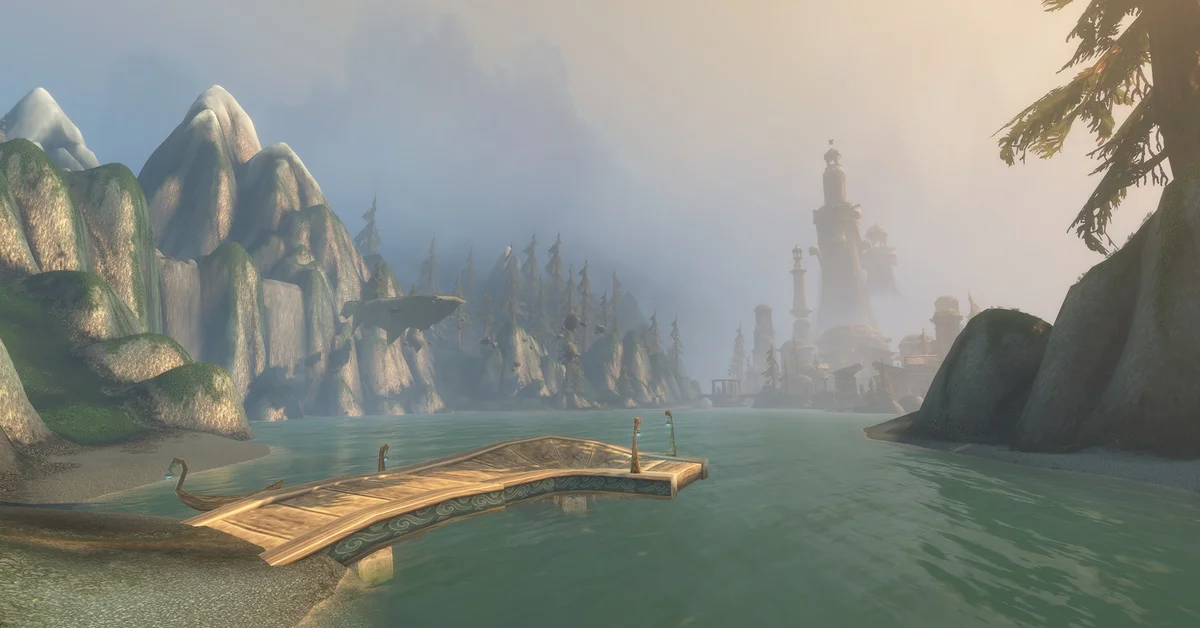
To zoom out in World of Warcraft: Forever, scroll your mouse wheel back, or on a controller hold LB and RB and pull the right stick back. To zoom out further than the default limit, press Enter, type /console cameraDistanceMaxZoomFactor 4 and press Enter again: the camera can then pull back well past where the mouse wheel used to stop.
Below are the normal zoom controls, the command step by step with the values it takes, how to keep it from resetting, how to undo it, and what the extra distance does and does not show you. Everything is as of November 7, three days after launch.
The Normal Zoom Controls
| Input | Zoom in | Zoom out |
|---|---|---|
| Mouse | Scroll the wheel forward | Scroll the wheel back |
| Controller | Hold LB + RB, push the right stick forward | Hold LB + RB, pull the right stick back |
The controller method comes from Blizzard’s gamepad guide, which says to “hold the left bumper (LB) + the right bumper (RB) while moving the right stick forward and backward to zoom the camera in and out.” The same guide lists a Camera section in the Gamepad settings, under Options, for tuning how the camera behaves on a pad.
If the mouse wheel does nothing, check your keybindings: Game Menu, Options, Keybindings, under the camera bindings, for Zoom In and Zoom Out. An addon can take over the wheel, too.
How to Zoom Out Further With the Console Command
The mouse wheel stops at a default maximum. The cameraDistanceMaxZoomFactor setting raises that maximum:
- Press Enter to open the chat box.
- Type
/console cameraDistanceMaxZoomFactor 4and press Enter. - Scroll the mouse wheel back (or use the controller zoom). The camera now keeps pulling out past the old stop.
The number is a multiplier on the camera’s maximum distance. The setting comes from Blizzard’s Classic clients, where it goes up to 4 for the furthest camera; Blizzard has not documented its range for Forever, so if 4 does not stick, try 2.6 or 3, which is also a good middle ground if 4 feels too far. Typing the command does not move the camera by itself; it only lets you scroll further.
How to Make It Stick, or Undo It
- It saves with your settings. You normally only need to type it once.
- If it resets, type the command again. For a one-button fix, make a macro: type
/macro, click New, name it, put/console cameraDistanceMaxZoomFactor 4in the box, and drag it to an action bar. Controller players can drag the same macro onto a gamepad action bar slot; Blizzard’s development notes confirm macros work there. Our guide to sitting by the campfire walks through making a macro for a controller in more detail. - To bring the camera back in, type the command with a lower number, such as
/console cameraDistanceMaxZoomFactor 2, or simply scroll in.
What Zooming Out Does and Does Not Change
A further camera shows you more of the ground around your character: incoming enemies, the edges of a pack, a whole boss room. It does not let you see further into the distance, because that is set by your graphics, and Forever’s new volumetric fog hides the far edge on purpose. If the world feels closed in, raise View Distance in the graphics options as well; our best graphics settings guide explains how the fog, View Distance and the Compute Effects option fit together.
A few more things to know:
- Buildings and trees still pull the camera in. Walls, roofs and dense trees push the camera toward your character, so you will see it jump closer indoors whatever the setting.
- It helps in groups. A tank sees the whole pull and a healer sees the whole party.
- Nameplates have their own limit. Seeing a mob further away does not mean its nameplate shows up further away.
Zooming on Steam Deck and Handhelds
On a handheld, use the controller zoom (hold LB + RB and pull the right stick back), and set the command once with the on-screen keyboard. Our guides to playing on Steam Deck and to WoW Forever on Xbox and PS5 cover the rest of the controller setup. Every other guide is on our World of Warcraft hub.
Frequently Asked Questions
How do you zoom out in WoW Forever? Scroll the mouse wheel back. On a controller, hold LB and RB and pull the right stick back.
How do you zoom out more in WoW Forever? Type /console cameraDistanceMaxZoomFactor 4 in chat, then scroll the mouse wheel back. The camera keeps pulling out past its old limit.
What is the max camera distance command in WoW Forever? /console cameraDistanceMaxZoomFactor followed by a number. It goes up to 4 in Blizzard’s Classic clients; Blizzard has not documented the range for Forever, so try 2.6 or 3 if 4 does not stick.
Do you have to type the zoom command every time? Normally no: it saves with your settings. If it resets, type it again or put it in a macro.
Does zooming out let you see further in WoW Forever? It shows more around your character, but how far you can see into the distance depends on View Distance and Forever’s fog.