
To change the language in GTA 6, press Options, select Settings, move across the tabs to UI with R1, and change Language, the very first option on that tab. On our US PS5 copy it has 12 choices, the same 12 text languages the US PlayStation Store lists for the game, and English is the only voice language the store lists.
Below are the exact steps, the full list of languages, and the readability settings that sit right next to Language. We recorded ourselves finding the Language setting on PS5 on launch night for the video at the end of this guide. The screenshot in this guide comes from the same recording.
How to Change the Language in GTA 6
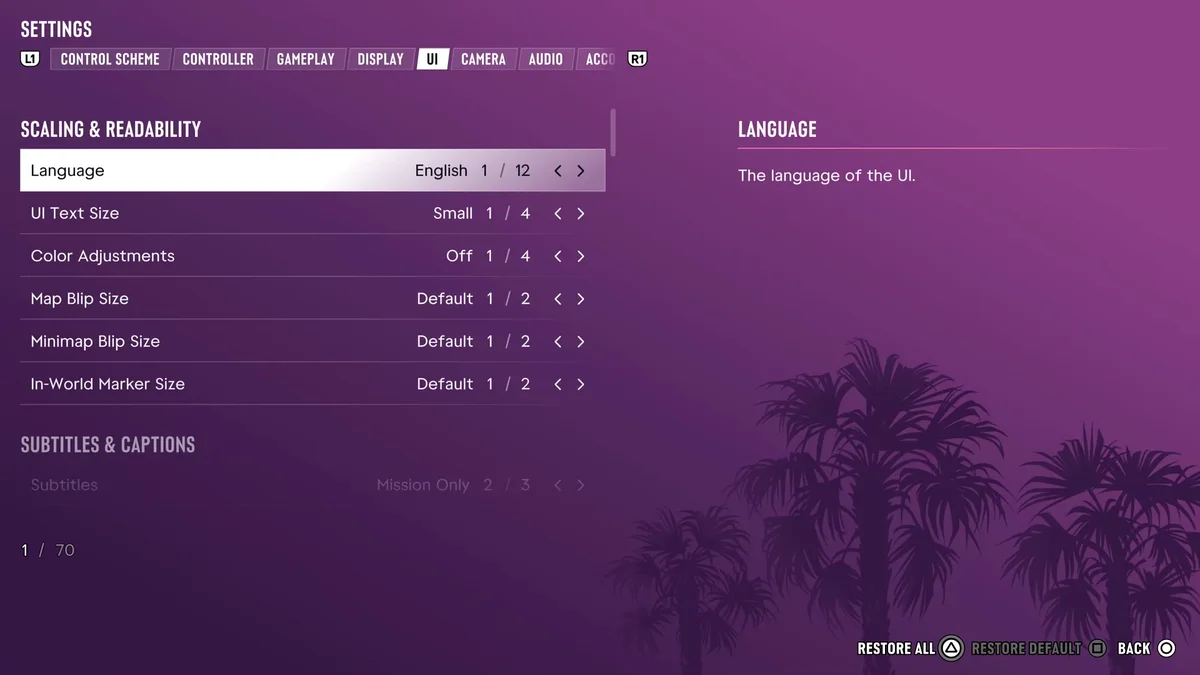
- Press Options to open the pause menu in Grand Theft Auto VI.
- Select Settings, the last option, under Photo Studio.
- Use L1 and R1 to move across the tabs to UI, the fifth of eight tabs.
- Language is the first option, under Scaling & Readability. Its description reads “The language of the UI.”
- Press left or right to step through the languages, then press Circle to back out.
On our copy, Language read English, 1 of 12. If you set the wrong language by accident and can’t read the menu, the path stays the same in any language: Options, the last item in the pause menu, then the fifth tab, first option.
Every Language GTA 6 Supports
The PlayStation Store listing for the US gives 12 screen languages for the PS5 version, which matches the 12 choices on our copy:
- English
- French
- German
- Italian
- Korean
- Polish
- Portuguese (Brazil)
- Russian
- Spanish (Spain)
- Spanish (Mexico)
- Chinese (Simplified)
- Chinese (Traditional)
PlayStation’s support page for the game also lists Japanese text, which isn’t among the US store’s 12, so if you need Japanese, check the store page for your own region before you buy.
What About Voice Language?
The store lists one spoken language for GTA 6: English. Changing the Language setting changes the game’s text, and the cast still speaks English. If you want the dialogue in your own language, turn on subtitles: our guide to GTA 6’s subtitles explains the options, including why the setting you pick at first boot may only caption the big moments.
The Readability Settings Next to It
Language heads a section called Scaling & Readability, and the rest of it is worth a look while you’re there:
- UI Text Size sets “the size of text, icons, and button prompts.” It starts on Small, the first of four sizes, and the game notes that “Small will affect some of the HUD but not menus.”
- Color Adjustments starts Off, one of four settings, and changes the colors used across the UI and HUD.
- Map Blip Size, Minimap Blip Size and In-World Marker Size each have two settings and start on Default. Minimap Blip Size is “the size of blips on the minimap.”
If you play on a big TV from a distance, try a larger UI Text Size and the second setting for each blip size to make the screen easier to read. Our guide to the best settings to change first goes through every other tab.
Frequently Asked Questions
How do you change the language in GTA 6? Press Options, select Settings, move to the UI tab and change Language, the first option there.
How many languages does GTA 6 have? Our US PS5 copy has 12 text languages, matching the US PlayStation Store listing. PlayStation’s support page also lists Japanese, which isn’t among the US store’s 12.
Can you change the voice language in GTA 6? No. The PlayStation Store lists English as the only spoken language, so the Language setting changes text only. Turn on subtitles to read the dialogue in your language.
Does GTA 6 have Spanish? Yes, two kinds: Spanish (Spain) and Spanish (Mexico), both as text languages.
Does GTA 6 have Portuguese? Yes, Portuguese (Brazil) is one of the 12 text languages on the US store listing.
Every GTA 6 guide we’ve written is on our GTA 6 hub.