To turn down the radio volume in GTA 6, press Options, go to Settings, move to the Audio tab with R1, and lower the Media slider in the Volume section. The game describes Media as “the volume of in-world media, such as the TV and radio,” so it’s the one that controls the car radio, not the slider called Music.
We went through the Audio tab on our PS5 copy on launch night. Below is each step, what the other sliders do, and how to mute the radio or stop it starting by itself.
How to Lower the Radio Volume
- Press Options to open the pause menu in Grand Theft Auto VI, and select Settings.
- Press R1 until you reach the Audio tab. It comes after Control Scheme, Controller, Gameplay, Display, UI and Camera.
- Scroll down to the Volume section. It has six sliders: Master Volume, SFX, UI, Dialogue, Music and Media.
- Highlight Media and slide it down. Every slider in the section started at 10, full, on our copy.
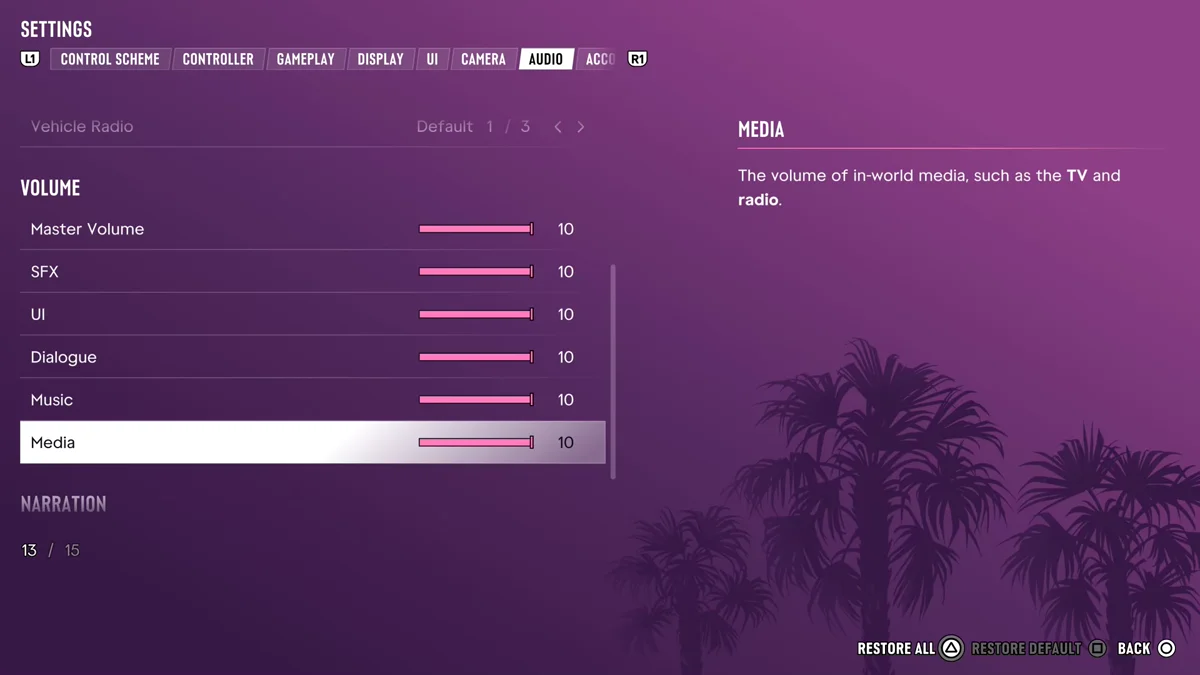
Change it in the pause menu and drive for a moment to check the level. Turning Media down also quietens TVs in the world, since they share the slider.
Media vs Music: Which Slider Is Which
The names are easy to mix up, so here is what each Volume slider covers. The quoted lines are the game’s own descriptions:
| Slider | What it controls |
|---|---|
| Master Volume | Everything at once |
| SFX | “The volume of all sound effects” |
| UI | Menu and interface sounds |
| Dialogue | Characters’ speech |
| Music | “The volume of the music” |
| Media | “The volume of in-world media, such as the TV and radio” |
So if the radio is drowning out conversations in the car, turn Media down or Dialogue up. Media is the slider whose description names the radio, so start there rather than with Music.
How to Mute the Radio or Keep It Off
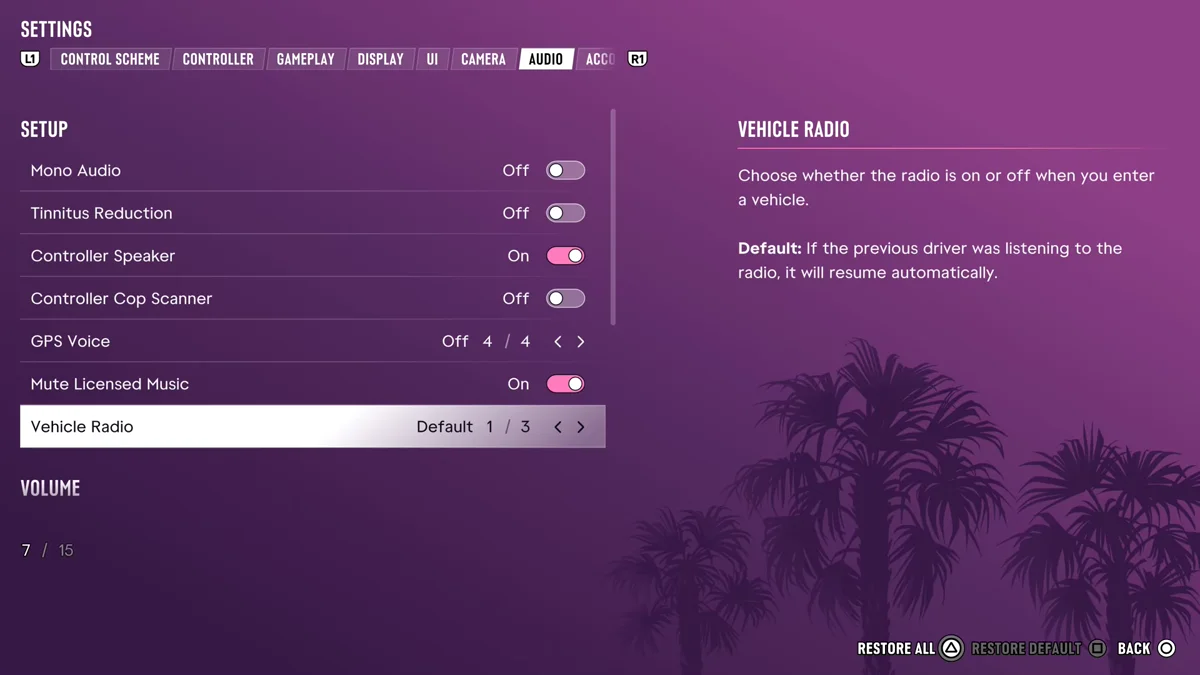
Two options above the sliders, in the Setup section of the Audio tab, change how the radio behaves:
- Vehicle Radio decides whether “the radio is on or off when you enter a vehicle.” On Default, “if the previous driver was listening to the radio, it will resume automatically.” Set it to Off and cars stay quiet until you switch the radio on yourself.
- Mute Licensed Music “mutes any licensed music,” which is handy if you stream or record your play. The game notes that captions will still display for music when it’s on.
For a quick silence while you drive, hold Left on the D-pad to open the radio and press Cross on Turn Off. Our guide to GTA 6’s radio stations covers the radio strip and every station.
Other Audio Settings Worth Knowing
The Audio tab has a few more options in its Setup section. Controller Cop Scanner “plays the cop scanner audio on the controller speaker,” which our police scanner guide explains, and GPS Voice reads out directions; ours was set to Off. Our guide to the best settings for GTA 6 goes through every tab. Every GTA 6 guide is on our GTA 6 hub.
Frequently Asked Questions
How do you turn down the radio in GTA 6? Lower the Media slider in Settings > Audio. It controls in-world media, the radio and TVs included.
Is the radio under Music or Media in GTA 6? Media. Its description names “the TV and radio,” while Music is described only as “the volume of the music.”
How do you stop the radio turning on in GTA 6? Set Vehicle Radio to Off in the Audio tab of Settings.
How do you mute songs in GTA 6 for streaming? Turn on Mute Licensed Music in the Audio tab. It mutes the licensed songs, and captions still show for music.