
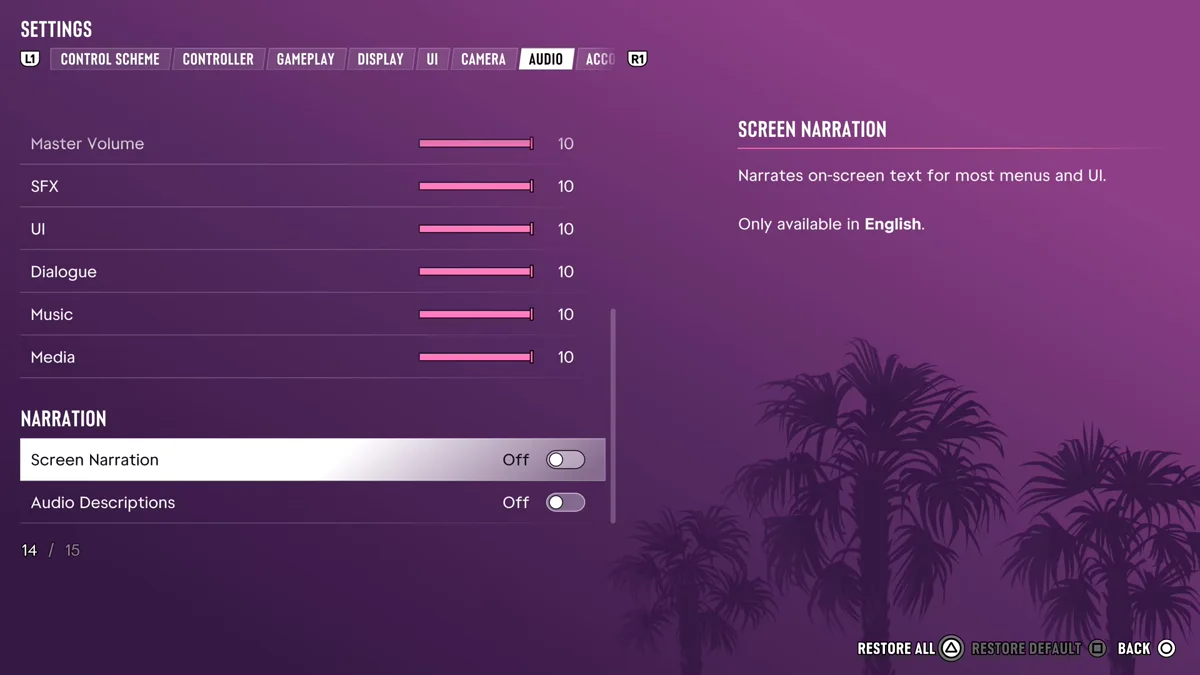
To turn off the narrator in GTA 6, press Options to open the pause menu, go to Settings, move to the Audio tab with R1, scroll to the Narration section at the bottom and switch Screen Narration to Off. That’s the setting behind the voice that reads menus and on-screen text aloud, the one many people call the voice assistant.
We went through every menu on our PS5 copy on launch night, so below is exactly where the switch is, the shortcut on the first screen of the game, and the other voices you might be hearing.
How to Turn Off Screen Narration
- Press Options to open the pause menu in Grand Theft Auto VI.
- Select Settings. It’s listed after Map, Game, Store, Help and Photo Studio.
- Press R1 to reach the Audio tab. L1 and R1 move between the tabs, which run Control Scheme, Controller, Gameplay, Display, UI, Camera and then Audio.
- Scroll to the bottom. The last section is called Narration, and Screen Narration is its first option.
- Switch Screen Narration to Off.
The game describes the option as narrating “on-screen text for most menus and UI,” and adds that it’s “only available in English.” On our copy it was already Off when we first opened the Audio tab, so if it’s talking to you, it was most likely switched on at the first screen.
The First-Screen Shortcut
The first setup screen GTA 6 showed us on a fresh start, before screens such as the minimap choice, has the narration switch built in. At the bottom right it reads Screen Narration (Off) with Square beside it, next to Continue on Cross. Square switches the narrator on or off there, and the label shows which way it’s set before you continue.

If you tapped Square without meaning to on that screen, that’s why menus are being read to you. The Audio tab switch above undoes it at any time.
Other Voices You Might Mean
Narration isn’t the only spoken option in the Audio tab, so check these if the voice you want gone is something else:
- Audio Descriptions sits right under Screen Narration in the same Narration section. It was Off on our copy too.
- GPS Voice is in the Setup section at the top of the Audio tab, and it’s the voice that reads out driving directions. Ours was set to Off, the fourth of its four options, before we changed anything.
If a voice still reads out the PS5’s own menus after you leave the game, that’s the console’s screen reader rather than GTA 6. It has its own switch in the PS5’s Accessibility settings.
Related Settings Worth Changing
While you’re in Settings, a few other first-day changes make the game more comfortable. Our guide to the best settings for GTA 6 goes through every tab, our guide to turning subtitles on or off covers the first-boot subtitle screen, and our guide to changing the language explains which languages the game’s text comes in. Every GTA 6 guide is on our GTA 6 hub.
Frequently Asked Questions
How do you turn off the voice assistant in GTA 6? Go to Settings, then the Audio tab, and switch Screen Narration to Off in the Narration section. It’s the option that reads menus and on-screen text aloud.
Why is GTA 6 reading the menus out loud? Screen Narration is on. It can be switched on with Square on the game’s first setup screen, which is easy to press by accident. Turn it off in Settings > Audio.
Where is Screen Narration in GTA 6? In the Audio tab of Settings, at the bottom, under the Narration heading.
Is the narrator on by default in GTA 6? No. Screen Narration was Off on our PS5 copy when we first opened Settings.