
To use the cinematic camera in GTA 6 on PS5, hold Down on the D-pad to open the camera menu, then press Options, the button listed next to Cinematic. The view switches to film-style shots with black bars at the top and bottom. To go back to the normal camera, hold Down on the D-pad again.
We drove with it on our PS5 copy of Grand Theft Auto VI on launch day, in Jason’s pickup in Key Lento, and recorded it for the video at the end of this guide. The screenshots in this guide come from the same recording. Below are turning it on, what you see, the option it adds, and how to leave it.
How to Turn On the Cinematic Camera
- Hold Down on the D-pad. The game blurs the screen and opens the camera menu in the bottom right corner.
- Press Options. Cinematic is the top line of the menu, and its button is the Options icon rather than a face button.
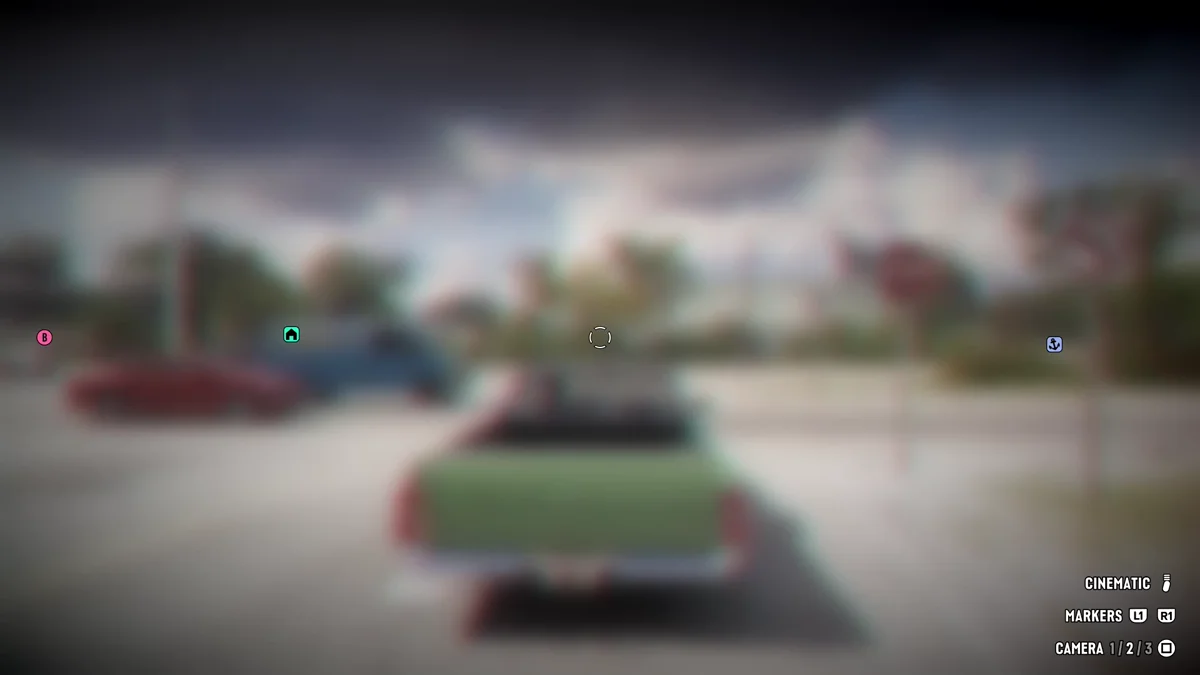
The Cinematic line is in the camera menu on foot too, under Remove Destination when you have a route set. We used it in a car, where it does the most.
What the Cinematic Camera Shows
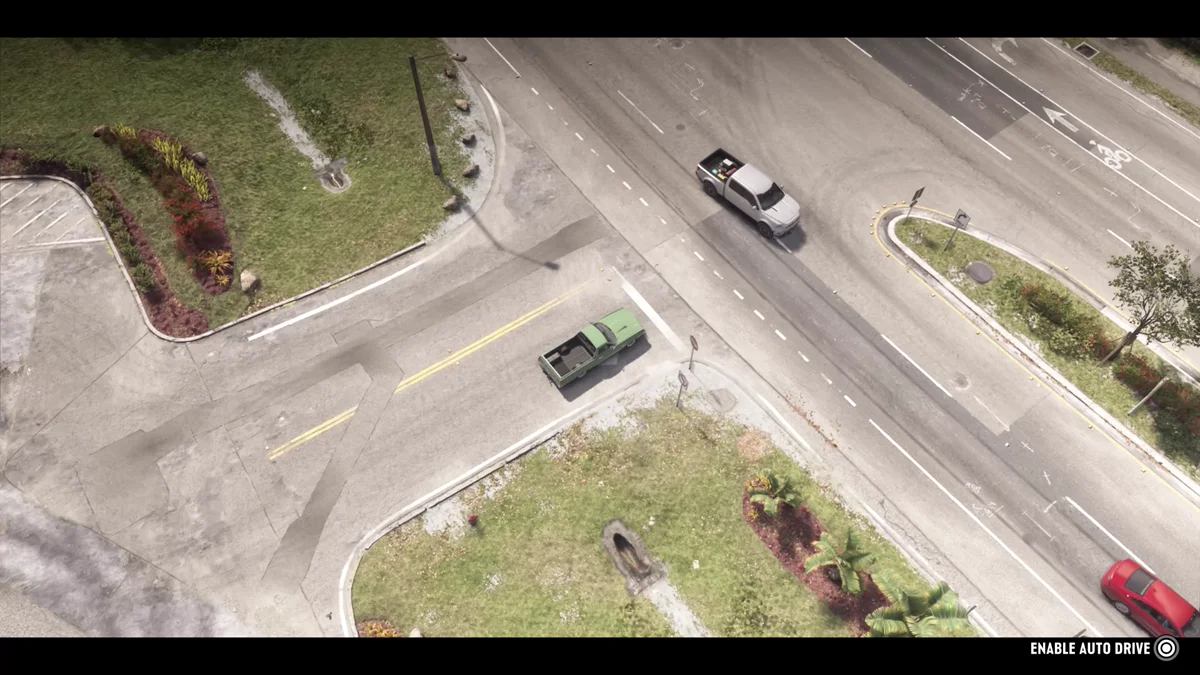
The game takes over the framing. On ours the first shot was high above the pickup, looking down on the junction like a helicopter shot in a film, with black bars across the top and bottom of the screen and no HUD.
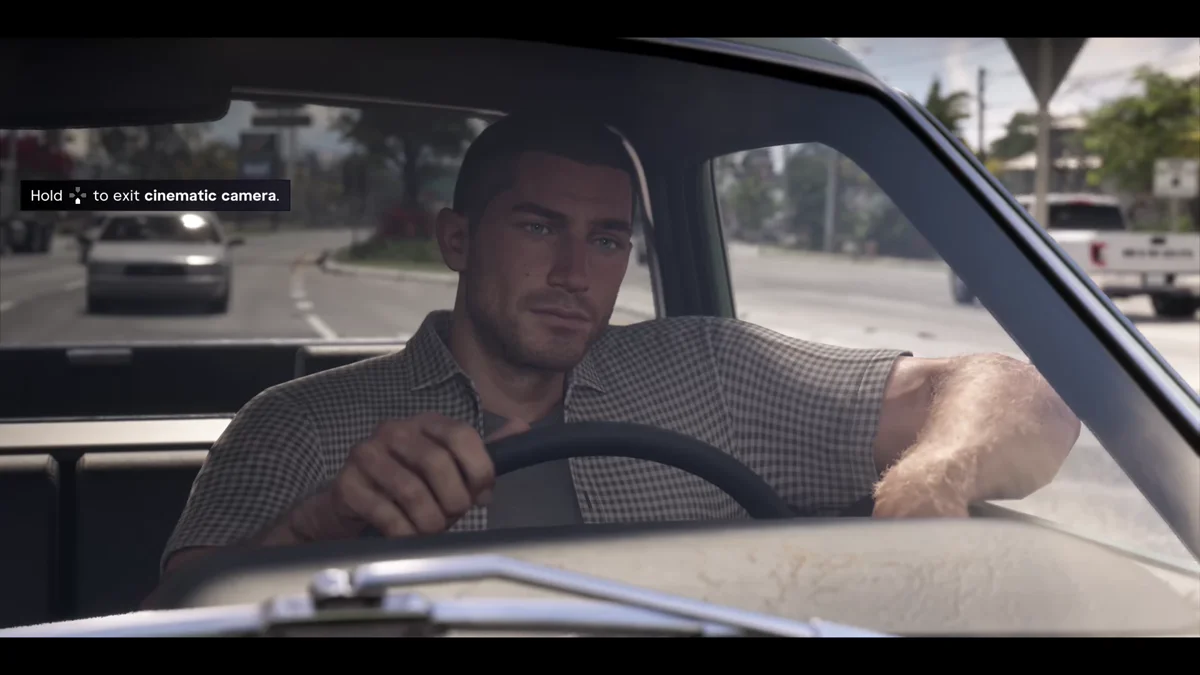
About ten seconds later it cut to a shot through the windshield, with Jason at the wheel and traffic behind him. You don’t get the minimap while it’s on, so it’s a camera for enjoying the drive rather than for finding your way.
The Option It Adds: Auto Drive
As soon as the cinematic camera comes on in a car, a prompt in the bottom right corner offers Enable Auto Drive on Circle. Hold Circle until the ring around it fills, and the car steers itself. With it on, L2 and R2 change the speed between 1, 2 and 3, and Disable Auto Drive takes over the Circle button. It turns a long drive into something you can sit back and watch. Our guide to auto drive in GTA 6 walks through it step by step.
How to Exit the Cinematic Camera
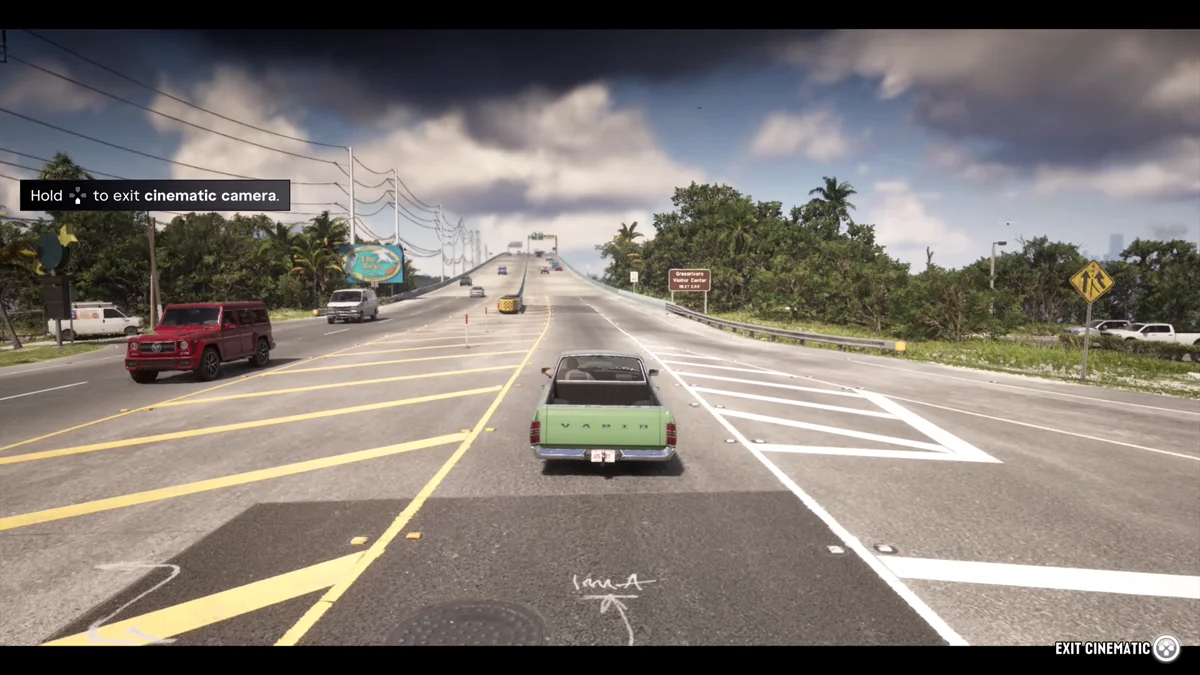
Hold Down on the D-pad. While the cinematic camera is on, a hint in the top left corner reminds you of this. As you hold the button, an Exit Cinematic prompt with a filling ring appears in the bottom right corner, and the normal camera comes back a moment later.
Other Camera Options
The cinematic camera is for watching. For playing, the same menu’s Square button cycles Camera 1, 2 and 3, and the Camera tab in Settings sets how high the camera sits. Our guide to changing the camera view covers both, and how to play in first person explains that view.
If you want to keep a moment the cinematic camera shows you, pause and use photo mode, which lets you move the camera and set up the shot yourself. Every other button is in our controls guide.
Frequently Asked Questions
How do you turn on the cinematic camera in GTA 6? Hold Down on the D-pad to open the camera menu, then press Options, the button shown next to Cinematic.
How do you turn off the cinematic camera in GTA 6? Hold Down on the D-pad. An Exit Cinematic prompt fills in the bottom right corner, and the normal camera returns.
Is there a cinematic mode in GTA 6? Yes. It’s the Cinematic option in the camera menu, and it frames your drive with film-style shots and black bars.
Can the car drive itself in the cinematic camera? Yes. In a car, the cinematic camera offers Enable Auto Drive: hold Circle to turn it on, and L2 and R2 change its speed.
Does the cinematic camera work on foot in GTA 6? The Cinematic option is listed in the camera menu on foot as well. We used it while driving.
More GTA 6 guides are on our GTA 6 hub.