To change your shooting angle in GTA 6 on PS5, aim with L2 and press Left on the D-pad. The game lists the button as Switch Shoulder on its Aiming controls, and each press moves the camera to your character’s other shoulder, so you can shoot around a corner from either side.
We read the Aiming controls off the Control Scheme screen on our PS5 copy of Grand Theft Auto VI and went through its aiming settings, and the screenshots in this guide are from our own PS5 recordings. Below is the button, the rest of the aiming layout, when a swap helps, and the settings worth checking.
How to Switch Shoulders on PS5
- Hold L2 to aim. Switch Shoulder is on the Aiming page of the controls, so it works while you’re aiming.
- Press Left on the D-pad. The camera swaps to the other shoulder.
- Press it again to swap back.
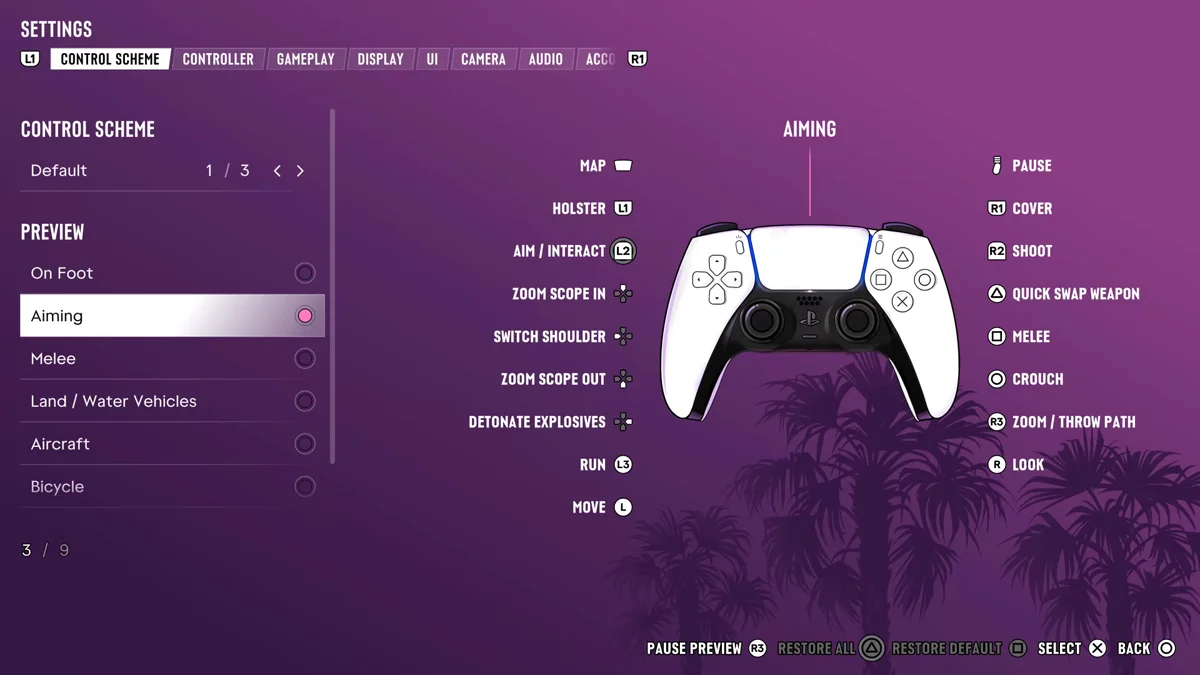
The Full Aiming Layout
While L2 is held, several buttons change jobs:
| Action while aiming | PS5 |
|---|---|
| Shoot | R2 |
| Switch shoulder | Left on the D-pad |
| Zoom scope in | Up on the D-pad |
| Zoom scope out | Down on the D-pad |
| Detonate explosives | Right on the D-pad |
| Zoom, or show throw path | R3 |
| Quick swap weapon | Triangle |
| Cover | R1 |
| Quick throw | Hold R1 |
| Loadout | Hold L1 |
| Crouch | Circle |
| Melee | Square |
R3 is the one to know alongside the shoulder swap. With an optic on your gun, it puts you in a first-person sight view, as our guide to playing in first person explains. Triangle swaps weapons without opening the wheel; our guide to changing guns covers the full loadout.
When to Switch Shoulders
The camera sits over one shoulder, which is fine in the open and awkward around corners. Swap when:
- You’re aiming around a corner on the other side. With the camera on the wrong shoulder, the wall fills half your view. Swap and you see the target while showing less of yourself.
- Your cover ends on the other side. Peeking out from a wall’s far edge works far better with the camera on that side. Our guide to taking cover covers R1 and moving between cover.
- A target is hugging the edge of the screen. One press is quicker than walking out for a better angle.
Swap back once you’re in the open again, so your view isn’t blocked on the other side.
Aim Settings Worth Checking
GTA 6 puts its aiming options in Settings > Gameplay. On ours, the Combat group had Targeting on Partial, the second of three choices, which the game describes as “Aiming will move towards a nearby target but will not lock on.” Aim Assist Strength sat at 4, with Shooting Assist, Drive-By Assist and Quick Draw switched on. Our guide to locking on explains the Targeting choices.
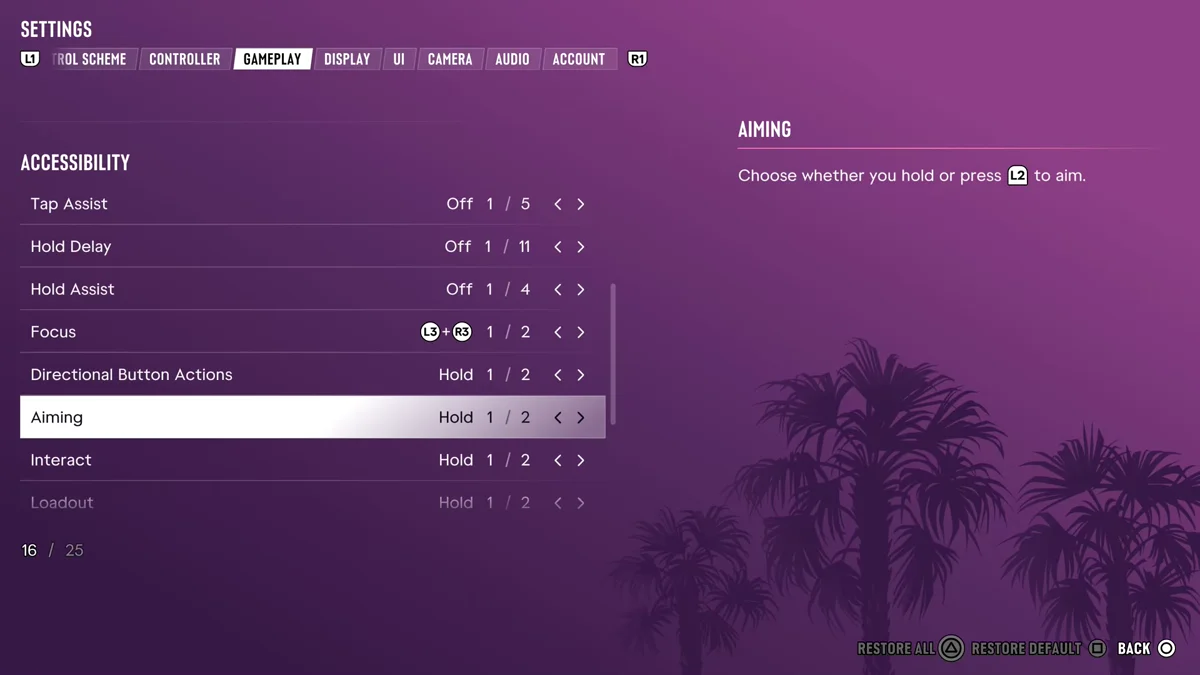
Further down, in the Accessibility group, an Aiming option reads: “Choose whether you hold or press L2 to aim.” It was set to Hold. If holding L2 through a long gunfight tires your hand, switch it, and the shoulder swap still works the same way while you’re aiming.
In Vehicles
Switch Shoulder appears only on the Aiming page. In a car, a tap of Left on the D-pad indicates left instead, and holding it opens the Vehicle Menu, as our guide to using turn signals explains.
Our guide to using Focus covers the L3 and R3 ability that slows time in a firefight, and our guide to blocking and dodging covers the Melee page if a fight goes hand to hand.
Frequently Asked Questions
Can you switch shoulders in GTA 6?
Yes. Aim with L2 and press Left on the D-pad. The Aiming controls list it as Switch Shoulder.
What button is shoulder swap in GTA 6?
Left on the D-pad on PS5, while you’re aiming with L2.
Does GTA 6 have aim assist?
Yes. Settings > Gameplay has a Targeting option and an Aim Assist Strength slider, which sat at 4 on ours, along with Shooting Assist and Drive-By Assist switches.
Can you toggle aim instead of holding L2 in GTA 6?
Yes. Settings > Gameplay has an Aiming option that chooses whether you hold or press L2 to aim.