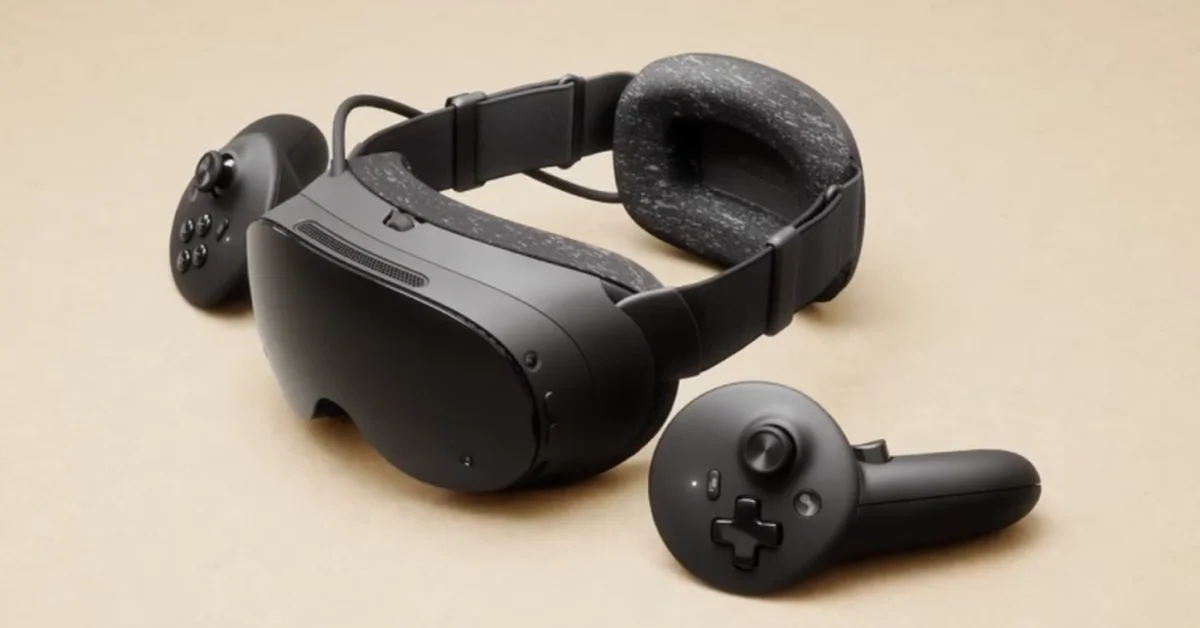
To right-click on Steam Frame, aim your Steam Frame Controller at the desktop and push in the thumbstick. Valve’s support guide says the controller works as a laser-pointer mouse in Desktop Mode, with the trigger as the left click and the thumbstick press as the right click.
That is the only right-click Valve documents for the Steam Frame controllers. Below are the steps, which thumbstick to press, the limit of the head-tracked cursor, how to use a real mouse instead, and how right-click works in flat games. It all comes from Valve’s Steam Frame support guide, its Steamworks documentation and its SteamOS update notes, checked November 8, 2026.
Steam Frame’s Mouse Controls
| Action | What to do |
|---|---|
| Move the pointer | Aim the controller at the desktop |
| Left-click | Pull the trigger |
| Right-click | Push in the thumbstick |
| Click with no controller | Press the Aux button for a head-tracked cursor, then press Aux again |
Valve’s own wording is that your controller “will act laser pointer (mouse), with triggers acting as a left mouse click, and pushing in on the thumbstick acting as a right-mouse click.”
Step-by-Step: Right-Click in Desktop Mode
- Open the desktop. In the VR Dashboard, open the dashboard menu, select “+” (Launch Program) and choose Desktop. Our guide to Steam Frame’s Desktop Mode covers typing, installing apps and closing the desktop again.
- Aim at what you want the menu for. Point the controller at a file, an icon, the taskbar or a link.
- Push the thumbstick straight in. Press it down like a button, without tilting it. A menu opens if that item has one.
- Pick an option with the trigger. Aim at the menu entry and pull the trigger to left-click it.
Which Thumbstick to Press
Valve’s support guide says “the thumbstick” without naming a hand, and its developer input documentation lists a thumbstick click on both the left and the right controller. Press the one on the controller you are pointing with. Our Index controllers guide has a fuller rundown of what else is on each Steam Frame Controller.
What You Use Right-Click For
Desktop Mode is a standard Linux desktop running KDE Plasma, and like most desktops it keeps a lot of options in right-click menus. Valve’s own notes mention two:
- Add to Steam. Valve’s SteamOS 0.5.6 beta notes say the update will “Allow .apk files in right-click “add to steam” context menu in Desktop mode.” Beta features reach you only if you opt in under Settings > System > System Update Channel, so on the stable channel an APK may not show that option yet.
- Pinning a program. Valve’s debugging documentation tells developers that after launching a program “you can right-click on the icon and pin it for future ease of access.”
Not every right-click in Valve’s notes happens inside the headset. The SteamOS 0.5.8 beta notes tell you to “right-click on SteamVR in your Steam library” to join the SteamVR beta, and that step is on your PC, with your PC’s mouse.
Right-Clicking Without a Controller
Valve’s support guide says that if you need to get around with no controller, the Aux button on the side of the headset will “invoke a cursor that will move with your headset,” and Aux then “will act as a mouse-click.” Valve describes that one click and no right-click, so use the Aux cursor to get a controller working again rather than to work on the desktop:
- Re-pair the controller under Steam Settings > Controller > Add Controller.
- Put it in pairing mode by hand. Valve’s LED reference says to hold Steam + Menu on the right controller or Steam + View on the left.
- Swap the battery. Each controller runs on one replaceable AA.
Use a Bluetooth Mouse Instead
If you plan to spend real time on the desktop, a mouse beats aiming a laser pointer. Valve’s support guide covers mice under “other peripherals”:
- Put the mouse into Bluetooth pairing mode, following its own manual.
- In the headset, open Steam Settings > Bluetooth and finish pairing there.
- Use the mouse’s right button as you would on any Linux PC.
Valve’s guide does not name any tested mice. If a mouse misbehaves, Valve’s general advice is to disconnect any Bluetooth or USB devices you do not need while you troubleshoot.
Use Your PC’s Mouse Through Remote Desktop
Valve also documents a way to reach the headset’s desktop from a Windows PC, where your normal mouse does the right-clicking. It is a developer feature and needs Developer Mode turned on first:
- Open Remote Desktop Connection on the PC and enter frame as the computer.
- At the XRDP login screen, keep Xorg as the session.
- Sign in with the username steamos and the password you set in Developer Mode settings.
Valve says VNC and similar programs work too.
Right-Clicking in Games
The thumbstick press only means right-click on the desktop. In a game, it does whatever that game’s controls say. Valve’s input documentation says that in non-VR titles, “locally or via streaming,” the controllers “take full advantage of Steam Input,” and “depending on the game and the configured bindings” they show up as “a generic gamepad or keyboard/mouse.”
So if a mouse-driven game needs a right button, that is a binding: open the game’s Steam Input settings and set one. Valve has not published a default right-click button for mouse-and-keyboard games on Steam Frame, so check the layout the game opens with. For VR games with no VR controls, Valve’s SteamVR 2.18 notes say the controllers now default to gamepad input, and you can change that in the game’s Steam Input settings or under VR Controller settings on the Now Playing page.
If you mostly stream flat games, our guides to connecting Steam Frame to your PC and the best streaming settings are the next stops.
If Right-Click Does Nothing
- Check you are on the desktop. Valve documents the thumbstick right-click for Desktop Mode only, so it may do something else, or nothing, in other menus.
- Install updates under Steam Settings > System > Updates, which is Valve’s first step for any problem.
- Restart the headset and controllers.
- Replace the AA battery and re-pair under Steam Settings > Controller > Add Controller.
- Try a Bluetooth mouse. If its right button works, the desktop is fine and the controller is the problem, so open a ticket with Steam Support.
Frequently Asked Questions
How do you right-click on Steam Frame? Push in the thumbstick on your Steam Frame Controller while aiming it at the desktop. Valve’s support guide says the thumbstick press acts as a right-click in Desktop Mode.
How do you left-click on Steam Frame? Pull the trigger. Valve says the controller works as a laser pointer in Desktop Mode, with the trigger as the left mouse button.
Which thumbstick is the right-click? Valve does not name a hand, and its developer documentation lists a thumbstick click on both controllers. Press the one on the controller you are pointing with.
Can you right-click with the Aux button? Valve describes the Aux button only as a mouse-click for its head-tracked cursor and lists no right-click for it. Use a controller or a Bluetooth mouse for right-click menus.
Can you use a mouse with Steam Frame? Yes. Put the mouse in Bluetooth pairing mode, then finish pairing on the headset under Steam Settings > Bluetooth.
Does pushing in the thumbstick right-click in games? Not by itself. Valve documents it as a Desktop Mode control. In games the stick press follows the game’s own controls or its Steam Input bindings.