
To make driving easier in GTA 6, turn on Reduced Vehicle Damage in the Gameplay settings, brake earlier than you would have in GTA 5, and pick cars with a good Asphalt Handling rating, which a mod shop’s menu shows for every car. If you’d rather not steer at all, Auto Drive in the cinematic camera or your partner can take the wheel and drive you to your destination.
Driving does feel harder than in GTA 5, and that’s on purpose. We went through the settings and the car menus on our PS5 copy of Grand Theft Auto VI, and the screenshots in this guide are from our own PS5 recordings. Below is why the handling feels the way it does, every setting that helps, how to choose a car, and the habits that make the biggest difference.
Why Driving Feels So Hard in GTA 6
Rockstar rebuilt the driving for this game, and it aimed for something weightier than GTA 5. Rob Nelson, co-studio head at Rockstar North, told the YouTube creator TGG that “the team has worked hard to maintain some of the best parts of the weightiness and feel of GTA 4, but has the accessibility of GTA 5.”
The city plays a part too. “The streets in this game are narrower and more realistic in terms of scale,” Nelson told IGN, and with denser traffic that “makes driving slightly more challenging and requires a bit of skill.” In practice, brake earlier in Vice City than you would have in Los Santos.
The other common slip is the handbrake itself. GTA 5 had it on R1, but in GTA 6 R1 shoots from the car and the handbrake is Cross. Our guide to the GTA 6 driving controls has every button.
Turn On Reduced Vehicle Damage
GTA 6 has no difficulty setting, but it does have a driving assist:
- Press Options and choose Settings.
- Press R1 to move to the Gameplay tab.
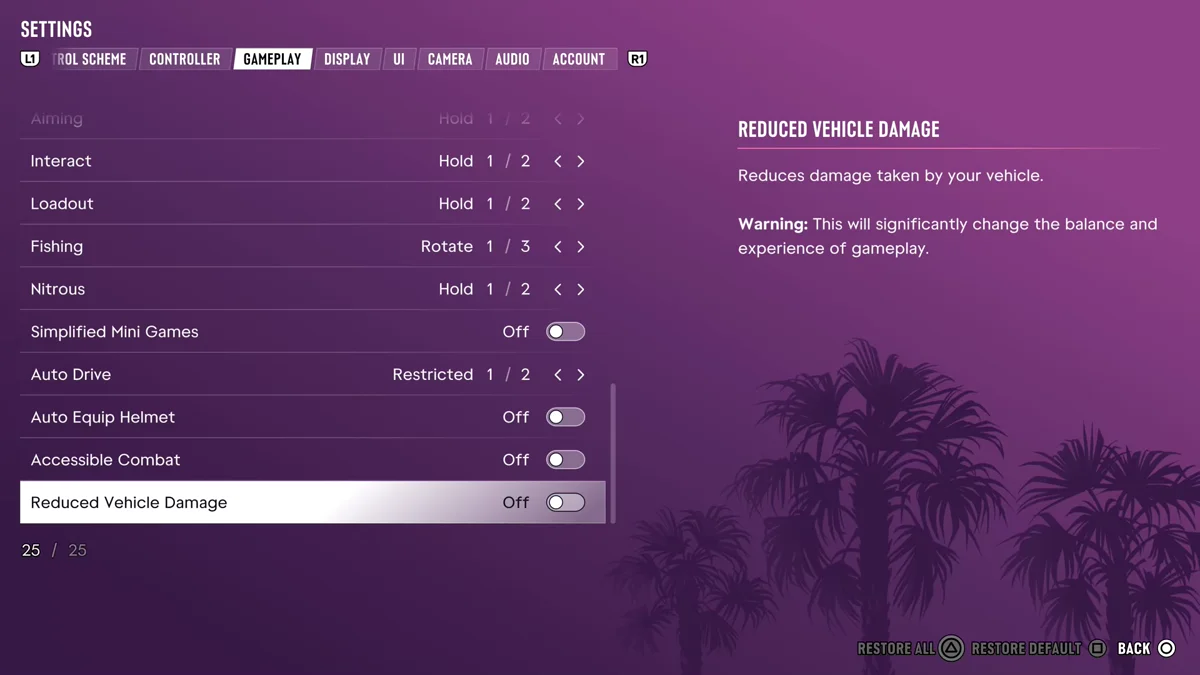
- Scroll to the bottom of the list to Reduced Vehicle Damage, the last of its 25 options.
- Switch it on.
The game describes it as “Reduces damage taken by your vehicle,” with a warning that it “will significantly change the balance and experience of gameplay.” It was off on ours. Its description only talks about damage, so think of it as protection for your car in crashes rather than help with steering.
Our guide to difficulty settings covers the other assist on that list, Accessible Combat.
Let the Game or Your Partner Drive
The easiest drive is one you don’t do yourself. Two options take the wheel:
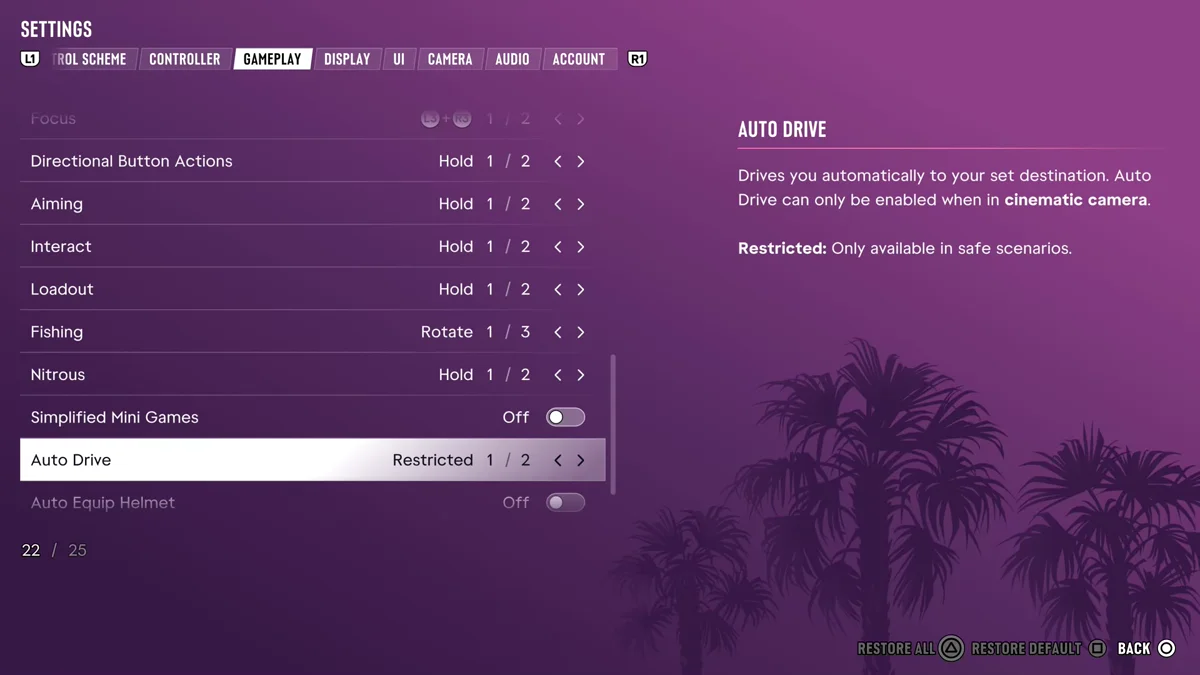
- Auto Drive. Hold Down on the D-pad in a car and press Options to switch to the cinematic camera, then hold Circle to Enable Auto Drive. L2 and R2 change its speed. The Gameplay settings describe it as “Drives you automatically to your set destination,” so set a waypoint if you want it to take you somewhere; it drives the car with or without one. Our guide to auto drive has the full steps.
- Your partner. Hold Right on the D-pad next to your car with your partner and choose You Drive, and Jason or Lucia takes over. Our guide to giving orders to your partner covers it.
Auto Drive has a setting of its own, also on the Gameplay tab. Ours was set to Restricted, which the game explains as “Only available in safe scenarios,” so expect it to be unavailable when things aren’t safe.
For trips across the map, a taxi or a ride booked in the RydeMe app saves you the drive entirely. Our guides to taking a taxi, RydeMe and fast travel explain how.
Adjust the Driving Camera
A camera that suits you makes corners easier to read. There are two places to change it:
- In the car, hold Down on the D-pad to open the camera menu and press Square to cycle through Camera 1, 2 and 3.
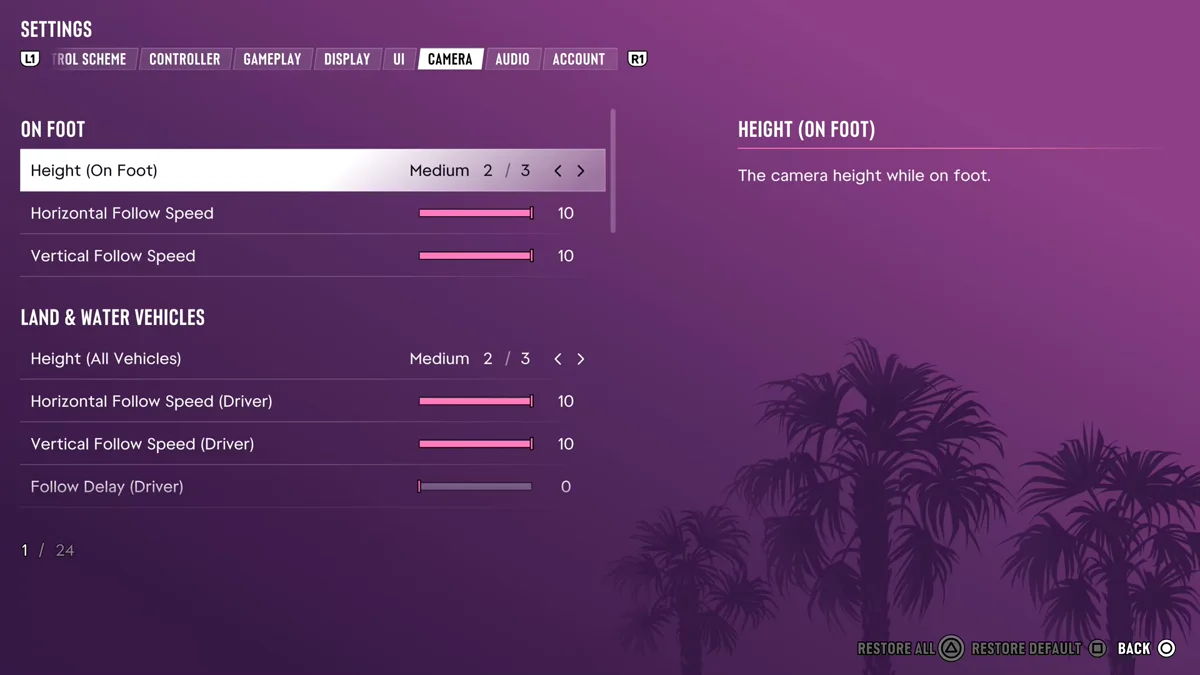
- In Settings, go to the Camera tab. Under Land and Water Vehicles you’ll find Height (All Vehicles), which was on Medium (2 of 3) on ours, plus Horizontal Follow Speed (Driver), Vertical Follow Speed (Driver) and Follow Delay (Driver). Ours sat at 10, 10 and 0.
Try one change at a time on a quiet road so you can feel the difference. Our guide to changing the camera view covers the camera menu, and our guide to first person explains where that view fits in.
Pick a Car That Handles Well
Cars don’t all drive the same, and the game rates each one. In a mod shop’s menu, every car has a stat panel: Speed, Acceleration, Asphalt Handling, Off-Road Handling and Strength. Lucia’s ’77 Manana, for example, read 3.7 for speed, 3.6 for acceleration, 3.4 for asphalt handling, 3.2 for off-road handling and 3.0 for strength.
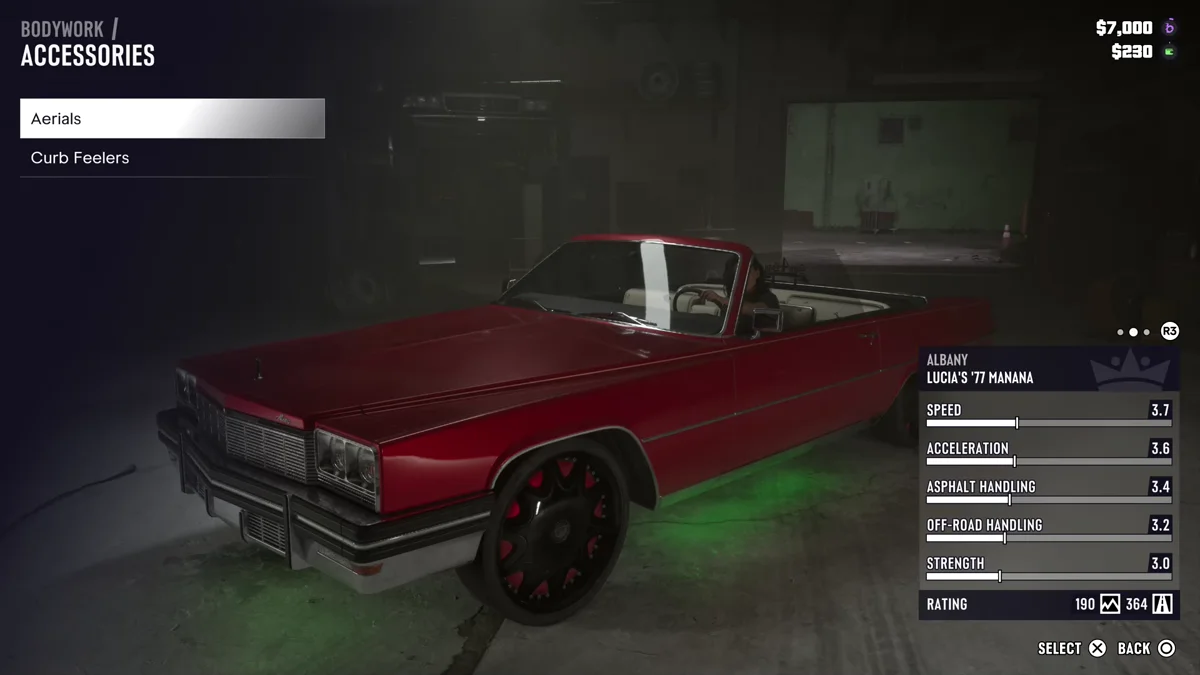
- Asphalt Handling is the one to watch for city driving.
- Off-Road Handling matters if you cut through the swamps and scrub, which the game itself suggests when you’re losing the police (“Try going off-road or along back streets”). Our guide to losing your wanted level has the rest of that advice.
- Performance upgrades raise the numbers. An Engine Upgrade Stage 1 added 0.3 to both speed and acceleration on Jason’s ’70 Ganado, as our guide to upgrading your car shows.
Once you find a car you like, keep it. Our guides to registering cars and calling your car show how.
Driving Habits That Help
- Brake early. L2 brakes and, held after you stop, reverses. Slow down before a corner, not in it.
- Save the handbrake for tight turns. Cross is the handbrake. Use it for hairpins and sharp junctions rather than fast bends. Our guide to drifting shows how to use it on purpose.
- Use nitro on straights. Nitro sits on L3, and the Gameplay settings let you choose whether you hold or press it. See our guide to nitro boost.
- Repair between jobs. A Pay ‘n’ Spray or a gas station fixes the damage, as our guide to repairing your car explains.
- Watch the fuel. A car with an empty tank stops, as our guide to the fuel system covers.
If your thumbs still reach for GTA 5’s on-foot buttons, our guide to classic controls covers the scheme closer to GTA 5’s layout for running, jumping and melee.
Frequently Asked Questions
Why is driving so hard in GTA 6?
Rockstar rebuilt the handling to keep some of GTA 4’s weight, and the streets are narrower with denser traffic. Rob Nelson told IGN the result “requires a bit of skill.”
Does GTA 6 have a driving assist?
Yes. Reduced Vehicle Damage, at the bottom of the Gameplay settings, cuts the damage your vehicle takes. Auto Drive, in the cinematic camera, drives you to your destination.
Can you turn off car damage in GTA 6?
Not completely, but Reduced Vehicle Damage in the Gameplay settings cuts the damage your vehicle takes.
How do you let the car drive itself in GTA 6?
Switch to the cinematic camera (hold Down on the D-pad, then press Options) and hold Circle to Enable Auto Drive. Set a waypoint if you want it to take you somewhere, though it drives the car with or without one.
Which cars handle best in GTA 6?
Check the stat panel in a mod shop’s menu. Asphalt Handling rates a car on the road, and Off-Road Handling rates it on dirt and grass.