
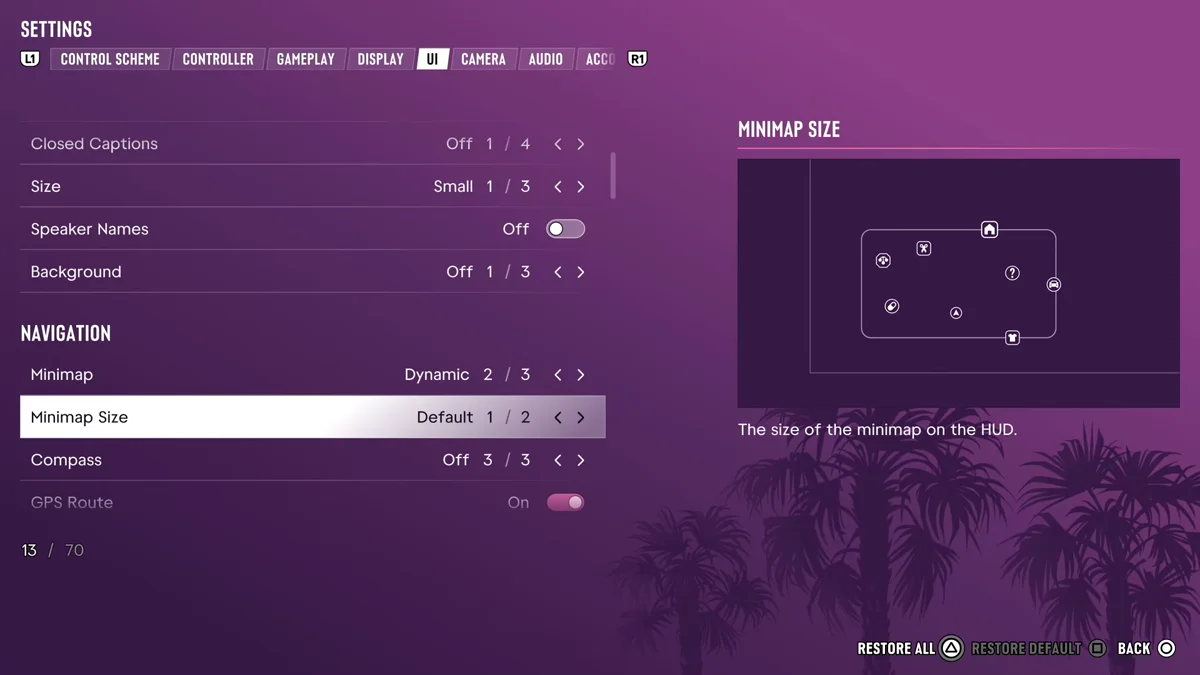
To make the minimap bigger in GTA 6, press Options, select Settings, press R1 until you reach the UI tab, scroll down to the Navigation section and switch Minimap Size from Default to its other setting. The game describes it simply as “The size of the minimap on the HUD,” and it only has two settings, so there’s just one way to go.
If your problem is that the minimap keeps disappearing rather than that it’s small, that’s a different option, right above it. We went through the UI tab on our PS5 copy of Grand Theft Auto VI on launch night, and the screenshots in this guide are from our own PS5 recording.
How to Change the Minimap Size
- Press Options to open the pause menu, and select Settings.
- Press R1 until you reach the UI tab. It comes after Control Scheme, Controller, Gameplay and Display.
- Scroll down past Scaling & Readability and Subtitles & Captions until you reach the Navigation heading.
- Highlight Minimap Size, the second row under Navigation, and switch it from Default to the other setting.
On our copy it started on Default, shown as 1 of 2. The preview picture beside it shows the minimap frame with a ring of icons around it, which is a quick way to tell you’re on the right row.
Why the Minimap Keeps Disappearing
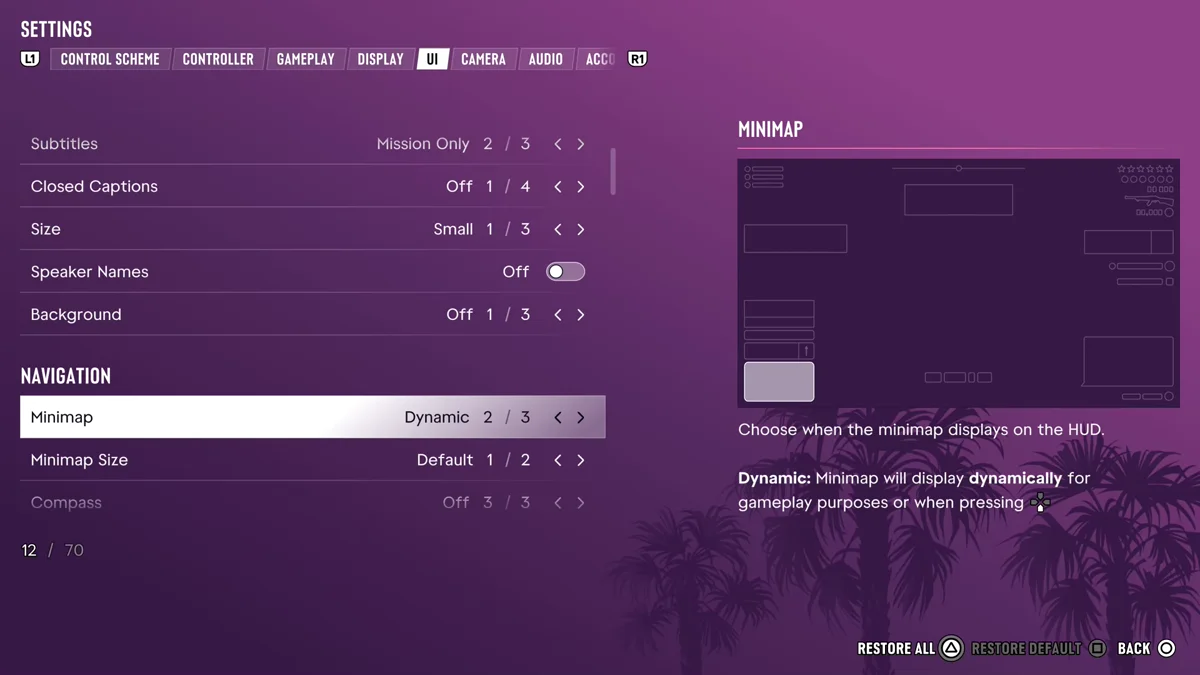
The row directly above, Minimap, decides when the map is on screen at all. Ours was on Dynamic, the second of three settings, and the game explains it: “Choose when the minimap displays on the HUD. Dynamic: Minimap will display dynamically for gameplay purposes or when pressing” Down on the D-pad.
So on Dynamic, the map hides itself whenever the game decides you don’t need it. Press Down on the D-pad to bring it back for a moment, or move the Minimap row to another of its three settings if you’d rather keep it up. The Control Scheme screen lists Objective / Minimap on the D-pad too, so that button is the one to remember.
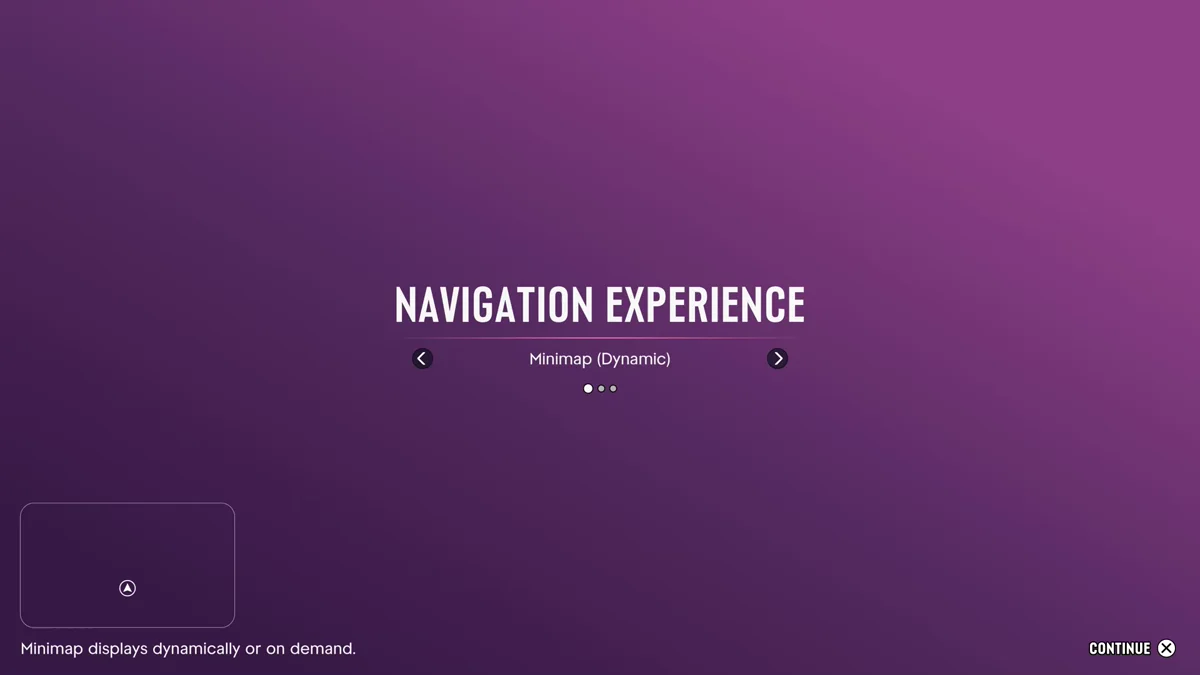
You may already have made this choice once without noticing. The first time you start the game, a Navigation Experience screen asks how you want to get around. On our copy its first two choices read Minimap (Dynamic), “Minimap displays dynamically or on demand,” and Minimap & Compass (Dynamic), “Compass and minimap display dynamically or on demand.” The third keeps the minimap on screen all the time. Whatever you picked there, the Minimap row in Settings changes it later.
Make the Icons Bigger Instead
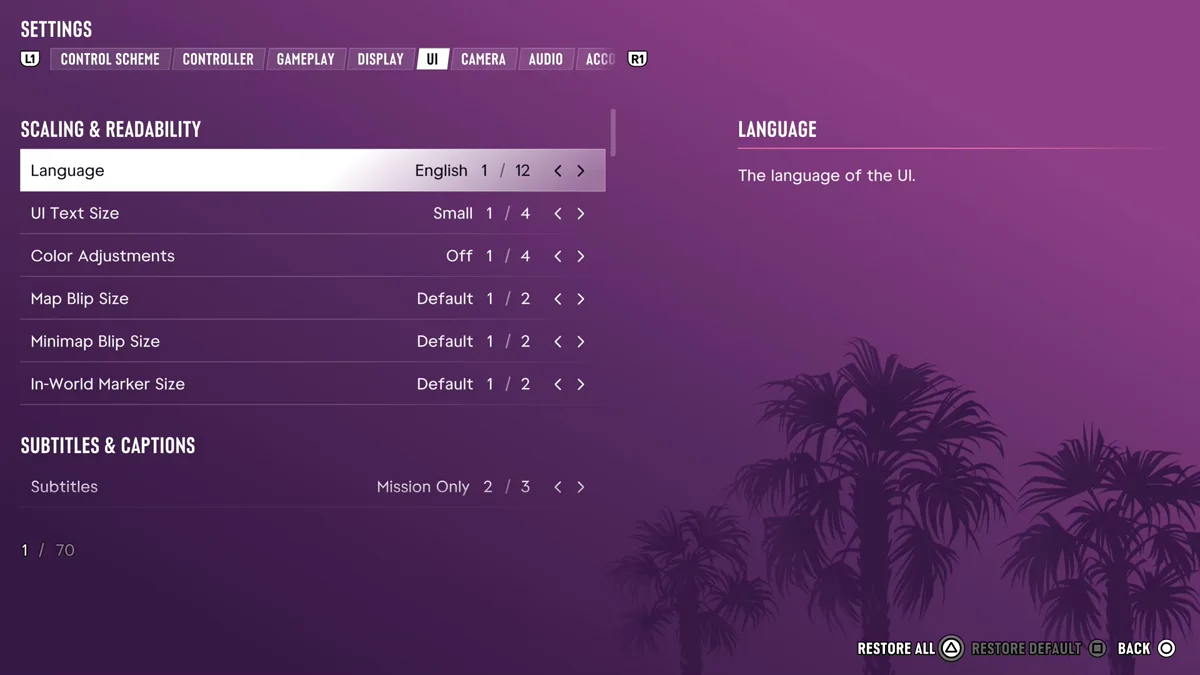
If the minimap is a fine size but the icons on it are hard to read, look at the very top of the UI tab. Under Scaling & Readability, Map Blip Size and Minimap Blip Size both started on Default (1 of 2) on our copy. Map blips are the icons on the full map, and minimap blips are the ones in the corner, so the second is the one for this job. UI Text Size sits in the same section; ours started on Small, the first of four.
The Compass and Other Navigation Settings
The rest of the Navigation section decides how much help you get on screen:
- Compass: “Choose when the compass displays on the HUD. The compass can be used to support the minimap or as an alternate method of navigation.” Ours was Off, the third of three settings, which the game says means it “will never display.”
- GPS Route and GPS Turn Indicators: both On on our copy.
- In-World Markers, Door Markers and Interaction Markers: all On. Door Markers, in the game’s words, “Displays a marker on any interior or exterior door that can be opened.”
- Altimeter: On.
If you change too much, Restore All on Triangle puts every setting back to where it started.
Related Settings
Our guide to the best settings for GTA 6 goes through every tab, and our guide to turning off the vignette covers the Display tab’s screen-edge effects. For the full-size map, our guide to the map index and icons explains what each icon means, and our subtitles guide covers the rows between Scaling & Readability and Navigation. Every GTA 6 guide is on our GTA 6 hub.
Frequently Asked Questions
Can you make the minimap bigger in GTA 6? Yes. Go to Settings, then the UI tab, and switch Minimap Size under Navigation from Default to its other setting.
Why does my minimap keep disappearing in GTA 6? The Minimap row is probably on Dynamic, which hides the map when the game thinks you don’t need it. Press Down on the D-pad to show it, or change the Minimap row in Settings > UI.
How do you make the map icons bigger in GTA 6? Use Map Blip Size and Minimap Blip Size at the top of Settings > UI, under Scaling & Readability.
How do you turn on the compass in GTA 6? Change the Compass row in Settings > UI > Navigation. It started on Off on our copy.